This is an old revision of the document!
PSP (PlayStation Portable)
The PSP is a handheld console launched by Sony first in Japan in December 2004, and in the rest of the world in 2005. It's been fairly successful in Japan, but struggled against the Nintendo DS in America and Europe.
That said, many games on the PSP are of high interest, even nowadays and especially when you use emulator features like upscaling and HD textures replacement.
The PSP emulator shipped with Batocera is PPSSPP and it's an incredibly performant piece of software. Most PSP games run at full speed on a Raspberry Pi4 or an Odroid Go Advance or Super.
PSP Upscaling and enhancements
One of the best features of PPSSPP is its ability to enhance the visual quality of PSP games. It's particularly interesting for 3D models, but even 2D fonts and textures can be enhanced through HD textures replacement (see the chapter below).
From the Batocera EmulationStation menu, you can enable several enhancement by entering the ADVANCED GAME OPTIONS menu:
- Video Resolution: to improve 3D modeling
- Frame Skip: skip frames to improve performance (but a less smooth experience)
- Textures Upscaling: automatically upscale textures for 3D models
- Texture Enhancement: scales up a nearest-neighbor version of a texture
- Texture Deposterize: fix an artifact causing bands to appear on the textures
- Anisotropic Filtering: enhance the quality with perspective on texture
PSP Textures Packs
You can replace the original textures from a PSP game with High Definition versions, in order to make it look better, especially when playing on a large screen with Batocera.
PSP texture packs can be easily found online, and a good starting point could be this thread on PPSSPP forums.
How to replace textures?
1. Create the saves directory for the game you want to replace the textures from. The easiest way is to launch the PSP game as usual, and save it from Batocera (<hotkey>+<west>). It will create a saves directory path in /userdata/saves/psp/PSP/. If you are using HD textures for the first time, you need to create a sub-folder TEXTURES as /userdata/saves/psp/PSP/TEXTURES/.
2. We now need to dump some of the original textures from the PPSSPP emulator. Once you are in the game, press <hotkey>+<south> to open the main PPSSPP emulator menu.
- Go to Settings → Tools → Developer Tools.
- Then, in the Developer menu, go to the Texture Replacement section at the end of the menu, make sure that Replace textures is ticked, and tick also Save new textures.
- Get back to the game, and play a little bit to let the emulator dump the textures on the SD card/hard drive. The gameplay might be lagging a bit, this is expected because of the texture dump.
- Once a few texture files have been dumped, you need to come back to the PPSSPP Emulator menu with
<hotkey>+<south»and unset the Save new textures option that you set up earlier. But make sure you keep Replace textures on!
3. You now have a directory created in /userdata/saves/psp/PSP/TEXTURES with a codename for the game you played. For example, with my version of Wipeout Pure, the directory that was created is named UCES00001. Inside this directory you'll find a sub-directory called new with a bunch of .png files, corresponding to the first textures that have been dumped. We won't use them, we will replace them with the enhanced texture pack that you downloaded.
4. Unzip the texture pack you downloaded for this game. A texture pack comes with a textures.ini file that describes all the textures that will be replaced in the game. You can check that it corresponds to the game you have, usually the codename of the game is referenced in the textures.ini file.
5. Once you have unzipped everything you can remove the new directory that you dumped previously, it won't be used any more. Im my example, the resulting files are:
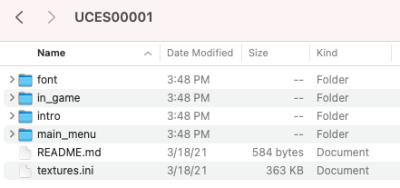
6. Now, it's time to launch your game through PPSSPP again… and enjoy beautiful textures for a much more modern look!
Notes
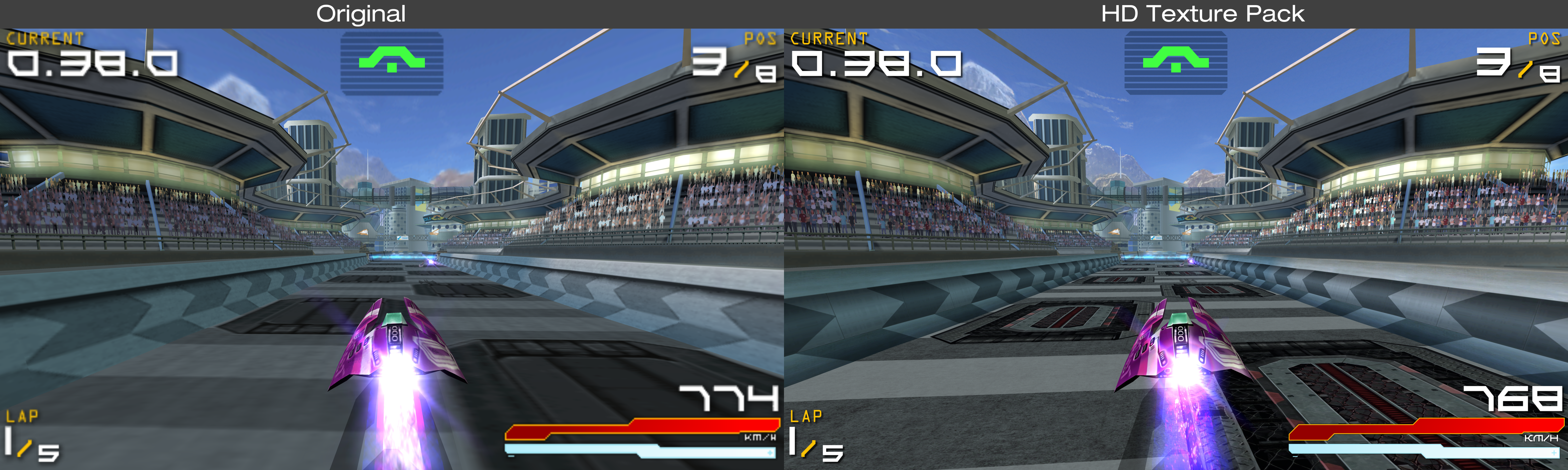
Texture packs are pretty heavy! That actually is the largest component in modern video games, and that explains why games went from being a few kilobytes to several gigabytes by today's standards. That said, some PSP games, when upscaled to HD or 4K with the right texture packs look absolutely gorgeous. It's a pleasure to rediscover some of your favorite games with a higher standard.
See below the difference it can make, click on the thumbnail below to actually see the details in the new texture pack.
PSP Original Fonts
PPSSPP uses different fonts that the original PSP font from Sony. Some games rely on the system fonts, not on fonts embedded in the game, and it can provide visual artifacts, or even some words completely missing, like in the example picture here.
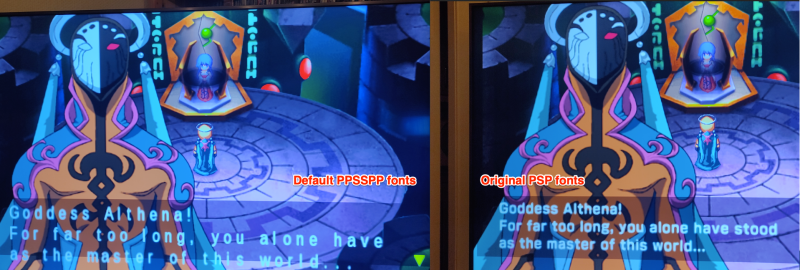
If you have access to Sony's fonts (from your PSP firmware or through a set of files), you need to:
- Replace all the files in
/usr/share/ppsspp/PPSSPP/flash0/fontwith Sony's files. Overwrite all theltn*.pgf,jpn0.pgfandkrn0.pgfexisting files, and put the additional ones in this folder. - Do a
batocera-save-overlayfrom the console or SSH to keep these files saved upon reboot (they are in the system folder, not in/userdata/).
Once this is done, you should have the new original PSP fonts on screen, like on the right picture above.
No system font when using libretro-ppsspp core?
The system fonts, that you can see when saving/loading data are working with PPSSPP standalone, but not the libretro-ppsspp core? That's a known issue and there is a workaround for it:
- If your
/userdatafile system supports symbolic links (ext4 the default filesystem or btrfs), you can log into Batocera through SSH and typeln -sf /usr/share/ppsspp/PPSSPP /userdata/bios/ - If you don't know if your
/userdatafile system supports symbolic links or not, you can just make a copy of the files once you are logged with SSH withcp -af /usr/share/ppsspp/PPSSPP /userdata/bios/This copy method works in all cases.
- systems/psp.1632100240.txt.gz
- Last modified: 5 years ago
- by lbrpdx