This is an old revision of the document!

Sony PlayStation 3
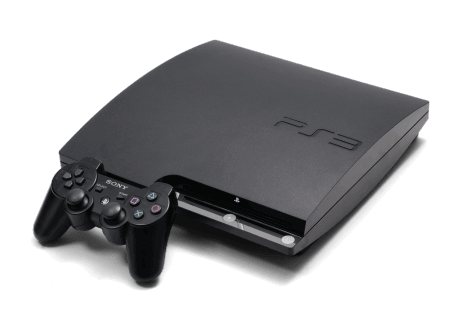
The PlayStation 3 is a home console developed by Sony. It was released in 2006.
PS3 emulation is only available on x86_64 (i.e. not on Raspberry Pi, Odroid or other SBCs).
This system scrapes metadata for the ps3 group and loads the ps3 set from the currently selected theme, if available.
Quick reference
- Emulator: rpcs3
- Folder:
/userdata/roms/ps3 - Accepted ROM formats:
.psn.squashfs - Accepted folder extensions:
.ps3
BIOS
| MD5 checksum | Share file path | Description |
|---|---|---|
a0b63a3e4ae92ed176d6b9a67ce447f0 | bios/PS3UPDAT.PUP | PS3 firmware file |
Sony distributes this firmware on their website for installing onto your PlayStation 3; no link can be provided but it's easy enough to find by using a search engine.
PS3UPDAT.PUP is still updated to this day. The MD5 shown here may be for an older firmware, check the MISSING BIOS tool to check the MD5 for your current installation of Batocera.
ROMs
Add other formats.
PlayStation 3 ROMs can come in many formats, disc-based, PSN and that other one. Installation differs depending on format.
Disc-based game folder
Batocera accepts these kinds of PS3 games in the following folder structure:
roms/ps3/
     └─ Game name.ps3/
        ├─ PS3_GAME/
        │  ├─ LICDIR/
        │  ├─ TROPDIR/ (trophy data)
        │  ├─ USRDIR/ (the main game data)
        │  ├─ ICON0.PNG
        │  ├─ PARAM.SFO
        │  ├─ PIC0.PNG
        │  ├─ PS3LOGO.DAT
        │  └─ (various other metadata files)
        ├─ PS3_UPDATE/ (built-in firmware update, if applicable)
        └─ PS3_DISC.SFB
SquashFS folder compression
From Batocera v33 and higher, you can losslessly compress PS3 game folders as SquashFS images and still have RPCS3 read them as if though they weren't compressed at all!
To do so, open up SSH and run the following commands on your already installed disc-based game:
cd /userdata/roms/ps3
mksquashfs "<game name>.<folder extension>" "<game name>.<folder extension>.squashfs"
For example:
cd /userdata/roms/ps3
mksquashfs "little big planet.ps3" "little big planet.ps3.squashfs"
Digital PSN games
PSN games were originally downloaded from the online store and installed onto the hard-drive. Because they are not disc-based games, some manual action is required:
- On the system list, press
[F1]on the keyboard and click on Applications in the left sidebar. - Open
rpcs3-config. - Click on
 .
. - Navigate to and install the PSN game's PKG files ( wtf is a PKG file?) (this may take a while).
- Once that's complete, exit out by pressing
[Ctrl]+[Q]. - In the file browser, click on Share and navigate to
roms/ps3. - Create a new text file titled after the game's name followed by the
.psnextension. For instance,Scott Pilgrim vs. the World.psn. - Open this as a text document and enter the game's ID code in a sinle line. For instance,
NPUB30162.
Here's an example text file (which can be downloaded) that can be placed in rom/ps3:
- Scott Pilgrim vs. the World.psn
NPUB30162
The resulting folder structure would look like this:
roms/ps3/
     └─ Game name.psn
and the PSN game itself is installed in a mysterious place no-one knows about…
Emulators
RPCS3
RPCS3 configuration
Standardized features available to all cores of this emulator: ps3.videomode
ES setting name batocera.conf key | Description » ES option key value |
|---|---|
GRAPHICAL USER INTERFACE ps3.gui | Display the user interface » Off 0, On 1. |
GRAPHICS BACKEND ps3.gfxbackend | Choose your graphics rendering » OpenGL OpenGL, Vulkan Vulkan. |
SPU DECODER ps3.spudecoder | LLVM used by default. Use ASMJIT if game crashes; then Interpreter (fast) if still crashing. ⇒ Recompiler (LLVM) Recompiler (LLVM), Recompiler (ASMJIT) Recompiler (ASMJIT), Interpreter (fast) Interpreter (fast), Interpreter (precise) Interpreter (precise). |
First RPCS3 run
The emulator used is RPCS3, the PS3 opensource emulator. It requires more resources than older systems, benefiting from a decent CPU and a Vulkan-capable GPU for hardware acceleration. Games won't run correctly if you don't have GPU acceleration, please refer to RPCS3's hardware recommendations on their website.
When RPCS3 is run for the first time (just attempt to launch any game from ES), it will ask to install the provided firmware from the BIOS folder (userdata/bios/PS3UPDAT.PUP). Do so. This may take a while, grab a cup of tea while you wait. When it's done, simply exit the program (File → Exit or [Ctrl] + [Q]) and launch a game again. This will need to be done for every new firmware released. This action can also be invoked manually by going to File → Install firmware.
On the first run of each game, RPCS3 will compile PPU modules. This takes a long time, so grab some tea. In all future launches, wait time is dramatically decreased.
Do not launch games directly from RPCS3's interface. Do so from ES. Otherwise you will not have audio.
Game compatibility
You can check the latest PS3 game compatibility from the official list on RPCS3 website.
Controls
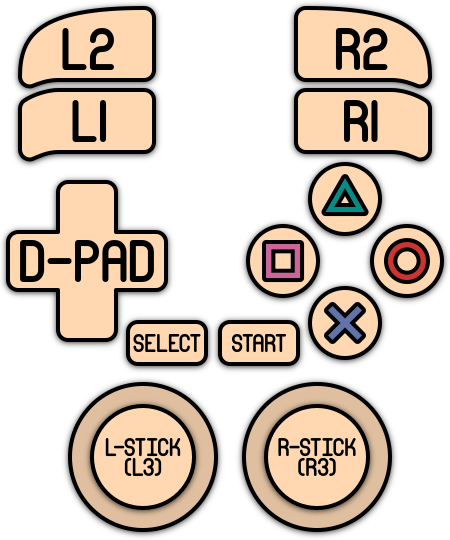
Here are the Sony PlayStation 3's controls shown on a Batocera Retropad:
Troubleshooting
For further troubleshooting, refer to the generic support pages.
- systems/ps3.1648122107.txt.gz
- Last modified: 5 years ago
- by atari