This is an old revision of the document!
Using External Storage with Batocera
To enable external storage, follow these steps:
- Open the Main Menu with
[START]and navigate to SYSTEM SETTINGS > STORAGE DEVICE.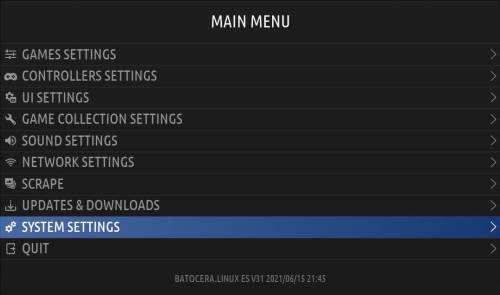
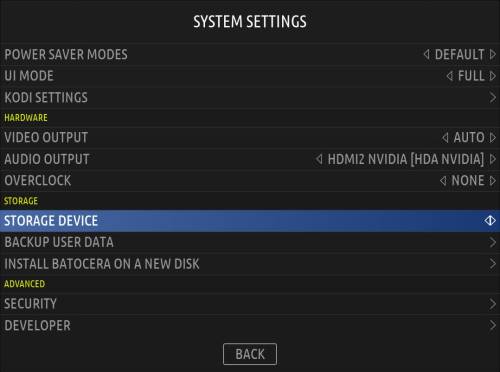
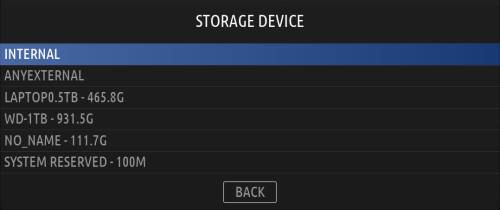
In most cases, using a second USB hard drive to host your ROMs separately from the Batocera system should be completely transparent when this method is used to enable it. According to Batocera, it will just appear as if though the roms folder on your external drive is actually on your /userdata partition. Here's more info on what symlinks are, in case you're curious.
Batocera will automatically create the folder structure it needs on the drive you select.
Batocera has a built-in tools to format drives. BE ULTRA CAREFUL WHEN USING THIS, AS YOU CAN DESTROY ALL DATA WITH IT! You can prepare the drive in the right format by using Main Menu > System Settings > Developer > Format a Disk.
However, when tinkering with the systems, things can go wrong. The following is here to help you troubleshoot and fix those cases.
Manual external storage configuration with batocera-boot.conf
Say you are running Batocera off a USB pendrive (or SD card) but want to host your ROM files on a different hard drive. In that case, you need to edit /boot/batocera-boot.conf in the boot partition and provide the information of the hard drive that hosts your ROMs. The list of UUIDs of all drives connected to the system can be printed with the blkid command. It would output something similar to the following:
  /dev/sdb2: LABEL="SHARE" UUID="12e46ca9-xxxx-xxxx-xxxx-xxxxxxxxxx" TYPE="ext4"
  /dev/sdb1: LABEL="BATOCERA" UUID="zzzz-zzzz" TYPE="vfat"
  /dev/sda1: LABEL="SHARE" UUID="2efa1068-yyyy-yyyy-yyyy-yyyyyyyyyy" TYPE="ext4"
In this example, /dev/sda1 is the partition on the drive hosting my ROM files. /dev/sdb1 is the Batocera boot partition and /dev/sdb2 is the rest of the Batocera USB pendrive (that I don't want to use).
Open the /boot/batocera-boot.conf file. Change the sharedevice to DEV [UUID of the desired partition]. For example:
sharedevice=INTERNAL
would be replaced with
sharedevice=DEV 2efa1068-yyyy-yyyy-yyyy-yyyyyyyyyy
If the drive is empty, the folder structure for the ROM files will be created on next reboot.
If you are using an external hard drive and it is not recognized correctly after doing this, then it might be that your external hard drive needs more time to spin up while Batocera boots. In those cases you have to edit the /boot/batocera-boot.conf file and add the line: sharewait=15 underneath the aforementioned line (if it still does not work, try with a higher number like sharewait=20 for example).
- store_games_on_a_second_usb_sata_drive.1631273175.txt.gz
- Last modified: 5 years ago
- by atari