This is an old revision of the document!
Store games on a NAS
Instead of using the internal storage or an external USB key/hard drive to store your userdata (games, saves, configuration, etc.), you can use a NAS (Network Attached Storage) instead. Of course you can also use your NAS as a backup target for all of your userdata and games for desaster recovery of your Batocera system as described below, just in case of…well…you name it.
Syntax
You will need to replace the sharedevice=INTERNAL line with sharedevice=NETWORK inside batocera-boot.conf. This file is on the boot partition of the Batocera system. If on a removable drive, you can edit it from any computer as it is in a readable FAT32 file system (don't use Windows Notepad).
You can tell if you have successfully done this as the Storage Device in Main Menu > System Settings will be blank! But that could also mean you've entered an invalid entry to sharedevice…
Batocera uses a simpler syntax than standard Linux network mounting. For each network share you'd like to attach, add an additional line below sharedevice beginning with sharenetwork_smb#= (for most Windows Samba shares) or sharenetwork_nfs# (for most Linux Network File System shares) where # is the number of the share from 0-9 (yes, this does mean you're limited to only ten shares per type of share, this limit may be changed in the future). Following this, put in the keyword for the appropriate directory you want to replace in Batocera (as listed below).
There are the pre-defined keywords you can use:
- For the whole user data directory,
SHARE - For the roms directory,
ROMS - For the bios directory,
BIOS - For the saves directory,
SAVES - For custom menu background music,
MUSIC - For custom bezels,
DECORATIONS - For screenshots taken in game or with
batocera-screenshot,SCREENSHOTS - For themes,
THEMES - For cheats databases,
CHEATS - For sounds,
SOUNDS(v32 and above) - For magazine and videos,
LIBRARY - For the boot splash,
SPLASH
You can add any combination of the above (except SHARE as that includes everything) by adding additional lines.
If you map only certain directories to your NAS, Batocera will search the internal storage for the remaining directories.
@[IP-address]:[share-name]/[path/to/directory]:[option1-name]=[option1-value],[option2-name]=[option2-value],[etc.]
Then add the @ symbol, the IP address/hostname of the device with the share, the : character, the name of the share followed by a /, then the path to the directory (using Unix syntax / instead of \), another : character and then any additional options required for the share separated by a comma (,) (guest shares need only :guest as an option, password protected shares need :username=[your-username],password=[your-password]). Syntax:
sharenetwork_[smb-or-nfs][0-9]=[keyword]@[IP-address]:[share-name]/[path/to/directory]:[option1-name]=[option1-value],[option2-name]=[option2-value],[etc.]
Examples below.
If Batocera fails to connect to the network at boot, it will wait approximately one minute retrying to connect before falling back to internal storage.
Samba/Windows share examples
Windows shares can use identification or a guest account to connect.
In the following examples, the Windows CIFS share called Documents has a folder named batocera which contains the folder structure of Batocera's userdata directory. The IP address of the Windows shared server is 192.168.0.1 in this example. If applicable, you can use the hostname of your NAS instead, however this may have issues with particular routers.
The whole user data directory on the NAS
  sharedevice=NETWORK
  sharenetwork_smb1=SHARE@192.168.0.1:Documents/batocera:guest
Only the roms directory on the NAS
  sharedevice=NETWORK
  sharenetwork_smb1=ROMS@192.168.0.1:Documents/batocera/roms:guest
Only the roms directory on the NAS with CIFS authentication
  sharedevice=NETWORK
  sharenetwork_smb1=ROMS@192.168.0.1:Documents/batocera/roms:username=john,password=wayne
The roms, saves and bios directories on the NAS
  sharedevice=NETWORK
  sharenetwork_smb1=ROMS@192.168.0.1:Documents/batocera/roms:guest
  sharenetwork_smb2=SAVES@192.168.0.1:Documents/batocera/saves:guest
  sharenetwork_smb3=BIOS@192.168.0.1:Documents/batocera/bios:guest
Specific SMB version options
In several cases, you need to add SMB options, for instance if you NAS requires a specific CIFS version:
sharenetwork_smb1=ROMS@192.168.0.1:Documents/Batocera/roms:guest,vers=1.0
CIFS version is needed for several NAS vendors:
- when using and Orange Livebox as a NAS, or on Synology (tested on a DS418play), you need
vers=1.0 - if you use OpenMediaVault 5, you need
vers=3.0
In this kind of setup, make sure that:
- you provide the exact name your SMB share on the NAS (
Documents/Batocera/romsin the example above is the path from your NAS export) - you have the right user authentication (
username=john,password=waynein the example above) and, if you use anonymousguestaccess, that you have write access enabled, so that Batocera can write the updated in thegamelist.xmlfiles, and download scraped metadata like thumbnails or video snapshots.
NFS share examples
The whole user data directory on the NAS
  sharedevice=NETWORK
  sharenetwork_nfs1=SHARE@192.168.0.1:/mnt/Documents/batocera
Only the roms directory on the NAS, with a specific NFS version
  sharedevice=NETWORK
  sharenetwork_nfs1=ROMS@192.168.0.1:/mnt/Documents/batocera/roms:vers=4
The roms, saves and bios directories on the NAS
  sharedevice=NETWORK
  sharenetwork_nfs1=ROMS@192.168.0.1:/mnt/Documents/batocera/roms
  sharenetwork_nfs2=SAVES@192.168.0.1:/mnt/Documents/batocera/saves
  sharenetwork_nfs3=BIOS@192.168.0.1:/mnt/Documents/batocera/bios
Advanced
Troubleshooting
Make sure you escape special characters in your CIFS passwords if you have some. To escape a character, put a \ in front of it. To escape a \ itself, use \\.
For troubleshooting purposes, you have /tmp/mountNetwork.log and /tmp/mountNetwork.err that will give you some insights on the mount failures if needed.
Samba/Windows manually mounted shares
It is possible to map individual folders with sharenetwork_cmd# if you are familiar with standard Linux network storage mounting. Examples of mapping other directories via sharenetwork_cmd:
sharenetwork_cmd1=mount.cifs -o guest //192.168.0.1/Documents/batocera/music /userdata/music
sharenetwork_cmd2=mount.cifs -o guest //192.168.0.1/Documents/batocera/cheats /userdata/cheats
sharenetwork_cmd3=mount.cifs -o guest //192.168.0.1/Documents/batocera/screenshots /userdata/screenshots
sharenetwork_cmd4=mount.cifs -o guest //192.168.0.1/Documents/batocera/themes /userdata/themes
This will only work if sharedevice=NETWORK. You can also use this to just mount anything with acceptable bash commands, including folders from local drives, etc.
These will appear as if though they are local to the drive, so keep that in mind when troubleshooting in the future!
NFS and root permissions
Batocera has a unique root user, so all files accessed on the share are from the root user, which can conflict with how your other NFS clients access files.
You should check how the file permissions are declared on your NFS server, but a common way to make sure your file permissions are managed correctly is to map the file rights to the UID of the user that will access these files locally. Typically, if your NFS shares are defined in /etc/exports and you want to give access to a user with UID/GID of 1000, you can make it with:
/media/games/batocera 192.168.0.1(rw,sync,all_squash,anonuid=1000,anongid=1000,no_subtree_check)
Backup your data to a NAS
In this example we will cover how to automatically backup the most important two data folders /userdata (which contains all important (custom) configurations) and /roms (which contains all of your games) of your Batocera system so that in case of emergency you will have all your data in a recoverable state.
Synology NAS example
This tutorial assumes you have already set a static IP address for your Synology NAS on the according LAN interface and a static IP address for your Batocera system. To set a static IP address for your Batocera system it is best to configure it based on your Batocera system's MAC address on your network's DHCP server (mostly your router) as you cannot set a static IP address via the Batocera GUI (yet). Also, for automation purposes, you will need to have at least one (if you have multiple) of your Synology's network interface(s) within the same Layer 2 network subnet as your Batocera system and your Batocera system has to be Wake on LAN (WoL) capable.
For this tutorial you will need to enable the following services on your Synology NAS via the Synology DSM web GUI as follows:
- SMB → Navigate to
Control Panel→File Services→SMB→ CheckEnable SMB service:
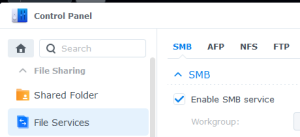
- rsync → Navigate to
Control Panel→File Services→rsync→ CheckEnable rsync serviceand forSSH encryption port:set the value22:
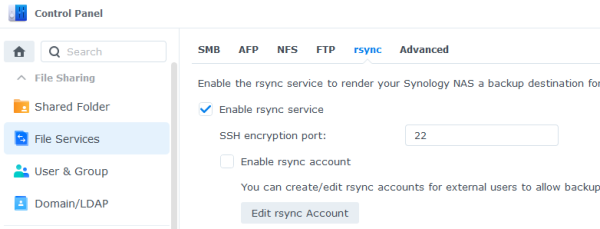
- SSH → Navigate to
Control Panel→Terminal & SNMP→ CheckEnable SSH serviceand forPort:set the value22:
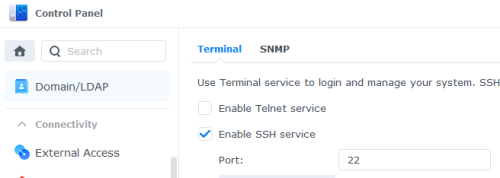


You don't have to worry if you are already using port 22 for default SSH encrypted connections, its functionality will not be interferred/disrupted in any way!
Next, you will need to create a user (standard local user without administrative privileges) for backup purposes on your Synology NAS. For this tutorial we will name the user backup.
Next, you will need to create a shared folder where your Batocera data can be stored to. For this tutorial we will name the shared folder batoceraBackup. You have to set read/write permissions on that shared folder for the specific user you have created before:

Next, you will need to create a firewall rule on your Synology NAS so that your Batocera system can send its data over the network to the Synology NAS. The rule must allow the following two services:
Windows file serverEncrypted terminal service (includes encrypted rsync and SFTP)
In addition it is also strongly(!) recommended to limit the firewall rule to allow only the static IP address of your Batocera system:

Now SSH into your Batocera system and execute the following command to create a custom scripts folder:
mkdir -p /userdata/scripts
On the following steps we will cover on how to create three scripts here:
romsBackup.sh→ Which will backup your/romsfolder.userdataBackup.sh→ Which will backup your/userdatafolder.systemBackup.sh→ Which will only execute the two scriptsromsBackup.shanduserdataBackup.sh.
We are separating the first two scripts instead of putting them in a single script so you can execute them manually whenever you want to, indepented from the automation steps we are covering below. The third script is exactly for those automation steps.
Beware: The –delete option within the following two scripts romsBackup.sh and userdataBackup.sh does delete every file on the target side which is not available on the source side. We are using this option due to keep the target side consistent with the source side (for example if you have deleted some games on the source side and you want them being deleted on the target side too). If you don't want this to happen then just remove the –delete option on both scripts!
Now create the following script file:
nano /userdata/scripts/romsBackup.sh
And paste the following content (replace <your_password> with the according backup user its user password and <Synology_NAS_IP_address> with the static IP address of your Synology NAS):
#!/bin/sh
USER=backup
PASS=<your_password>
SHARE=//<Synology_NAS_IP_address>/batoceraBackup
MOUNT_POINT=/tmp/tempMountFolder
mkdir -p "$MOUNT_POINT"
mount -t cifs -o username="$USER",password="$PASS" "$SHARE" "$MOUNT_POINT"
rsync -Pav --delete -e ssh /userdata/roms "$MOUNT_POINT"
cd /tmp
umount -f "$MOUNT_POINT"
exit 0
Save the file and quit the editor.
Now create the following script file:
nano /userdata/scripts/userdataBackup.sh
And paste the following content (replace <your_password> with the according backup user its user password and <Synology_NAS_IP_address> with the static IP address of your Synology NAS):
#!/bin/sh
USER=backup
PASS=<your_password>
SHARE=//<Synology_NAS_IP_address>/batoceraBackup
MOUNT_POINT=/tmp/tempMountFolder
mkdir -p "$MOUNT_POINT"
mount -t cifs -o username="$USER",password="$PASS" "$SHARE" "$MOUNT_POINT"
cd "$MOUNT_POINT"
tar cfv "$MOUNT_POINT"/batoceraBackup.tar /userdata --exclude=roms --exclude=saves/flatpak
rm -rf ./batoceraBackup.tar
cd /tmp
umount -f "$MOUNT_POINT"
exit 0
Save the file and quit the editor.
Now create the following script file:
nano /userdata/scripts/systemBackup.sh
And paste the following content:
#!/bin/sh
/userdata/scripts/romsBackup.sh
/userdata/scripts/userdataBackup.sh
shutdown -h now
Save the file and quit the editor.
Now make all three scripts executable by executing:
chmod +x /userdata/scripts/*.sh
Now let's do the automation part:
SSH with user root into your Synology NAS (Unfortunately you have to use a Synology user which is part of the administrators group, otherwise SSH access will be declined. To avoid any permission issues, we will user root here.). Then execute the following commands (replace <Batocera_IP_address> with the static IP address of your Batocera system):
ssh-keygen
cat ~/.ssh/id_rsa.pub | ssh root@<Batocera_IP_address> 'cat >> /userdata/system/ssh/authorized_keys'
Insert the Batocera root user's password (Default password: linux).
Now go back to the Synology DSM web GUI and create the according automation task:
Navigate to Control Panel → Task Scheduler → Create → Scheduled Task → User-defined script → General: For Task insert a custom task name (e.g. batoceraBackup) and for user choose root → Schedule: Configure a desired custom schedule → Task Settings: For User-defined script insert the following (replace <Batocera_MAC_address> with the according MAC address of your Batocera system and <Synology_network_interface> with the according network interface name through which you want to send the magic packet to (the one which is within the same Layer 2 subnet as your Batocera system, e.g. eth0):
If your Synology NAS does have multiple network interfaces, to find out which network interface name you have to take, from Synology DSM web GUI navigate to: Control Panel → Info Center → Network. All of the available network interfaces are listed here with all the unique network/subnet informations. LAN1 is always eth0, LAN2 is always eth1, LAN 3 is always eth2, etc.)
If your Batocera system takes longe than 30 seconds to boot up, feel free to increase the sleep variable to whatever value you think does fit the real boot time of your Batocera system.
#!/bin/sh
sudo synonet --wake <Batocera_MAC_address> <Synology_network_interface>
sleep 30
ssh root@<Batocera_IP_address> sh ../scripts/systemBackup.sh
Confirm by clicking on OK.
That's it! Your scheduled backup automation should work now.
- store_games_on_a_nas.1642890212.txt.gz
- Last modified: 5 years ago
- by grandmabetty