This is an old revision of the document!
Run Batocera in a Virtual Machine
Running Batocera in a virtual machine is not officially supported, nor will it be an accurate representation of how it will behave, but it can be useful for quickly testing custom images or UI changes.
Except massive performance deficits compared to bare-metal installation. Virtual Machines don't take kindly to newer/modern graphics APIs and standards.
Oracle VirtualBox
- Install Oracle's VirtualBox.
- Install the VirtualBox #.#.# Oracle VM VirtualBox Extension Pack (a.k.a. “Guest Additions”) too.
If you need further help with installing VirtualBox, refer to their helpful user manual
- Convert the Batocera IMG file to a VDI using the command line (
[Win]+[R], then typecmd). For example, for the default VirtualBox installation using Batocera v33 beta:"C:\Program Files\Oracle\VirtualBox\VBoxManage.exe" convertdd C:\batocera-x86_64-33-20211108.img C:\batocera-x86_64-33-20211108.vdi
- Resize it to be larger, can also be done via command line. For example, to create an image that's 20GB in physical size:
"C:\Program Files\Oracle\VirtualBox\VBoxManage.exe" modifyhd "C:\batocera-x86_64-33-20211108.vdi” --resize 20000
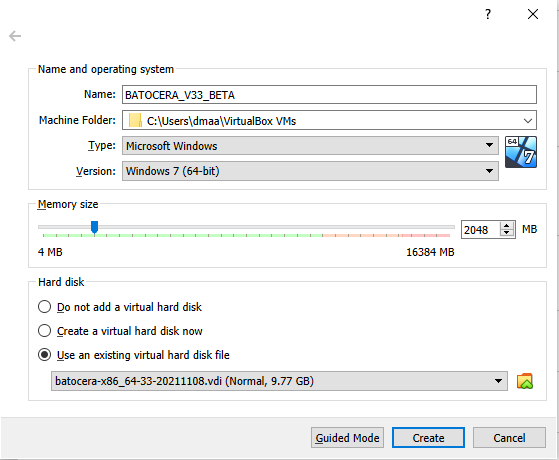
- Run VirtualBox proper and create a new VM and select “Expert Mode”.
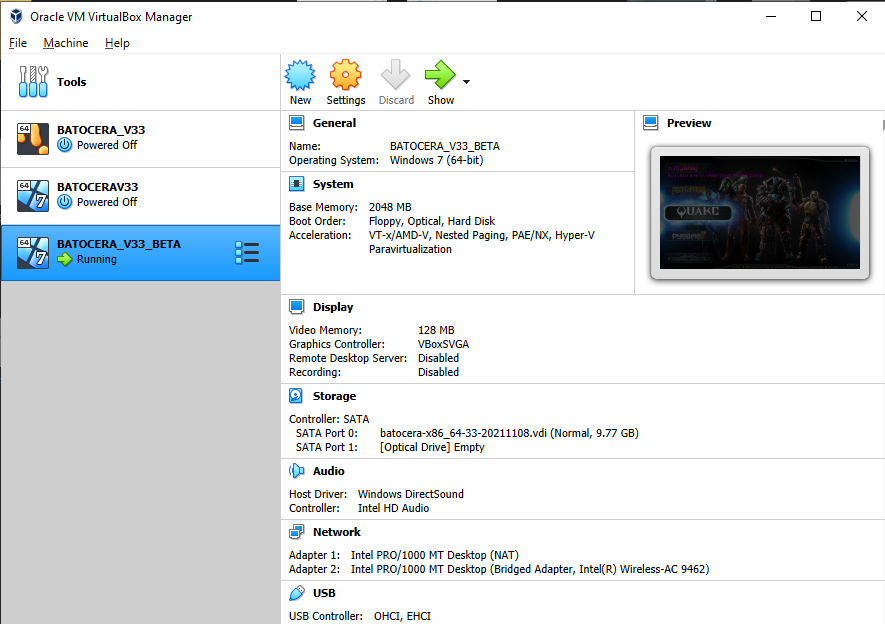
- Set the type “Microsoft Windows” and version to “Windows 7 (64bits)”; (It's just a label for predefined setup, maybe linux or oracle will be better for you, but try this one first)
- Set available RAM to at least 2GB (2048MB);
- Use the Batocera VDI file created earlier:
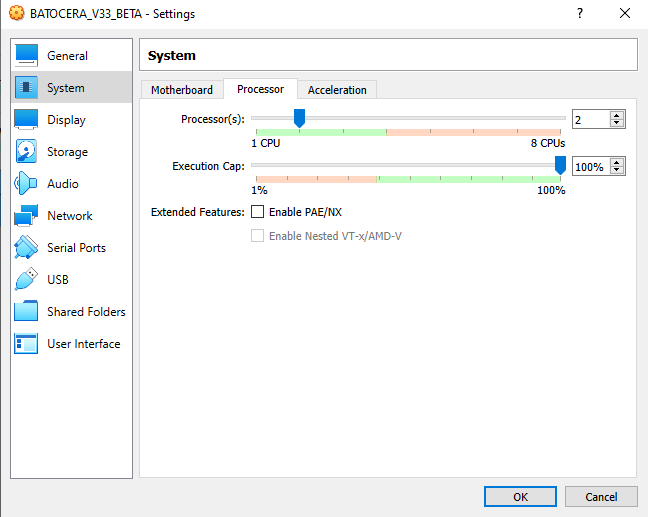
- Once the VM has been created, adjust its settings like so:
- Processor: Processors: “2”. A higher setting might provide better performance, but try to stay within the green range for your computer. For host computers that only have two cores, use “1” here. Execution Cap: 100%.
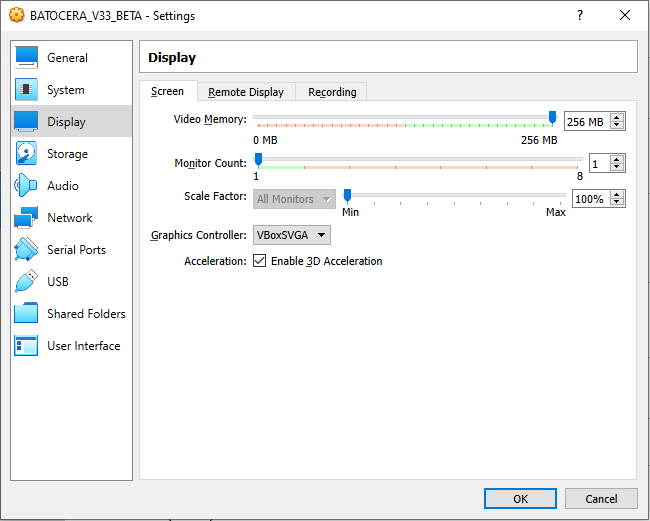
- Display: Acceleration: Tick “Enable 3D Acceleration”. Video Memory: As high as you can go, “256MB” works fine.
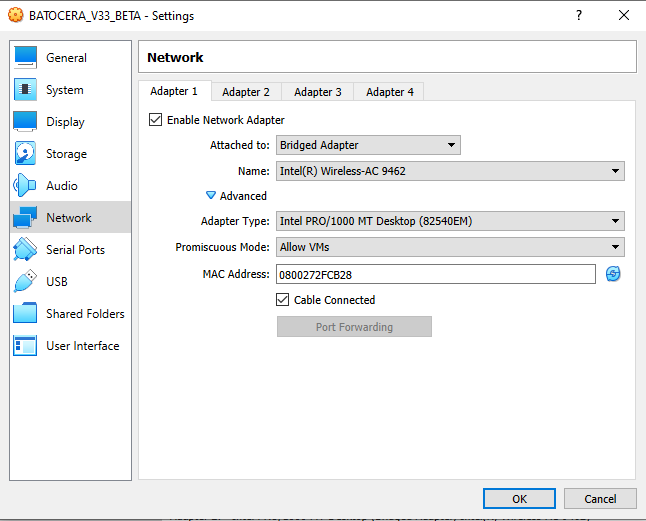
- Network: Adapter 02: Tick “Enable Network”. Attached to: “Bridge Adapter”. Promiscuous mode: “Allow VMs”
- USB: Add desired devices (such as controllers, Bluetooth dongles, etc.) to the list:
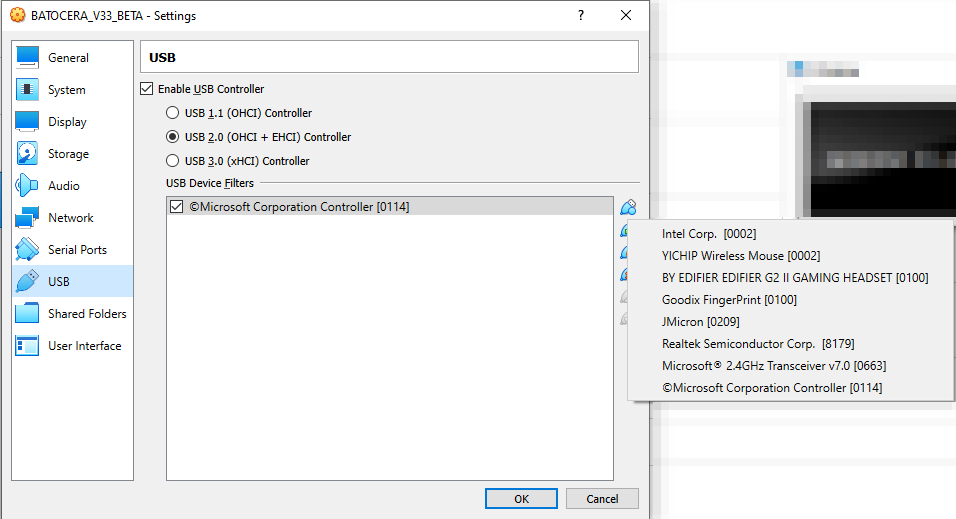
Peripherals that the VM automatically forwards through such as mouse, keyboard and network cards are not necessary to add here.
- If AUTO Audio and AUTO Video didn't work, change the following settings within Batocera:
- SYSTEM SETTINGS → VIDEO OUTPUT to “VIRTUAL-1”,
- AUDIO OUTPUT to “ALSA_OUTPUT_PCI.STEREO” and
- AUDIO PROFILE to “PRO_AUDIO”.
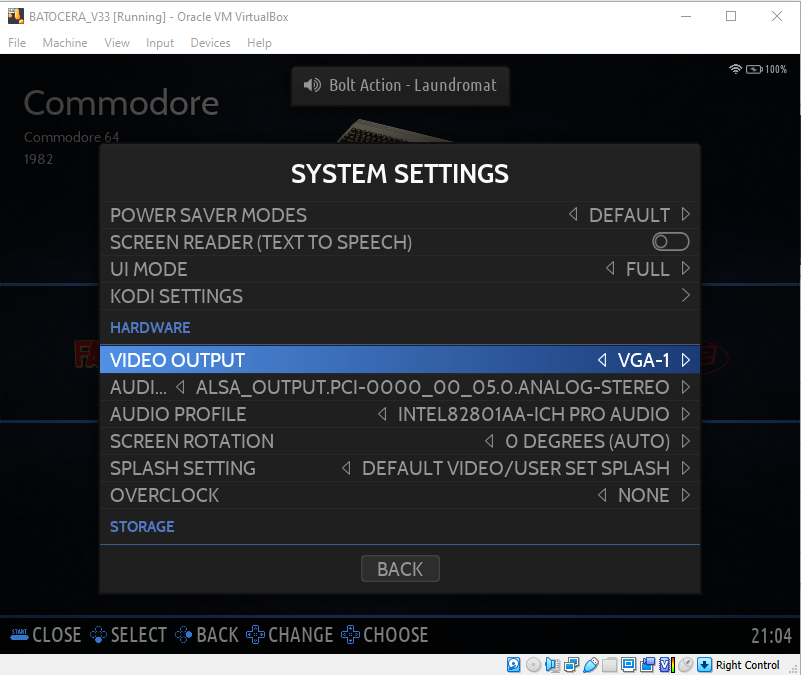
If those settings don't produce audio, keep trying all permutations of AUDIO PROFILE and AUDIO OUTPUT until you find one that does. Remember to exit the menu each time to test the change!
And we're done.
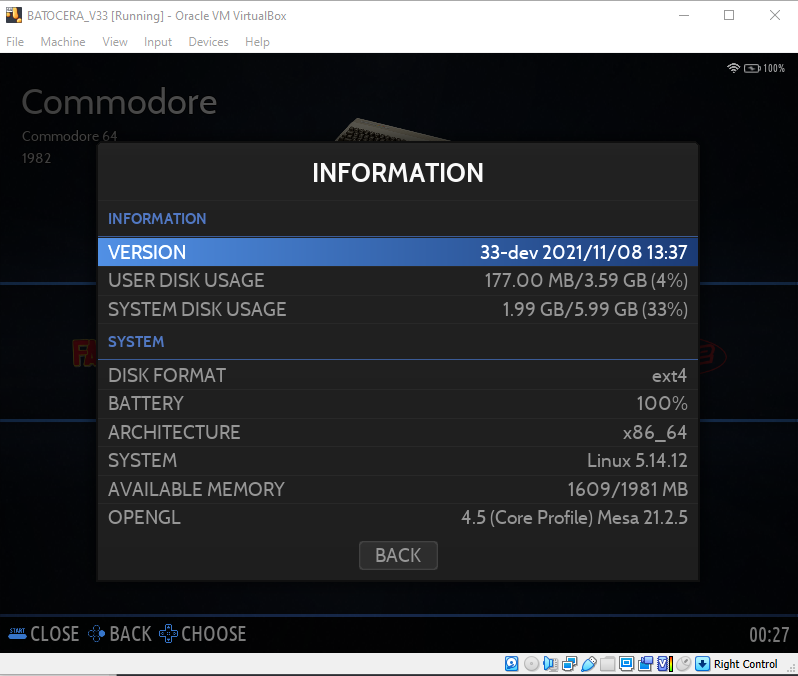
Post-installation setup
You can increase the output resolution releasing your cursor (right [Ctrl]) and clicking VIEW → VIRTUAL SCREEN-1 in the menu toolbar of VirtualBox. 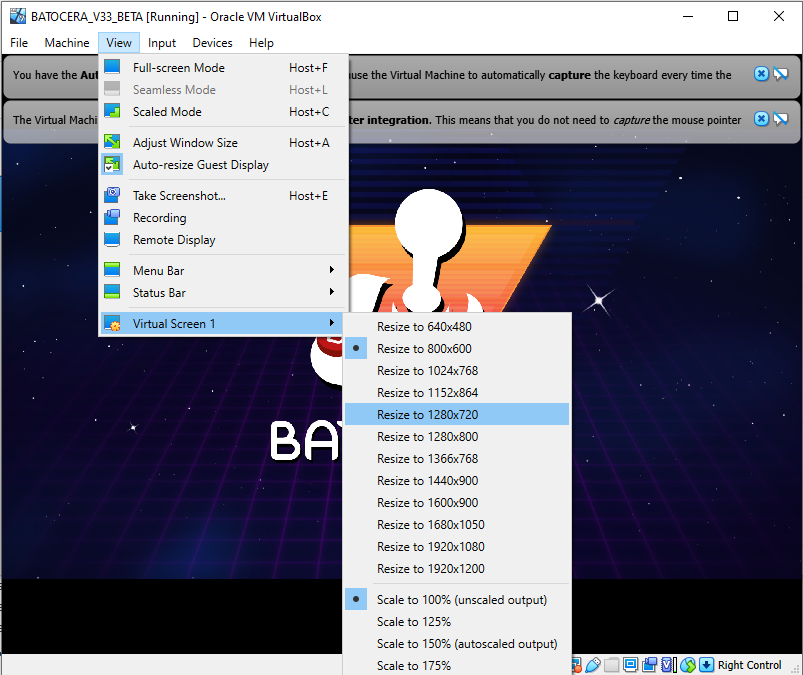
You can still add files to Batocera using the usual methods, even the network share.
As you already have the image .vdi, you can setup different environments for the same machine and test which one will be better for your PC, just make sure you are using a 64-bit one (or 32-bit if appropriate).
Qemu
Under construction.
A video demonstration of Batocera being run inside a Qemu VM.
Proxmox
Untested. Reportedly, following this tutorial to set it up in addition to passing through all devices enables it to work: https://www.nicksherlock.com/2020/12/running-tails-as-a-vm-with-persistence-on-proxmox/
Troubleshooting
My controller isn't working!
First, make sure you have passed it through as a USB device to the VM itself (step 7d. in the instructions above).
If it's still not working, check that the controller itself is working fine on your host machine outside of VirtualBox.
I've done that and it's still not working! I'm on a Linux-based host.
If it's still not being recognized, add the user to the correct group:
- Close VirtualBox
- Open a terminal and run
sudo usermod -a -G vboxusers $USER && sg vboxusers virtualbox
Windows shouldn't have this issue as long as the program is run in administrator mode.
- run_batocera_in_vm.1645324167.txt.gz
- Last modified: 5 years ago
- by atari