This is an old revision of the document!
Capcom Home Arcade
From v32, Batocera official supports running on the Capcom Home Arcade! Most of these installation instructions are lifted from the Unofficial Capcom Home Arcade Manual, refer to that if you have further questions about the CHA itself, as this article pertains to only Batocera.
Batocera v32 for this device isn't officially out yet, but you can use this direct download to test it out early: https://www.androidfilehost.com/?fid=14943124697586355886
Performance
You can play SNES games without special chips at full speed and some PSX titles. So keep it to 8-bit, non-demanding 16-bit and a bit of 32-bit systems. It's similar to an underclocked Pi 2 for reference. The main reason you're buying this is for the novelty of having a giant Capcom logo as your arcade stick anyway.
Installation
Before beginning, it is recommended to read through this guide at least once to ensure you have all the things you'll need to install Batocera onto your CHA.
Disassembly
Unfortunately, the installation of custom firmware onto this device requires its disassembly. Don't worry, it's just taking off rubber pads and unscrewing the cover, real easy stuff.
Turn the device upside down, there are ten screws you'll need to undo, six of which are hidden underneath the rubber pads.

You can remove the rubber pads by heating them up (with say a hair dryer) and slicing an plastic pick (or a plastic ruler) underneath the pad, it should be able to come off in one piece. This will allow you to easily re-apply them in the future. If you don't heat it up first, it may rip, as the glue is very strong.
If you're lucky enough to have one of the few early models that have an SD card slot, then the instructions are identical to regular Batocera flashing! However, that was only the first two-thousand units sold in Germany, you mostly likely will find your board doesn't have an SD card slot. Of course, if you're handy with a soldering iron and have a spare SD card slot around, you could put one on yourself. Users have confirmed that it still works.
Enabling FEL mode
We'll need to transfer Batocera over onto the 4GB EMMC using a USB Type A Male to USB Type A Male cable.

To activate FEL mode:
- Remove the Micro-USB power adapter. In FEL mode the board will be powered from the external USB.
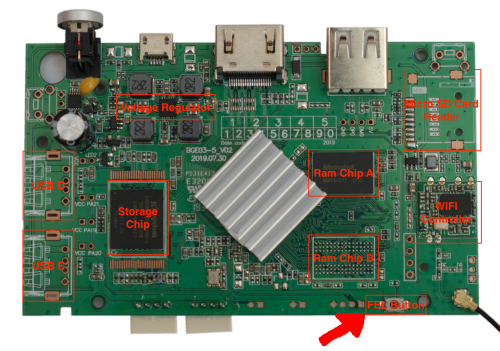
- Press the FEL mode button underneath the board and hold it. Is easily reachable with just your finger as it is at the edge of the board. It clicks when pressed, and requires a surprising amount of pressure to activate.
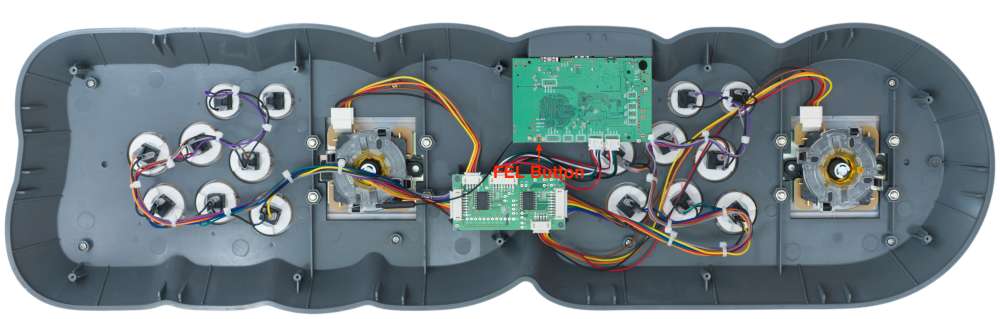
- If you're having trouble with it, you can unscrew the board itself to get at it easier. Here is a picture of the other side of the board:
- Connect the USB Type A to the PC. After the device has been detected (Windows plays a sound), the FEL button can be released.
- Download this software, uncompress it and use 'start.bat' (for Windows) or 'start.sh' (for Linux) to enable access to the board's storage.


The first time doing the steps above the device will be detected as an UNKNOWN device. To fix this use the Zadig USB driver installer.
Reading EMMC (Backup)
Before attempting any modification it is recommended to do a backup of the factory storage.
A typical tool to do this is HDDRawCopy, it can write the full contents of the EMMC to a compressed RAW image (so you can flash this back in case things mess up).
Flashing EMMC (Writing)
Batocera recommends using Etcher to flash images, but HDDRawCopy works too.
The image is yet to be uploaded to the site. This section will be updated when it does. For now, you can use https://www.androidfilehost.com/?fid=14943124697586355886
Reassembly
You can reassemble the device by screwing in all the screws and putting the rubber pads back on… but even better, you can just choose to only put the rubber pads on and screw in only the four immediately visible screws. That way, you can more easily disassemble it in the future if you need to say re-activate FEL mode.
Troubleshooting
If for any reason the device doesn't work properly try to reinstall an OS using FEL mode. In case that still fails to give you anything, you can flash the backup image you made earlier to return it to stock firmware.
If you need more help, refer to the Unofficial Capcom Home Arcade Manual. You might also find some community assistance at the CHA subreddit or the CHA Discord server. Of course, if your question is about Batocera, feel free to drop a question at our Discord server.
Special Acknowledgements
Lilo-san for the Unofficial Capcom Home Arcade Manual that this page is based off of.
CHOKO Group. They where the first ones to open the CHA development opportunities to a wider audience and put together the package to enable FEL mode. They also wrote the first beginner friendly guide to use it.
Batocera Team. Demetris in particular for taking over the port of Batocera for the CHA and answering many questions.
Koch Media. For creating a good licensed product and supporting its Reddit community.
- hardware/capcom_home_arcade.1630476831.txt.gz
- Last modified: 5 years ago
- by atari