This is an old revision of the document!
Github Desktop
Under construction.
Github released a neat GUI for managing local repositories with git called Github Desktop. It's experimental but in a pretty functional state if you choose to use it, it can be a great learning tool if you're new to contributing to open-source code. With that being said, if you want to do more advanced or technical stuff, you'll probably want to switch over to using the git command line tool in the future as it offers much more functionality.
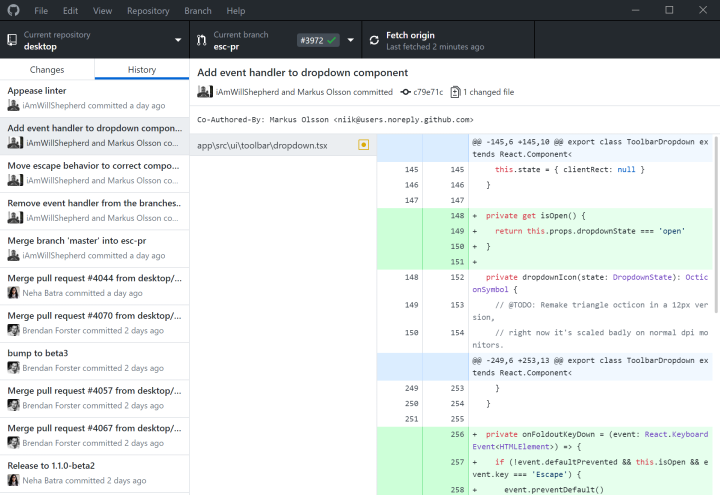
Github Desktop is only confirmed to be working for Github-hosted repositories, which is what Batocera uses. This may not work as equally for other repositories hosted on other services.
How to install
Windows
Easy, just go to Github Desktop's download page and follow their instructions.
Mac

Linux-based distributions
Github Desktop does not official support any Linux-based distributions, but a community fork has been released at Shiftkey's Github Desktop repository. The readme contains the most up-to-date installation instructions for most major distributions.
Setting up Github Desktop
Sign in
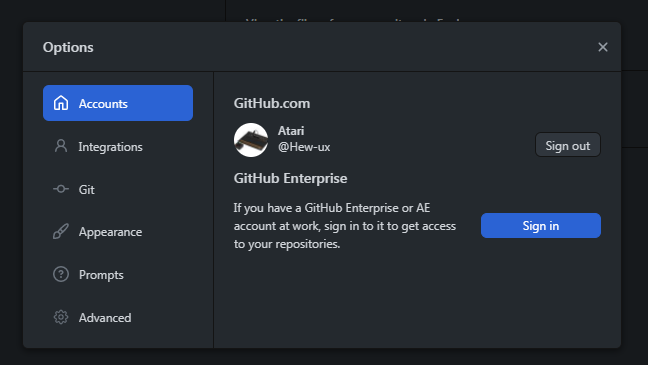
After launching Github Desktop for the first time, you should sign into your Github account. In case the dialogue didn't automatically appear, you can do this by going to File → Options → Accounts and clicking Sign in in the “Github.com” section.
Once signed in, it should look like this:
Clone the repository
Go to File → Clone repository…. This will open up a dialogue window:
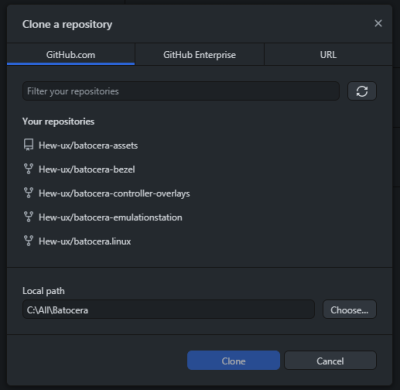
If you've already forked the project, great! Just click it here and clone it, choosing to contribute to the parent project. Otherwise, click on URL at the top to switch to another screen.
Enter the URL of the repository you want to clone. Here, I will be copying the batocera-bezels repository, but the process is identical for batocera.linux as well. This is what it should look like:
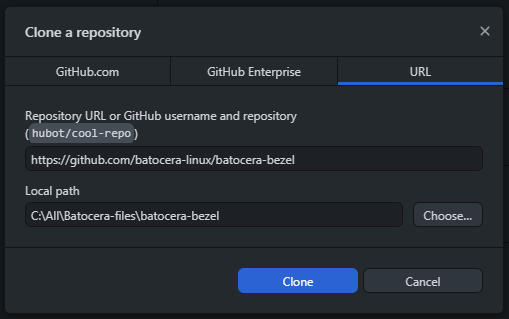
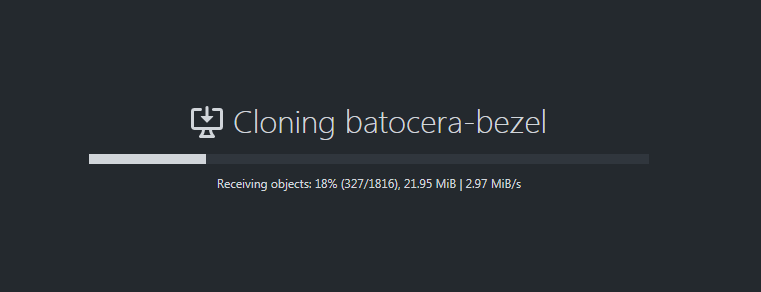
Select your desired folder and click Clone. Please wait patiently while the repository is downloaded to your computer.
Create a new branch
Nice! Now we have the repository on our computer. The default branch is master. In order to make our changes, we must first create a new branch. Click on the Current branch at the top, then click New branch:
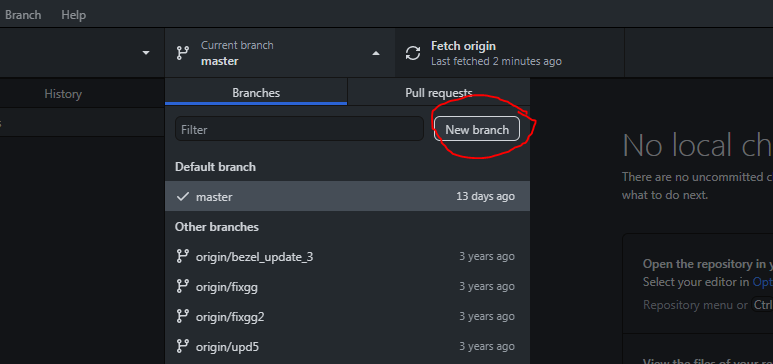
It's useful to give the branch a meaningful, one-or-two word name. I'm intending on making edits to the readme file, so I'm going to name my branch readme.
Note that branch names are limited to alphanumeric, hyphen and underscore characters, and no two branches can have the same name; Github Desktop will inform you of this and make the appropriate changes as needed.
Now this branch is stored locally on the computer, but it doesn't exist on the online remote repository. To fix that, click Publish branch in the main section:
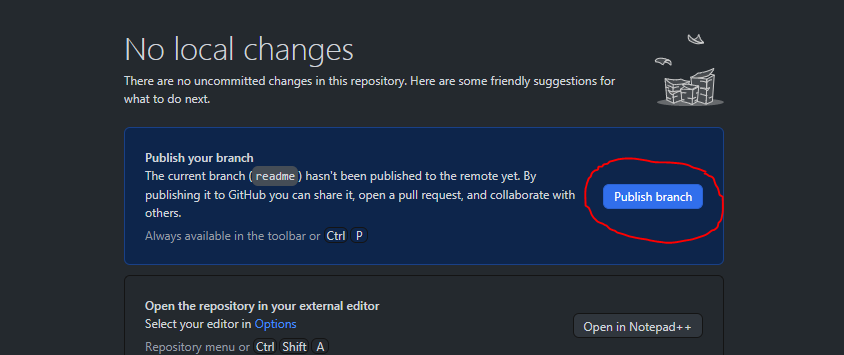
But you'll notice that this will partially fail as you don't have write access to the Batocera-owned repository! You'll be offerred to create your own fork of the repository to make your edits to, click Fork this repository:
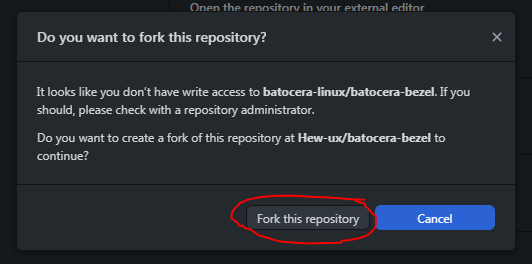
If you're cloning an already forked project, this step will not be necessary.
You'll then be asked how you'd like to use the project. Leave it on To contribute to the main project and click Continue:
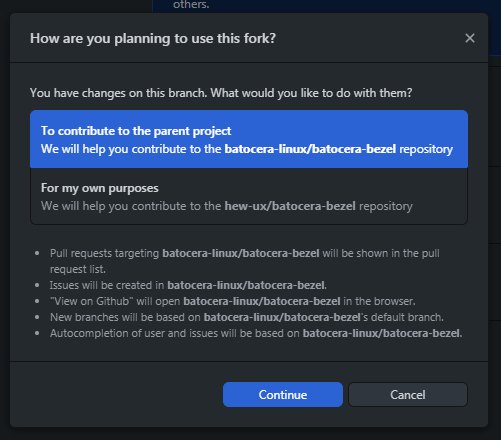
You'll be taken back to the main page. Click Publish branch again, and this time everything will be successful!
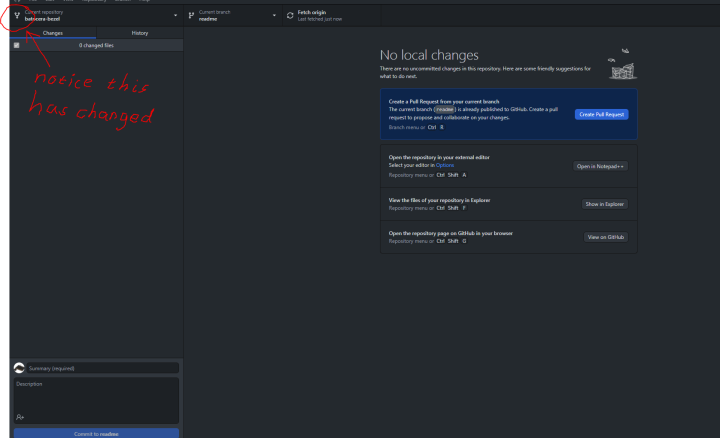
Your files are now ready to be edited.
Editing files
Click on Show in Explorer (or the name of your preferred file manager if you have something different from default) to open up a folder directly to your repository and start editing away! You have some guidelines on this page to compile individual packages, a list of notable files and their location on a live install and this page for more general compilation of the whole Batocera Linux system.
Note for Windows users
Windows users should take some extra precautions when editing Linux-spawned files. NTFS, the default filesystem for Windows, does not support many features that the more modern filesystems Linux supports such as symlinks, file attributes, line terminators in text files and other things. By default, Git will do its best to transparently convert file attributes to and from Windows-acceptable formats to the ones on the remote repository, but edits are not always possible (such as with two symlinked files). Install a good text-editing software such as Notepad++ to work around the line terminator issues.
You can enable experimental symlink support within Windows by installing the Link Shell Extension (it is strongly recommended to read through that entire page to be aware of its shortcomings and Windows' general disdain towards symlinks) and adding the following to your C:\Users\<your-name>\.gitconfig file:
[core]
	symlinks = true
If you've followed this tutorial in its canonical order, you'll also need to erase the symlinks = false from the <repository-name>/.git/config file in the repository itself as well.
Once this is done, change Github Desktop's shortcut to always launch in administrator mode, as that will allow it to create and edit symlinks.
Committing changes
You'll notice that as you edit files, the files you edit and changes you've mode will appear in Github Desktop:
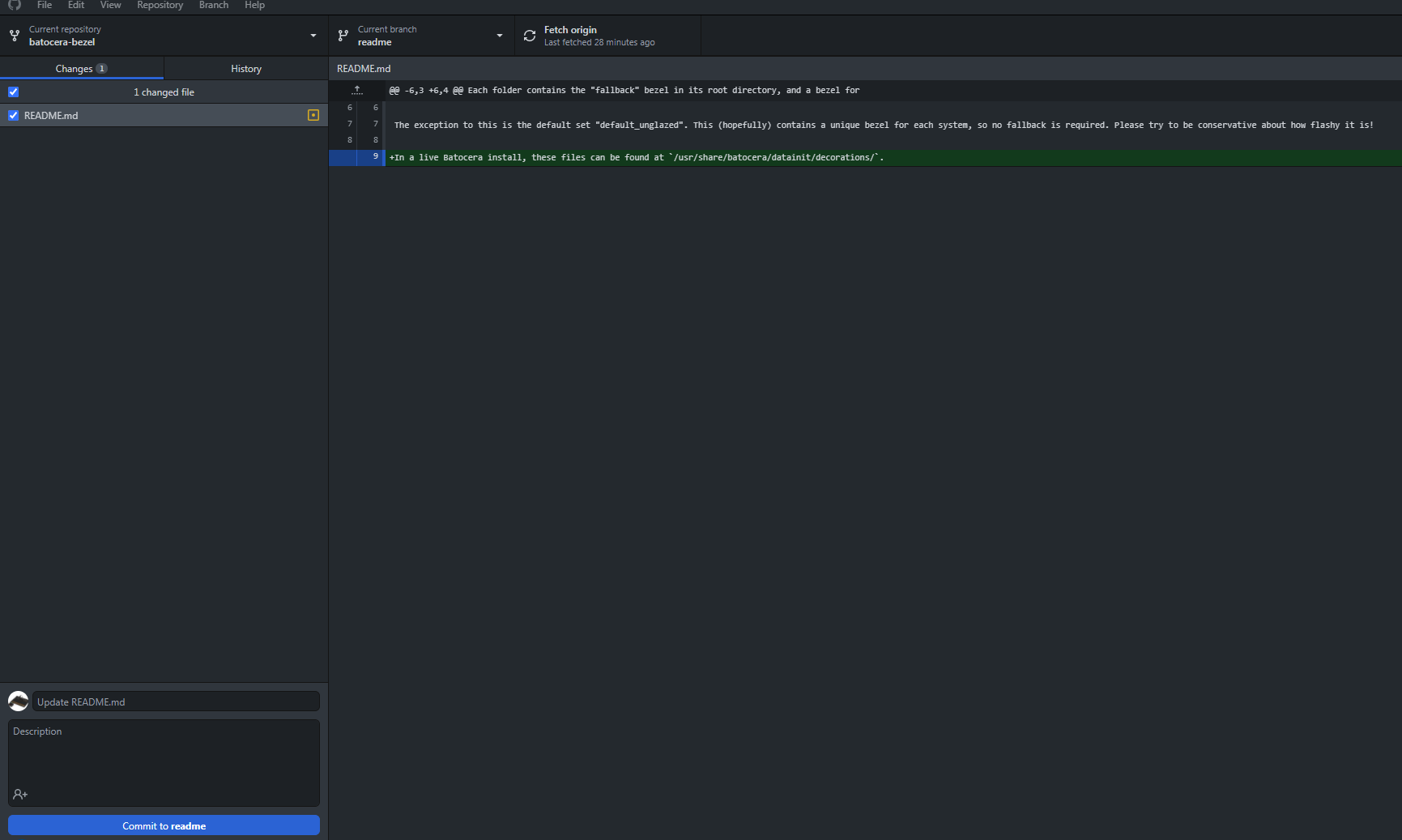
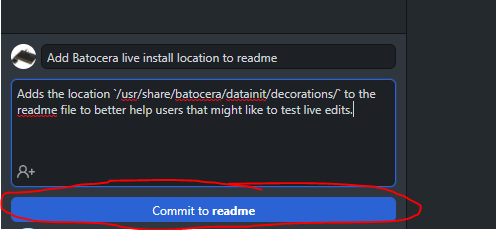
You can make as many edits as you'd like. Once you are ready to commit your changes to the fork, fill out the details of the changes you've made in the description box at the bottom left of the screen and click Commit to <branch-name>.
Making new changes
Now that you've got everything set up making new changes in the future is much simpler:
- Fetch the latest changes made upstream
- Commit those changes to your fork
- Make a pull request
Troubleshooting
Github Desktop is still in an experimental state and sometimes issues with usage crop up. Their documentation should answer most basic questions.
I can't sign in/authentication fails/can't push commits to my remote
Try resetting your username and authentication token by going to File → Options → Accounts → Sign Out, then signing in again.
Other/more complicated issues
Refer to Shiftkey's Known Issues page to see if there's a known workaround. There is also a similar page on Github Desktop's official documentation. Unfortunately Batocera itself cannot offer much support for using Github Desktop; if you're having too many issues with Github Desktop it's suggested to switch over to using the git command line tool instead.
- github-desktop.1635904202.txt.gz
- Last modified: 5 years ago
- by atari