This is an old revision of the document!
Pad2key
This functionality can help you create a per-game mapping of your controller to keyboard keys, in order to play games from old computers like Apple II, Sinclair or DOS and Windows games that are finicky with their joypad support.
Define a new pad2key mapping
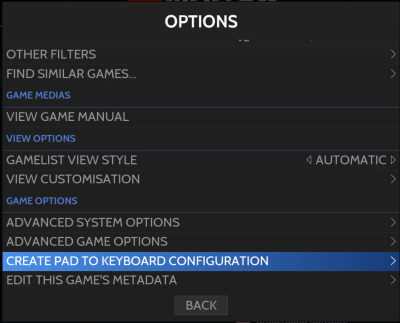
The first thing to do is to select a game and press select, go to either Advanced system configuration or game options, and select Create pad to keyboard configuration.
In the first case, it'll create a config system-wide, in the second case, a config specific for the game. If a game has a config setting for itself, it'll not use the system-wide config at all, so editing the system-wide config will have no effect on the game itself
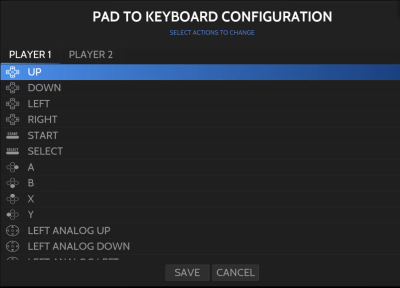
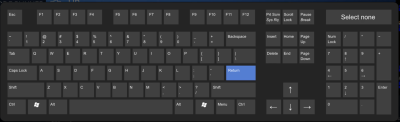
Then you will have the option to select keys for each button/axis on your gamepad, both for player 1 and player 2. For each button/direction you click, you will be presented with a virtual keyboard to select the key you want to map to.
Configuration file
Once your pad2key configuration is done for a specific game, it stays saved as a padto.keys or game_name.keys file next to your rom/in your Windows game directory folder. For a system-wide configuration, it'll be saved in /userdata/system/configs/evmapy/system-name.keys, It is a plain JSON file with, for example:
  {
  "actions_player1": [
      {
          "trigger": [
              "hotkey",
              "start"
          ],
          "type": "key",
          "target": [
              "KEY_LEFTALT",
              "KEY_F4"
          ]
      },
      {
          "trigger": "up",
          "type": "key",
          "target": "KEY_UP"
      },
      {
          "trigger": "down",
          "type": "key",
          "target": "KEY_DOWN"
      },
      {
          "trigger": "a",
          "type": "key",
          "target": "KEY_RIGHTSHIFT"
      }
    ]
 }
Button names
The gamepad buttons are referred to specific values, they are as follow :
- D-Pad UP :
"trigger": "up" - D-Pad DOWN :
"trigger": "down" - D-Pad LEFT :
"trigger": "left" - D-Pad RIGHT :
"trigger": "right" - Start :
"trigger": "start" - Select :
"trigger": "select" - A (East) :
"trigger": "a" - B (South) :
"trigger": "b" - X (North) :
"trigger": "x" - Y (West) :
"trigger": "y" - Left stick UP :
"trigger": "joystick1up" - Left stick DOWN :
"trigger": "joystick1down" - Left stick LEFT :
"trigger": "joystick1left" - Left stick RIGHT :
"trigger": "joystick1right" - Right stick UP :
"trigger": "joystick2up" - Right stick DOWN :
"trigger": "joystick2down" - Right stick LEFT :
"trigger": "joystick2left" - Right stick RIGHT :
"trigger": "joystick2right" - L1 :
"trigger": "pageup" - R1 :
"trigger": "pagedown" - L2 :
"trigger": "l2" - R2 :
"trigger": "r2" - L3 :
"trigger": "l3" - R3 :
"trigger": "r3" - Hotkey :
"trigger": "hotkey"
Keyboard key names
The targeted keyboard key uses the same names as the ones reported by triggerhappy events they can be displayed using the thd --listevents command. Here are some examples:
- Alphabetical keys
- A :
KEY_A - Z :
KEY_Z
- Number key (not the numpad)
- 1 :
KEY_1 - 0 :
KEY_0
- Numpad keys
- 0 :
KEY_NUMERIC_0 - 1 :
KEY_NUMERIC_1 - * :
KEY_NUMERIC_STAR
- Function keys
- Escape :
KEY_FN_ESC - F1 :
KEY_FN_F1 - Enter :
KEY_ENTER
External sources
Alternatively Pad2keys config files can be scraped off screenscraper.fr, if you have enabled the option for it.
You can find some examples from the Content Downloader for Windows games like Ri-Li or Super Mario War, both with embedded pad2key config files.
Launching commands with the pad2key
As you saw earlier, the pad2key can be used to simulate keyboard presses, however, it can also be used to launch specific commands, you need to replace the “type” : “key” to “type” : “exec”, and set the “target” to the command.
for exemple:
        {
            "trigger": [
                "hotkey",
                "pageup"
            ],
            "type": "exec",
            "target": "batocera-screenshot"
        }
can be used to launch the batocera-screenshot command with the hotkey+L combo, effectively letting you screenshot in systems that don't support a screenshot feature, but that support the pad2key.
- emulators/pad2key.1616958918.txt.gz
- Last modified: 6 years ago
- by fishou