This is an old revision of the document!
Work in progress on updated CRT guide…
Batocera native CRT output
The Batocera-CRT-Script has been developed which shall be used to configure and activate CRT capabilities for the latest x86_64 Batocera version. Use it after reading through this quick guide on how to connect your PC to your CRT.
Batocera has the capability to natively output an analogue signal, should you have the hardware to do so. The specifics are later in this guide, but that basically means you have a VGA/DVI-I port on your graphics card (which is becoming exceedingly rare with modern graphics cards) or on your motherboard (the CPU will need integrated graphics to support it and must not have a DAC altering the signal, probably along with particular BIOS settings). Modern cards with only digital outputs have a minimum bandwidth that's above the acceptable rate that CRTs can interpret, and thus won't be compatible for use in this guide.
You can however use an active converter (glossary below) to convert a digital signal to an analogue one (this will not be native) to use such digital-only graphics cards with a CRT display, however this guide is solely for running the pure analogue signal from the card to your display and the configurations made in this guide will not be compatible with such converters.
Recommended watching:
- Displaced Gamers' excellent video on the history of 240p - This explains the background of the “240p” signal common with early generation consoles and why “scanlines” were a thing.
Recommended reading:
- RetroRGB's RGB guide - This focuses more on the aspect of connecting your physical analogue consoles to modern displays, but it covers much of the terminology used throughout this guide and explains particular details about analogue standards.
- buttersoft's AussieArcade forum post: A guide to connecting your Windows PC to an SD CRT TV, PVM or Arcade Monitor - This focuses more on connecting Windows computers to CRT displays, but it goes over a lot of the same things we will have to later on. This is a very technical document, more so than this guide is.
Foreword
It should go without saying, but unlike digital signals, analogue signals and the devices that receive them tend not to have safety limitations on what they are capable of. This can result in breaking displays, blowing old fuses, overheating ancient capacitors, making things catch fire, etc. You should perform adequate research before attempting any of this with your old equipment. Although this guide has safety precautions built into it, the safety of you and your equipment is solely your own responsibility.
This guide would not have been possible without the following people to name a few:
- jfroco's work to output Batocera on a CRTs.
- rtissera's knowledge, enthusiasm and willingness to add 15 KHz patches.
- Calamity for his knowledge, drivers, tools, GroovyMame, Switchres, etc.
- Substring's work on GroovyArcade, SDL, KMS, etc.
- D0023R Doozer's continued work at adding 15 KHz support to the Linux kernel.
- dmanlcf's work on keeping the 15 Khz patches up to date for Batocera.
- Rion and Atari for compiling this guide.
Glossary
The field of analog signals and CRT-related standards is very complex and occasionally misleading. We won't dive into every aspect in this guide but we will explain some relevant terms here (sorted in alphabetical order) to avoid confusion. Feel free to come back to this section at any time throughout this guide:
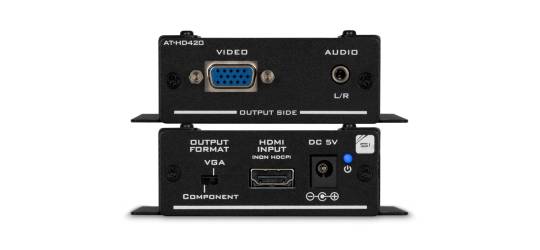
- Active converters Little boxes that convert one signal to another. These use tiny computers with processors and RAM to process the image digitally and send it out the other side as appropriate. Generally undesirable, as they can introduce lag and other artifacts. This is not considered “native”. This guide assumes that you are NOT using one of these (as they try to handle the entire conversion themselves, removing Batocera's control over the signal).
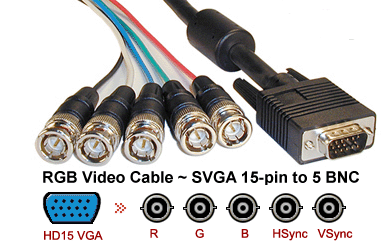
- BNC cables These are standard aerial coaxial cords that can carry any analogue signal. For our purposes, they will be carrying an RGB video signal. There were not many consumer TVs that utilized this type of connection, but they were common with professional/broadcast reference monitors (PVM/BVM for short). You'll usually need to find a specific passive adapter that has the correct amount of BNC cables for your given PVM/BVM.
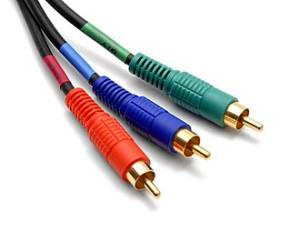
- Component video cables The three red blue green cable connection. Not to be confused with the similarly spelled composite cable, as it uses three cables instead of one. Not to be confused with RGB signal, as this uses a YPbPr signal. Them being colored red blue and green is purely coincidental and not related to RGB at all.
- Composite signal An analogue signal. The act of sending both luminance and color channels down a single wire. Utilized by the composite video cable.
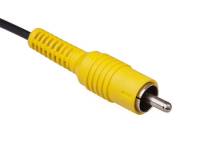
- Composite video cable The yellow cable. That's enough, you know what I'm talking about already.
- DisplayPort The modern digital video connection port, common on modern graphics cards. Compatible with both DP and HDMI signals. This port cannot be used to send a native analogue signals so it is not recommended for use with CRT, but this can be worked around if you have the right equipment as explained further on in the guide.
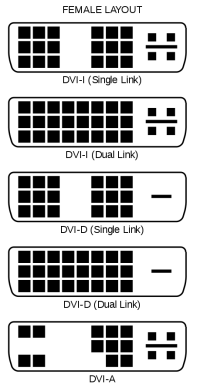
- DVI-I port This is the 29 pin port in your graphics card, capable of analogue signals. You will typically find this port alongside the VGA port. Newer cards no longer include this port. It is of extreme importance to not confuse this with the identical-looking DVI-D port, which is only capable of digital signals. The DVI-I port has additional pins above and below the flat tongue, whereas DVI-D doesn't. DVI-A would also work, but that is exceptionally rare.
- EDID Extended Display Identification Data (EDID) is a digital metadata signal used by display devices to describe their capabilities to a video source (in this case, your Batocera computer). Modern digital displays all have this, and Batocera uses that to automatically switch to a compatible resolution. Certain VGA-compatible CRT monitors also use this, but not all of them. This standard was introduced in 1994, so monitors manufactured before then do not have EDID.
- Horizontal scan rate Usually expressed in kilohertz. This is the number of times per second that a horizontal line is drawn on a display, as opposed to vertical refresh rate which is the number of times per second that an entire screen of image data is displayed.
- Passive adapter/cables These are simple cables that adapt one interface to another. They don't involve any circuitry, all the work is done by the machine sending out the signal. Passive cables can only go analogue-to-analogue or digital-to-digital, not analogue-to-digital or digital-to-analogue.
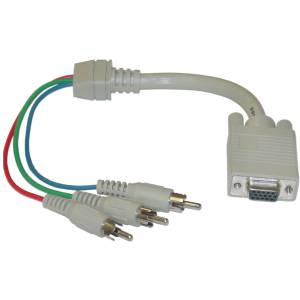
- RGB video signal In this context, refers to the analogue signal that has an individual channel for each Red, Blue and Green color signal. RGB is not compatible with component/composite/S-video by default, and a transcoder must be used to switch between the signals, but they otherwise are all analogue signals.
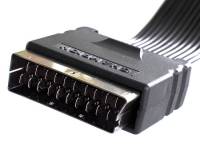
- SCART This is the 21 pin port that superseded the standard composite video output. Popular in Europe and Japan, but not many other places. Carries both analog video and audio signals. Natively uses an RGB video signal, but is backwards compatible with YPbPr, composite and S-video signals.
- S-video port A slightly better version of composite video. This separated the color and luminance signals into two separate wires each, reducing color bleed and artifacts, but in practice the difference wasn't that significant. Common with DVD players, but not much else.
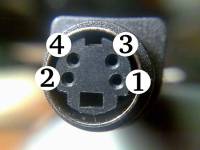
- S-video signal An analogue signal. Essentially the exact same signal as a composite signal, but the color and luminance signals are separated. Trivial to switch between this and composite hardware-wise, but ultimately the device needs to understand what type of signal it's receiving to properly display it.
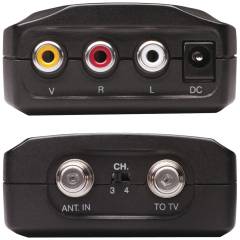
- RF modulator This is a device that can translate composite, component or RGB analogue signals into a radio frequency. This is required for CRT displays that only have an RF input. VCRs usually had one of these built-in to them, and make for a fine substitute.
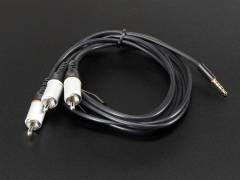
- Three-pole A/V composite cable A more modern analogue signal cable which violates standards by running a video signal through a 3.5mm headphone jack splitting into RCA cables. This is specifically designed to be used in the Raspberry Pi in its composite video modes, and will not be compatible with other devices/computers. Is only capable of carrying a composite signal, the other plugs are strictly for audio.
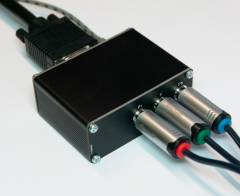
- Transcoder A device that can convert an RGB signal into an inferior signal like component/composite/S-video or back. Usually requires its own power source to function, but isn't an active converter (no CPU is involved processing the image).
- Vertical refresh rate The number you're probably more familiar with, typically measured in just hertz. This is the number of full frames drawn per second. Typically this is 60 Hz for all modern displays, but older CRTs were split between 60 Hz and 50 Hz depending on where you lived.
- VGA port This is the 15 pin port ubiquitous with old computer video output and classroom projectors. It is important to note the distinction between a VGA signal and the DSUB connector used to carry that signal, as not all DSUB connectors actually send a VGA signal. Refer to this console-related article on RetroRGB about it for more info. Essentially, a DSUB port is capable of sending out either an RGB or VGA signal, given the right settings.
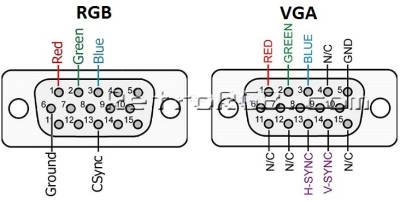
- VGA signal A unique hybrid digital/analogue signal. This became the standard for computer monitors in the late 80s/early 90s, and became the video standard for most devices. Although this signal has slowly begun being phased out, it's still compatible with pretty much every display ever created since its inception (if you can get a port hooked up to the display's interface that is). While the VGA signal itself is analogue, it was designed specifically for computer monitors and relies on digital signalling features absent from most consumer TVs. As such, the signal cannot be transcoded into other analogue video signals without highly specialized hardware. This is outside of the scope of this article, but assuming you can get it all working then you can still apply the later sections of this guide like ES scaling. Unlike other analogue signals, VGA utilizes an EDID to notify the machine of its resolution capabilities, so therefore it cannot be configured in the same manner as described in this guide; instead use the general method for changing resolution.
- YPbPr video signal A lower-bandwidth form of RGB, which has both the green and luminance channels on one wire. Used by component video cables, but can also be sent through a SCART connection.


Prerequisites
To achieve a native analogue signal on your setup, the following elements are needed:
- A network connection (wired is preferred, as it needs no configuration)
- For x86_64:
- A graphics card or integrated graphics with RGB analogue output
- AMD/ATI graphics cards with VGA or DVI-I ports (preferred, Radeon HD 3000 series and up to Radeon R5/R7/R9 300), these cards are:
- Radeon RX up to the 300 series (excluding the R9 390) (R9 380X is the newest and most powerful AMD card supporting analogue)
- Workstation up to the FirePro W5000
- Nvidia graphics cards with VGA or DVI-I ports (major flaws and limited to Super Resolutions, cards made before 2008 may not have these limitations), these cards are:
- GTX up to the 900 series cards (980 is the recommended card to use)
Cards older than the GTX 600 series may not be supported by the official Nvidia drivers, though performance with 5th gen systems and below is adequate with the nouveau drivers.
- Titan cards up to the Titan X (but excluding Titan X Pascal) (Titan X is the most powerful card supporting analogue)
- Quadro cards up to the Quadro K5200
- Nvidia graphics card with DisplayPort (no native analog signal, requires disabling low-level driver limitations which are potentially dangerous, requires additional ratnest of cables):
- If opting to go this route, an active converter or the CableDeconn DP to VGA adapter will be required. In general, this is not recommended as it is not a native analogue signal.
- A transcoder will still be required.
- AMD APUs with VGA or DVI-I ports on the motherboard (hit or miss, highly dependent on hardware limitations, older chips have a higher chance of working)
- Intel integrated graphics with VGA or DVI-I ports on the motherboard (has some flaws and limitations, older chips have a higher chance of working)
- If using a TV/PVM/BVM with SCART/BNC inputs, the appropriate DVI-I/VGA RGB to SCART/BNC RGB passive adapter/cable
- If using a computer monitor with VGA input, simply a VGA cable
- If using a TV with component/composite/S-video inputs, an appropriate DVI-I/VGA RGB to component/composite/S-video transcoder
- If using a TV that only has RF input, you will need a composite to RF modulator in addition to the transcoder
- A way to SSH into the Batocera machine (for Windows, PuTTY works fine)
- A way to edit files over the network (for Windows, WinScp and Notepad++ work fine)
It is highly recommended using an external editor like Notepad++ and WinScp for editing, as they are easier to use than command line tools and respect Unix line terminators (unlike Windows Notepad).
If any of that was confusing here's a professional-grade flowchart explaining what is required for each type of display (on PC):

Component Transcoders
Some appropriate VGA-to-component adapters:
RGB VGA to YPbPr Component transcoder/converter by linuxbot3000


GreenAntz RGB to component transcoder

Retrotink RGB2COMP (Scart to Component)

RGBS VGA SCART to YPBPR Component Transcoder


Color coding is a little different on this
- Green → Pb
- Red → Y
- Blue → Pr
RGBS / SCART to YCBCR / YPBPR / S-Video converter adapter
 Convert VGA to Scart cable to YCBCR & S-Video
Can also be found by searching AliExpress for “SCART RGBS to YUV YCBCR Video Converter”
Composite/S-Video Transcoders
If you need composite/S-video/RF, use these transcoders:


RGB to Composite & S-Video Ver2.0

DisplayPort to VGA DAC
If you only have a DP connection, use the CableDeconn DP to VGA adapter before sending the signal to the transcoder of your choice:


If you are in a situation where you must use an active adapter, the CableDeconn DP to VGA adapter is one of the best options. It uses a repurposed Realtek RTD 2168 audio chip for its conversion, which doesn't rely on an oscillating crystal (no out-of-sync timing it has to account for) and no automatic deinterlacer (pretty much standard for all other active adapters, this will ruin your signal's quality).
USB-C to VGA DAC
If you only have a USB-C connection, use the StartTech.com USB type C to VGA, 3m, CDP2VGA3MBNL (Note: this 3m cable has the RTD2166 chip. Shorter versions of the same brand use a different chip that may not be compatible) before sending the signal to the transcoder of your choice:

If you are in a situation where you must use an active adapter and only have a USB type C connection the StartTech.com USB type C to VGA adapter is one of the best options. It uses a repurposed Realtek RTD 2166 audio chip for its conversion, which doesn't rely on an oscillating crystal (no out-of-sync timing it has to account for) and no automatic deinterlacer (pretty much standard for all other active adapters, this will ruin your signal's quality).
Connecting the PC to a CRT display
The first step is to safely connect your Batocera computer to the CRT display itself. If using a VGA connection with a EDID CRT monitor, it is as simple as connecting the display, turning it on and then turning the Batocera machine on. Keep reading this section for all other displays. If your CRT monitor does not send an EDID (the standard was introduced in 1994, so monitors manufactured before then do not have EDID), then you should still follow the following instructions just to be safe.
During the boot process and resizing of the partition it will boot up in a non-supported resolution. Keep the CRT TV off for the moment or on another AV channel so it doesn't receive dangerous signals. These signals can destroy your CRT TV.
Also keep in mind that during the BIOS boot process the same rule applies. Have the CRT TV off or on another input when first booting up.
To solve this we have 4 options:
- Do the aforementioned, leaving the CRT TV off or on another channel.
- Have a look at gambaman's excellent solution The ultimate VGA to SCART adapter over at Build Your Own Arcade Controls Forum (BYOAC).
- Use buttersoft's passthrough dongle based on gambaman's design in the link above.
- Flash you AMD/ATI card with ATOM-15.
Once everything is safe, you can turn on your Batocera machine. If you'd like to edit files using the Batocera machine itself, you can hook up a secondary digital display in the meantime. If you have multiple ports and use another port, then you'll not be able to do this once you disable the other port outputs in the upcoming section. If you have a modern digital display that can handle older standard signals over older standards cables without blowing up (such as a LCD monitor with both HDMI and VGA ports), you can use that in place of your CRT until everything is configured correctly for it.
- user/rion.1732979711.txt.gz
- Last modified: 22 months ago
- by rion