This is an old revision of the document!

Ports (native to Linux)
Ports are great. You can just straight up run Linux games on Batocera, if the game itself carries all of its dependencies. Fun fact: most don't. You'll typically need to refer to the game's documentation or scour around the internet (the Arch Wiki and the PCGamingWiki are pretty good resources for this) to find out how to get it working in Batocera.
If the game is available as an AppImage, try that as it has the highest chances of working out of the box.
In Batocera v32 and lower, you would have to create the roms/ports/ subfolder yourself first in order to start using it.
This system scrapes metadata for the “ports” group(s) and loads the ports set from the currently selected theme, if available.
Grouped with the “ports” group of systems.

Quick reference
- Accepted ROM formats:
.sh - Folder:
/userdata/roms/ports
Program files
In many cases a physical (USB) keyboard is required to configure the native Linux game for the first time (most times to set up the physical controller once in-game if not automatically configured).
Place the data of the game (whatever that may be) into roms/ports/.data. This will automatically hide any SH scripts that might be packaged with the game.
Then create an appropriate SH file to launch the game's actual executable file with. Take the file below and fill it as appropriate:
- Your game name here.sh
# These events will be executed before the game begins.
# Read the current directory this script is being executed from and save to variable DIR.
DIR="$(dirname "$(readlink -f "$0")")"

# Change the current directory to that of the game's data folder.
cd "${DIR}/.data/<folder of game here>"

# Show the mouse cursor. It's a good idea to first show it when setting up the game, in case it's needed.
unclutter-remote -s
./<filename of game executable here>

# These events will be executed once the game terminates.
# Hide the mouse cursor as we are going back to ES.
unclutter-remote -h
Refresh the game list, and then launch your game. Most 3D games will spend some time generating shader caches when first booting up, so be patient at least on the first launch. For sanity's sake, you can check that your system has not frozen by moving your mouse around (if you have one connected). Shader compilation should not take longer than five minutes at most.
If you'd like to see the actual files, you can install some native Linux ports in the content downloader. Read below for some setup examples:
Todo: Example of a freeware game so users can test it out!
Simple itch.io game example: Skatebird
Skatebird can be purchased and downloaded from its itch.io page. Make sure it's the “Linux” version!
- Once downloaded, extract and then copy the
skatebird-linuxfolder from the ZIP file toroms/ports/.data(you may need to enable “Show hidden folders” in your file explorer to see this). - Download the following script and save it to
roms/ports/Skatebird.sh:- Skatebird.sh
DIR="$(dirname "$(readlink -f "$0")")"

cd "${DIR}/.data/skatebird-linux"

unclutter-remote -s
./SkateBIRD.x86_64
unclutter-remote -h
The
unclutter-remote -sandunclutter-remote -hcommands are to show and hide the mouse cursor respectively. It's a good idea to first show it when setting up the game, in case it's needed. - Back in Batocera, hit
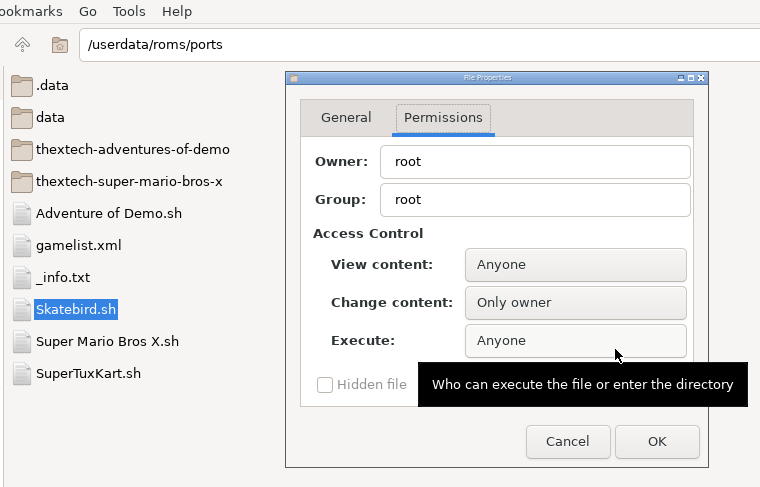
[F1]and navigate toroms/ports/.data, right-click theSkatebird.shfile, go to Properties and make it executable by “Anyone”.
- Press
[Ctrl]+[Q]to exit back to Batocera. - Press
[START]→ GAME SETTINGS → REFRESH GAMELISTS. - Navigate to the Ports system, then launch “Skatebird”.

This game in particular may take a very long time to initially load with its default settings (which are at maximum fidelity), during which time you'll only see a blank, grey screen. Once in-game these can be lowered down, resulting in much faster launch times in the future.
Complicated itch.io game example: Celeste
As already mentioned above, the /userdata/roms/ports/.data folder is where you want to place your game's main folder which contains the according native Linux game. The following example will show how you can make the popular game Celeste running on Batocera.
First of all, you will have to buy/download the native Linux version of Celeste, which will give you a single package file, e.g. celeste-linux.zip.
After successfully downloading, copy the file over from your local computer to your Batocera system (for example via WinSCP) to the following path: /tmp/celeste-linux.zip.
Now SSH into your Batocera system and execute the following command to extact the package file's content to the correct path:
unzip -d /userdata/roms/ports/Celeste /tmp/celeste-linux.zip
In most cases, depending on where you've downloaded your Celeste game sources, Celeste is well “prepared” for running it as a native Linux game. In other words: The downloaded game package should contain all files/dependencies without the hassle of having to search/add manually any external files/dependencies. Unfortunately, as already mentioned above, this definitely is not the case for all native Linux games!
Now check the content of the game's directory…
ls -l /userdata/roms/ports/Celeste
…which should give you the following similiar output:

For Celeste, in his case, the correct executable file to start the game is /userdata/roms/ports/Celeste/Celeste as marked in the screenshot above. Now to make the game show up as Celeste in your Batocera GUI's Ports section, you would have to have a file called /userdata/roms/ports/Celeste/Celeste.sh. You could indeed rename the game's main executable file from /userdata/roms/ports/Celeste/Celeste to /userdata/roms/ports/Celeste/Celeste.sh and adjust it afterwards, but a better, more flexible and more reliable way would be to leave the source files untouched and create a separate executable file which will call the main executable file. To do so, just run the following command:
nano /userdata/roms/ports/Celeste/Celeste.sh
Now paste the following content:
- Celeste.sh
#!/bin/bash
cd /userdata/roms/ports/.data/Celeste && export DISPLAY=:0.0; ./Celeste
Save the file and quit the editor.
As you may have mentioned on the screenshot above, none of the executable files are marked as executable yet, which will be required to run Celeste sucessfully. So let's do this by executing:
chmod +x /userdata/roms/ports/Celeste/Celeste.sh /userdata/roms/ports/Celeste/Celeste /userdata/roms/ports/Celeste/Celeste.bin*
The required executables are different for every native Linux game. There's no general rule you can follow, you have to find out by yourself by searching through the internet or by just trying to execute the executables via command line and analyze the errors that may occur (see the troubleshooting section below).
Now update the gamelist via the Batocera GUI and the game should show up in the Ports section. That's it, start the game from there and have fun! 
A note about integrated ports
Batocera-integrated ports (recognized as their own unique system, but are grouped under the “Ports” system in EmulationStation along with native Linux Ports by default) usually contain an _info.txt file in their folder explaining how to install them and sometimes have their own page in system overview page under the “Port” header.
Troubleshooting
My game isn't launching
Native Linux games not running on Batocera can have many different reasons. The simplest solution is usually revealed in the error log located at system/logs/es_launch_stderr.log or system/logs/es_launch_stdout.log For testing purposes, you can use Batocera's file manager ([F1] on the system list) to navigate to the roms/ports folder and launch the game (simply double-click it as you normally would) to see if any error messages pop up.
If no meaningful error message comes from that, you can instead use the terminal/SSH in and try running the commands to launch the game there, this might help you see if there are any error messages being printed to the console. Don't forget to run /etc/init.d/S31emulationstation stop to kill EmulationStation and batocera-es-swissknife --restart to bring it back to life! You may also need to pre-emptively run export DISPLAY=:0.0 to get the game to be able to “see” your screen. For example:
export DISPLAY=:0.0
cd "/userdata/roms/ports/Celeste"
./Celeste.sh
Sometimes there are multiple executable files involved in the process of running a game, so in many cases there may be only permission issues causing the game not to start, which would give you similar output to this:

In such a case, just set the required permission(s) (chmod +x <yourExecutableFile(s)>) to the according executable file(s) and you should be ready to go. In this case, it's chmod +x Celeste.bin.x86_64
I'm confident I'm launching it correctly but the game still isn't booting
It could be that the game is searching for a particular library on the system, but is failing to find it. Batocera includes most libraries for 64-bit and 32-bit games, but it is possible that the game itself is using an outdated name or a different method altogether.
If you've found an appropriate replacement library, or have found that it exists in Batocera just under a different name to what the game is searching for, you can (usually) tell the game to search for that particular library by adding the following to before the game is executed in its SH script:
export LD_LIBRARY_PATH=$LD_LIBRARY_PATH:./<path to library files>
For example, it's common for 32-bit games to incorrectly search in the $LD_LIBRARY_PATH:./x86 folder. This can be corrected with the following:
export LD_LIBRARY_PATH=/usr/lib32
Batocera's libraries are stored in /usr/lib/, some games may also be hard-coding their paths and try searching in /lib for instance, necessitating changing the path told to the game to be inside of /usr instead.
I'm stuck and I can't quit the game!
Most native games should offer an option in the menu to “Quit back to desktop” or otherwise close the game. However, some may not or the game might freeze during execution.
Such cases can usually be escaped with good ol' trusty [Alt] + [F4]. But in case that doesn't work either (or you don't have your keyboard handy) you might want to try SSH'ing in and killing the host task with htop. Hover over the host task (indicated by being colored white) and press [F9] followed by [Enter].
My game runs really slowly/laggy
Is your hardware powerful enough? You can usually find “recommended” requirements listed on the game's page, and if not then it might be listed on their documentations. If there's a complete absence of this information, then it usually means you don't need particularly much to run the game (such is the case with many 2D titles).
If you're confident that your hardware is powerful enough and your slowdown/lag is unusual, then try lowering the graphical settings inside of the game itself. These vary dramatically between games/engines, but usually the most influential settings are the screen resolution, anti-aliasing (MSAA, SSAA, etc.) and post-processing effects (depth-of-field, motion blur, etc.). A valuable resource for fine-tuning games in the PCGamingWiki, which may also provide more direct solutions for a game's particular problems.
Further troubleshooting
For further troubleshooting, refer to the generic support pages.
If you need further help, feel free to ask on our Discord server or forum.
- systems/ports.1649549182.txt.gz
- Last modified: 4 years ago
- by atari