This is an old revision of the document!

Nintendo GameCube
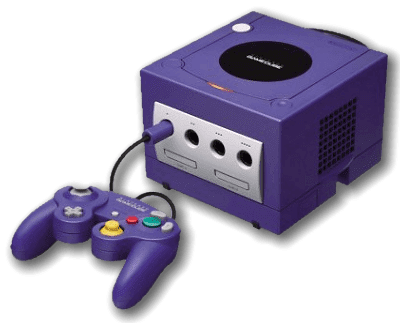
The Nintendo GameCube is a console developed by Nintendo. It was released in 2001.
Nintendo Gamecube is emulated through the Dolphin emulator, which is the same emulator we use for the Nintendo Wii. Its emulation performance are stunning, and it offers several options to enhance the graphic quality of the Gamecube titles, that can be upscaled and look gorgeous, even by today's standards, if your PC can support it.
Some of the options for enhanced visual quality are available from the “Advanced System Options”. In particular you can enable a higher VIDEO RESOLUTION that will upscale the 3D models to a higher resolution, in combination with the use of HIRES TEXTURES.
This system scrapes metadata for the “gc” group(s) and loads the gc set from the currently selected theme, if available.
Quick reference
- Emulator: Dolphin
- Accepted ROM formats:
.gcm,.iso,.gcz,.ciso,.wbfs,.rvz,.elf,.dol,.m3u - Folder:
/userdata/roms/gamecube
BIOS
| MD5 checksum | Share file path | Description |
|---|

ROMs
Place your Nintendo GameCube ROMs in /userdata/roms/gamecube.
Emulators
Dolphin
For general information about the Dolphin Emulator itself, you can also visit the Dolphin Emulator page.
Dolphin configuration
Standardized features available to all cores of this emulator: gamecube.videomode, gamecube.ratio
ES setting name batocera.conf_key | Description ⇒ ES option key_value |
|---|---|
| Settings that apply to all cores of this emulator | |
GRAPHICS BACKEND gamecube.gfxbackend | Choose your graphics rendering ⇒ OpenGL OGL, Vulkan Vulkan. |
UBERSHADERS gamecube.ubershaders | Improve performance with Ubershaders (may not work well on all hardware); asynchronous is preferred, synchronous is more compatible ⇒ No Ubershaders synchronous, Ubershaders (synchronous) synchronous_ubershader, Ubershaders (asynchronous) asynchronous_ubershader. |
PRE-CACHE SHADERS gamecube.wait_for_shaders | Wait for shaders to compile completely before starting the game, can reduce micro-freezes ⇒ Off (default) 0, On 1. |
PERFORMANCE HACKS gamecube.perf_hacks | Increase emulator performance, at the cost of accuracy/stability ⇒ Off 0, On 1. |
USE PAD PROFILES gamecube.use_pad_profiles | Search for custom configured joystick profiles ⇒ Off 0, On 1. |
VIDEO RESOLUTION gamecube.internal_resolution | Improve the fidelity of 3D models (does not affect 2D sprites) ⇒ 1x native (640×528) 1, 2x 720p (1280×1056) 2, 3x 1080p (1920×1584) 3, 4x 1440p (2560×2112) 4, 5x (3200×2640) 5, 6x 4K (3840×3168) 6, 7x (4480×3696) 7, 8x 5K (5120×4224) 8. |
ANISOTROPIC FILTERING gamecube.anisotropic_filtering | Enhance the quality of distant perspective textures ⇒ Off 0, 2x 1, 4x 2, 8x 3, 16x 4. |
DUAL CORE MODE gamecube.dual_core | Usually not much faster than single core mode ⇒ Off 0, On 1. |
GPU SYNC gamecube.gpu_sync | Speed hack for dual core mode to fix some glitches ⇒ Off 0, On 1. |
ANTI-ALIASING gamecube.antialiasing | Smooth out jagged edges on 3D object polygons ⇒ Off 0, 2x 2, 4x 4, 8x 8. |
ANTI-ALIASING MODE gamecube.use_ssaa | Toggle MSAA/SSAA. Depends on anti-aliasing being enabled. ⇒ MSAA (default) 0, SSAA 1. |
HIRES TEXTURES gamecube.hires_textures | Use HD texture packs ⇒ Off 0, On 1. |
WIDESCREEN HACK gamecube.widescreen_hack | You must use a 16/9 RATIO to work ⇒ Off 0, On 1. |
ENABLE CHEATS gamecube.enable_cheats | To use game cheats or 16/9 Aspect Ratio Fix codes ⇒ Off 0, On 1. |
MEMORY MANAGEMENT UNIT gamecube.enable_mmu | Allows many games to boot and work properly ⇒ Off 0, On 1. |
FAST DISK SPEED gamecube.enable_fastdisc | Speeds up disc speed to remove any loading ⇒ Off 0, On 1. |
VSYNC gamecube.vsync | Fix the heavy screen tearing in games (CPU heavy) ⇒ Off 0, On 1. |
DUALSHOCK MOTION CONTROL gamecube.dsmotion | Emulate the Wii pointer with your DS4's gyroscope ⇒ Off 0, On 1. |
MOUSE AS IR WIIMOTE gamecube.mouseir | Emulate the Wiimote IR control with a mouse ⇒ Off 0, On 1. |
RUMBLE gamecube.rumble | To use vibration on games with Rumble mode ⇒ Off 0, On 1. |
Controls
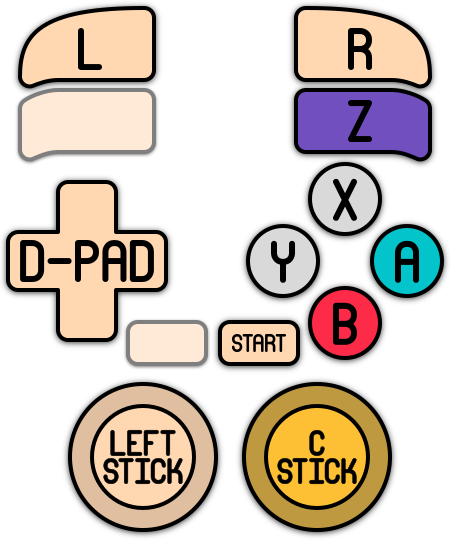
Here are the default Nintendo GameCube's controls shown on a Batocera Retropad:
GameCube adapter for Wii U USB passthrough
In a similar fashion to using Bluetooth passthrough for Wii controllers, you can use USB passthrough to allow Dolphin to entirely handle the GameCube controllers from your adapter.
Download the following file:
- 51-gcadapter.rules
SUBSYSTEM=="usb", ENV{DEVTYPE}=="usb_device", ATTRS{idVendor}=="057e", ATTRS{idProduct}=="0337", MODE="0666"
Save it as a udev rule to userdata/system/udev/rules.d/51-gcadapter.rules (there is no need to “reload” the udev rules, if you want to be sure just reboot Batocera).
You must activate “Custom Pad Profile” and select “GameCube Adapter for Wii U” in Dolphin's controller settings. Boot up Dolphin, attach the Adapter, and it should become selectable.
You can access Dolphin's menu in-game with [Alt] + [Tab] to do this.
Custom Pad Profile
Since v31, it's possible to create and save custom pad profiles for GameCube (Dolphin emulator)
All you need to do is to go to pads options on Dolphin emulator by pressing the F1 key from system menu on EmulationStation.


Here, you can customize and save buttons mapping, and stick calibration.

Only one profile per pad.
After that, you simply need to set the USE PAD PROFILES option (in Dolphin advanced options on EmulationStation) to TRUE and your custom profile will be loaded.

Pad profiles are saved in /userdata/system/configs/dolphin-emu/Profiles.
Troubleshooting
There are infrequent frame-drops in my games despite them running at full-speed most of the time
Your GPU might not be strong enough to calculate the caches in real-time while playing. This can be worked around by activating the PRE-CACHE SHADERS gamecube.wait_for_shaders setting, at the cost of having to wait a while on your next launch of the game (one time only).
It's still happening!
For exceptionally weak hardware, it might also be worth turning off UBERSHADERS gamecube.ubershaders altogether.
Further troubleshooting
For further troubleshooting, refer to the generic support pages.
- systems/gamecube.1637803937.txt.gz
- Last modified: 5 years ago
- by atari