This is an old revision of the document!
Flatpak
Flatpak is a portable software packager for native Linux software deployment. It has been designed to offer a sandbox environment in which users can run applications in isolation from the rest of the system. This means that Flatpak software can run on virtually any Linux distribution… including Batocera.
This is currently supported only for x86_64, as most Flatpak packages are only provided for Linux on the x86/x86_64 platform.
Although we aim to have all Flatpaks functioning, we can't guarantee 100% compatibility; audio tends to be a common issue. Report any issues you find to our Github/Discord server (check for duplicates first).
Common issues: no PS4 controller support, cannot install Flatpaks if using a NAS for your SAVES directory, audio is absent on some configurations, some games think the D-pad is eternally being pressed down on certain controllers, apps that depend on opening the file browser crash upon doing so, etc.
If you still want to use a NAS for the rest of your systems' saves, Flatpaks can still be installed to internal storage as a workaround.
This system scrapes metadata for the “flatpak” group and loads the flatpak set from the currently selected theme, if available.
Grouped with the “ports” group of systems.

Quick reference
- Emulator: Flatpak
- Folder:
/userdata/roms/flatpak - Accepted ROM formats:
.flatpak
Application files
Unlike with most systems, Flatpaks aren't actually installed to its ROM folder at /userdata/roms/flatpak. No no, here only the shortcuts to them are stored. The actual Flatpaks themselves are installed to the SAVEs folder at /userdata/saves/flatpak.
How to install a Flatpak
Using flatpak-config
On Batocera v31, if this is your first time using Flatpak on the system, you'll have to add the repository first. One of the most popular is the Flathub repo. To do that, first connect to your Batocera via SSH or use xterm ([F1] on system list → Applications) and run the following command (while connected to the internet):
flatpak remote-add --if-not-exists flathub https://flathub.org/repo/flathub.flatpakrepo
Batocera v32 and higher already have this set as the default repository.
In Batocera v32 and higher, you can then launch flatpak-config from the file manager ([F1] → Applications) to search for and install Flatpaks.


- Two cursors on-screen?
-
There's a bug affecting v32 where two cursors are displayed. The one you're controlling is the white one. This has since been fixed.
This is also where you would upgrade your packages in the future.
Using the terminal/SSH
First of all, you need to connect to Batocera through SSH.
Then, you need to add your Flatpak remote repo to the system. One of the most popular is the Flathub repo.
flatpak remote-add --if-not-exists flathub https://flathub.org/repo/flathub.flatpakrepo
Once your repo is added, you can search for the software you want to install. In our example here, we are going to install Steam. So, let's search for it:
flatpak search Steam
 Name               Description                               Application ID                   Version       Branch Remotes
 Steam              Manage and play games distributed by Ste? com.valvesoftware.Steam          1.0.0.70      stable flathub
 Boxtron            Compatibility tool to run DOS games on S? ?Steam.CompatibilityTool.Boxtron               stable flathub
 vkBasalt           A Vulkan post processing layer for Linux  ?software.Steam.Utility.vkBasalt 0.3.2.4       stable flathub
 protontricks       A simple wrapper that does winetricks th? ?ware.Steam.Utility.protontricks 1.5.2         stable flathu
 (...)
The piece of software we want to install, Valve's Steam client, is the first one. It can be installed with:
flatpak install com.valvesoftware.Steam
 Looking for matches?
 Found similar ref(s) for ?com.valvesoftware.Steam? in remote ?flathub? (system).
 Use this remote? [Y/n]: Y
 Required runtime for com.valvesoftware.Steam/x86_64/stable (runtime/org.freedesktop.Platform/x86_64/20.08) found in remote flathub
 Do you want to install it? [Y/n]: Y

 com.valvesoftware.Steam permissions:
   ipc                              network                  pulseaudio               wayland
   x11                              devices                  bluetooth                devel
   multiarch                        per-app-dev-shm          file access [1]          dbus access [2]
   system dbus access [3]           tags [4]

  [1] xdg-music:ro, xdg-pictures:ro, xdg-run/app/com.discordapp.Discord:create
  [2] org.freedesktop.Notifications, org.freedesktop.PowerManagement, org.freedesktop.ScreenSaver,
      org.gnome.SettingsDaemon.MediaKeys, org.kde.StatusNotifierWatcher
  [3] org.freedesktop.UDisks2, org.freedesktop.UPower
  [4] proprietary

        ID                                             Branch          Op          Remote           Download
 1.     org.freedesktop.Platform.Compat.i386           20.08           i           flathub          < 152.6?MB
 2.     org.freedesktop.Platform.GL.default            20.08           i           flathub          < 106.4?MB
 3.     org.freedesktop.Platform.GL32.default          20.08           i           flathub          < 114.1?MB
 4.     org.freedesktop.Platform.Locale                20.08           i           flathub          < 322.2?MB
 5.     org.freedesktop.Platform.VAAPI.Intel           20.08           i           flathub           < 11.6?MB
 6.     org.freedesktop.Platform.openh264              2.0             i           flathub            < 1.5?MB
 7.     org.freedesktop.Platform                       20.08           i           flathub          < 268.1?MB
 8.     com.valvesoftware.Steam                        stable          i           flathub           < 13.5?MB

 Proceed with these changes to the system installation? [Y/n]

        ID                                             Branch          Op          Remote           Download
 1. [?] org.freedesktop.Platform.Compat.i386           20.08           i           flathub          140.4?MB / 152.6?MB
 2. [?] org.freedesktop.Platform.GL.default            20.08           i           flathub          105.8?MB / 106.4?MB
 3. [?] org.freedesktop.Platform.GL32.default          20.08           i           flathub          113.8?MB / 114.1?MB
 4. [?] org.freedesktop.Platform.Locale                20.08           i           flathub          140.6?MB / 322.2?MB
 5. [?] org.freedesktop.Platform.VAAPI.Intel           20.08           i           flathub           11.5?MB / 11.6?MB
 6. [?] org.freedesktop.Platform.openh264              2.0             i           flathub            1.5?MB / 1.5?MB
 7. [?] org.freedesktop.Platform                       20.08           i           flathub          222.5?MB / 268.1?MB
 8. [?] com.valvesoftware.Steam                        stable          i           flathub           12.3?MB / 13.5?MB

 Installation complete.
Now, the Flatpak package is installed, but you need to tell Batocera to show it up in the EmulationStation menu (under Ports):
batocera-flatpak-update
 adding Steam
 updating permissions on files.
Manually placing the files
Let's say you've got yourself a fine and dandy Flatpak package in its physical folder form and you want to tell Batocera to just use that instead of searching for it in a repository. This is simple:
- Move the folder containing your Flatpak package to
roms/flatpak/ - Then just run
flatpak install <name of package>
So for example if I had emby-theater-snap_3.0.15_amd64, I would move it to roms/flatpak/emby-theater-snap_3.0.15_amd64 and then run:
flatpak install emby-theater-snap_3.0.15_amd64.snap
Updating Flatpak packages
Updating Flatpak packages is simple: open flatpak-config and click Upgrade. All applicable packages will be updated to their latest version. You may be asked to reboot.
Alternatively, this can be done by running the following command via SSH:
flatpak update
Type in Y and hit [Enter].
Uninstalling Flatpak packages
 A sometimes necessary evil.
You can use the same flatpak-config tool to remove them or run the command:
flatpak uninstall <name-of-package-here>
Don't worry about spelling the package's name precisely, Flatpak will search your system for matching results and ask you if it's the correct one to uninstall first.
Unfortunately, for now at least, the .flatpak file from the /userdata/roms/ directory must be removed manually in order to remove the entry from your game list too.
Cleaning unused Flatpak packages
This command used to be buggy on v32 and below, it is not advised to use it on older Batocera versions. Link to the related issue report.
So you've been using Flatpak packages for a while now, you may have noticed that some applications need to install “runtimes” and other libraries to function. It's safe to leave these packages, and even multiple versions of the same package even, on a system after you no longer need the package that initially installed it. However over time they can take up quite some space, especially if you've been installing and uninstalling games as you play through them.
So you could uninstall these packages one by one, but that would take an inordinate amount of time especially if you have to shift through which packages are really no longer required and which ones are. There's a simple command you can run instead to do all that for you:
flatpak uninstall --unused
Heroic Games Launcher (Epic Games store)
Heroic Games Launcher is an open-source launcher available on Flathub which supports launching games from the Epic Games Store using Legendary and GOG Games. Unfortunately this launcher is not as fully integrated into Batocera as Steam is so some manual work is required.
Install
If you already have the Heroic Launcher Flatpak package installed, it will conflict. Uninstall it first.
Search for “Heroic Games Launcher” and install it.
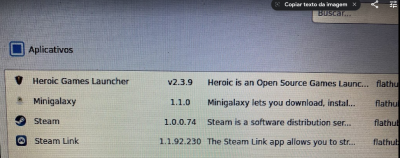
To do so from SSH:
flatpak install com.heroicgameslauncher.hgl
batocera-flatpak-update
Launch Heroic Games Launcher
The Heroic Games Launcher Flatpak is bugged and will not launch correctly using the default flags. You must launch via SSH using the following command:
flatpak run com.heroicgameslauncher.hgl --no-sandbox

This may be worked around in the future. As alternative you can create a .sh launcher at ports system: add launcher at ports section
Login
Heroic Games Launcher will offer two services to login to. Log in to the appropriate one (or select Manage Accounts):

As alternative for Epic Store login, the External Login is available, this way you have to inform your Epic Store Account SID to log in properly.
If the log in fails, press the reload symbol at the top of the launcher window to try again.

Your games will appear in the Library split between Epic Games and GOG. It could take a while to download all games' information and boxart.

Download Game
- Go to Library
- Select the game
- Select Install


Install Wine (for Windows games)
- Select Wine Manager
- Select the desired version of Wine to be downloaded. In order of recommendation: “Wine-GE”, “Wine-Lutris” and “Proton-GE”, the rest are older versions (some games do not work with the latest versions)

Global Wine setting
- Go to Settings → Wine → Wine Version and select the desired version of Wine.

Per game Wine setting
- Go to Library
- Select the downloaded Windows game
- Go to Settings
- Select the desired version of Wine to use for that game.

Launch game
- Go to Library
- Select a downloaded game
- Select PLAY NOW (Windows games require Wine to be set up first)
- Heroic Games Launcher will say “Opening the Game…” and then eventually “Playing (STOP)”
Games may take a while to initially launch as they need to compile shaders for your hardware.
- If playing a Windows game, confirm the Wine installation dialogue box.
- Game start!

Right now, Batocera isn't integrated to Heroic Games Launcher; its games will not be automatically added and launchable with EmulationStation like Steam does. This may change in the future.
Uninstall a game
- Go to Library
- Select an installed game
- Select Tools at the top of the window
- Select Uninstall
Other option
Other options can be found in Settings → Other.

GeForce NOW Electron
GeForce NOW Electron is an unofficial open-source launcher available on Flathub which supports launching games for the GeForce NOW streaming service. Unfortunately this launcher is not as fully integrated into Batocera as Steam is so some manual work is required.
Install
Search for “GeForce NOW Electron” and install it.
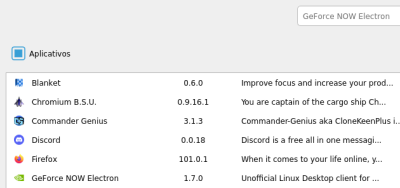
To do so from SSH:
flatpak install flathub io.github.hmlendea.geforcenow-electron
batocera-flatpak-update
Launch GeForce NOW Electron
The GeForce NOW Electron Flatpak is bugged and will not launch correctly using the default flags. You must launch via SSH using the following command:
flatpak run io.github.hmlendea.geforcenow-electron --no-sandbox
This may be worked around in the future. As alternative you can create a .sh launcher at ports system: add launcher at ports section
Login
GeForce NOW Electron offers many ways to log in, but the only one that works for now is the E-mail and password login. Make sure to log in using the regular GeForce NOW with only your E-mail and password.
- So, create a ABYA account with your E-mail and password.
- And log in to GeForce NOW Electron with an ABYA account with the E-mail and password options.
Play Games
To play games on GeForce NOW, you can syn your Steam, Epic Store and Ubisoft stores.
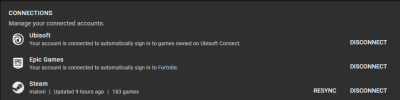
- Goes to Settings and sync your accounts
- Select the game into Library and select to PLAY it.
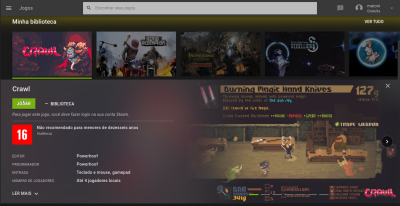
- PAID plans: You will play as soon as possible.
- FREE plans: you will be waiting in a line to be able to play the game and for a couple of minutes when ready (around 20 minutes) [So, do not quit game until time ends, otherwise the game's session will shutdown before that!]. Also do not schedule a game you don't have on your library, e.g. The Witcher 3 has it's versions for Steam, Gog and Epic Store, if you have it on Steam but opens the Epic Store version, you can't play the game! This way, you will have to finish your game section, and open the correct version and wait again in line.
- After you get access to the GeforceNOW virtual machine, you will be pop up with the game's store application, log in into, download the game, and play, just as a regular Steam, Epic Store or Ubisoft softwares.
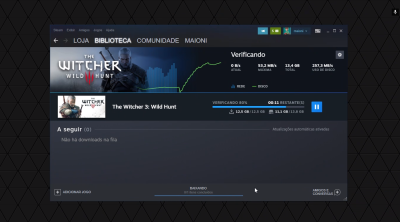
- It supports Gamepad, even if the tools indicate it have no controller connected to it (just make sure the game you selected has support, or play it with a mouse/keyboard plug-in).
Freely distributed games
Here are some lists of freely distributed Linux games!
Controls
Here are the default controls used in Flatpak games shown on a Batocera Retropad:

Obviously, applications designed for a mouse and keyboard interface will probably only work when those are connected.
Troubleshooting
My Flatpaks (including Steam) won't launch!
Try one of the following:
- Update your game list: Main Menu → Game Settings → Update Gamelists.
- Flatpaks currently do not work on a NAS, if you are using a NAS try switching to internal storage.
- The application may need to not be run in the sandbox. From SSH, run
flatpak run <name-of-package> --no-sandboxto test for this.This can be launched directly from ES by using an SH script in the ports system.
For example, to launch the Heroic Games launcher without sandbox, save the following file to
roms/portsand then update the gamelist:- heroicgameslauncher.sh
flatpak run com.heroicgameslauncher.hgl --no-sandbox
- SSH into Batocera and run the following:
batocera-flatpak-update - If you are on an older Batocera version (like v31 or lower) it might be a permissions issue.
- Press
[F1]on your keyboard to enter into File Manager - Ensure you are in the Share folder (left in the sidebar)
- Navigate to the
savesfolder - Select everything by pressing
[Ctrl]+[A] - Right-click and go to Properties
- Click on the “Permissions” tab
- Click on “View Content:” and choose “Anyone”
- Click on “Change Content:” and choose “Anyone”
- Click on “Access content:” and choose “Anyone”
- Click on “OK”
- Reboot and try it
- If trying to run a Flatpak of a Windows game via a Flatpak of Wine (yes, it is complicated and there are many things that can go wrong), search the game on the ProtonDB and see what other users have said they've had to do to make it work. You may need to utilize custom launch commands to get a game working.
- Flatpak can be effectively reset to its default state by deleting the
/userdata/saves/flatpak/and/userdata/roms/flatpak/folders.
My game is running really slowly
- If using a Nvidia GPU, make sure your official Nvidia graphics drivers are enabled and functional.
- Sometimes, Flatpak will “forget” that you have drivers and will need to “redownload” them (you'll find Steam is suddenly lagging in its menus). Run
flatpak updatein the SSH and if it starts downloadingorg.freedesktop.Platform.GL.nvidia-###-##-##then that is what happened.
- Try reinstalling the game and ensure all of its dependencies are sorted out, with no errors.
- PC games in general (especially ones that were ported from home consoles to PC) can be buggy. Check out the PCGamingWiki for general tips, settings configurations, launch commands and patches you can apply to fix the game (just keep in mind it's focused on Windows, not Linux (and thus, not Batocera) so a lot of external programs/patches won't be compatible).
My controls in-game are not working
Unfortunately some games are just garbage at supporting certain controllers. Refer to the PCGamingWiki for general tips, but if you're still struggling to get your controller recognized by the game, see if it would be possible to get the game running from Steam. Once that's done, it should be possible to use Steam to configure the controls, allowing you to use any controller that would be compatible with Steam instead.
Further troubleshooting
For further troubleshooting, refer to the generic support pages.
Bottles
Bottles is a virtual application/gaming platform for setting up preconfigured environments to support a large set of Windows applications/games on Linux. In other words: Bottles gives you the possibility to run almost any Windows application/game on Linux with currently much better compatibility than Batocera's native WINE implementation. Chances are high that you will be able to run any Windows game not running on the native Batocera WINE implementation. Nevertheless, be aware that Bottles is not officially supported by Batocera developers, which means in case of problems you “only” have the unofficial troubleshooting support of the Batocera community (mostly via Discord).
Installation
On the Batocera main menu press Alt+F1 on your keyboard, then navigate to Applications → flatpak-config (if a warning message appears, just confirm by clicking OK). Then, in the searchbar on the top of the screen, search for Bottles and install the Bottles application by clicking on Install:

Confirm by clicking on Yes and wait for the installation process to be finished (click on Show details if you want to check the installation progress, which can take a couple of minutes).
As soon as the Installation process has finished, click on Close, then click on File → Close Window. Now, back on the Batocera main screen, update the gamelist. Bottles application should now be available in the Ports section. If so, you have already successfully installed Bottles on your Batocera system!
Preparing the Bottles environment
To keep things abstracted it is recommended to create a new gaming system folder /userdata/roms/bottles which holds all Windows game data source folders you want to play (you could also keep all your Windows games inside the /userdata/roms/windows folder if you want to keep things together and be able to use Bottles and Batocera's native WINE implementation in parallel for any of your Windows games). To do so launch a SSH/Xterm session and execute the following command:
mkdir -p /userdata/roms/bottles
The according /userdata/roms/bottles folder has now being created. Now you have to make sure that Bottles has access to the /userdata folder and all its subfolders because it obviously needs access to the according game files. Do so by executing the following command:
flatpak override com.usebottles.bottles --filesystem=/userdata
Setting up a game (example)
The following example will cover the game Twin Cobra:
First of all, copy the game's main source data folder to /userdata/roms/bottles. Then start Bottles via the Batocera Ports system section:

Navigate through the initial Welcome to Bottles screen (don't close it!). Then, on the according last screen, confirm by clicking on the Continue button and then on Start using Bottles (the initial setup can take a couple of minutes, this step is only has to be done once after a fresh Bottles installation).
First of all, additionally to the bottle runners already installed by default, you should add the most common and most compatible one(s) as follows:
From the Bottles main menu click on the “Hamburger” icon:

Click on Preferences and navigate to Runners. From there click on Proton GE which opens the dropdown menu. Select the most recent one from the top of the list (currently ge-proton8-16) by clicking on the download icon (Download & Install):

It can a couple of minutes for an additional runner to install, just wait for it to finish installing.
Now close the Runners window which brings you back to the main Bottles menu.
From there, on the left upper corner, create a new bottle by clicking on the + symbol:

In the Name input field give the bottle a meaningsful custom name by inserting the game's name (TwinCobra in this case). For the Environment section select the Gaming radio button (which will set up an optimized gaming environment bottle automatically) and then click on Create (don't worry, you can change the accoring runner later):

Wait for the bottle to be set up which can take a couple of minutes.
Confirm the success message by clicking on Close.
Navigate to Bottles on the top register card menu. You can see you bottle you have just created:

Click on it, which will open up the bottle's settings menu.
From here you can do a lot of stuff to customize the according bottle. We will only cover the most common settings here as every game potentially needs its own settings to run successfully and optimized.
First of all let's take on look an how you can change the according bottle runner:
Click on Runner and from the appearing dropdown menu select according ge-proton runner we have just installed previously (Sidenote: This is just an example on how to install/change a bottle runner. For the specific game Twin Cobra leave the runner on soda as ge-proton will not work for Twin Cobra!):

Wait for the runner to be changed which can take a couple of seconds.
Scroll down to the Compatibility section and click on Working Directory. From the new opened windows click on + Other Locations and navigate to the according game's main folder, then click on Open:

Now scroll up to the top and on the top left click on the back arrow symbol (Go Back), which brings you back to the main bottle screen. From here click on Add Shortcuts…, navigate to your game's main folder where the according game's executable (<myGame>.exe) is located, highlight the according game's executable file and click on Add:

Now, for later automation reasons, you have to remember two things:
- There is the bottle's unique main name being shown on top if the main bottle menu screen.
- There is the bottle's unique executable name being shown under the
Programssection (This is due to you can have multiple executables per bottle which in theory gives you the possibility to install multiple games within a single bottle, but for abstraction and compatibility/dependency reasons it is strongly recommended to set up an unique bottle per game (you have been warned!).):

Keeping the bottle's name and the game's executable name in mind, let's now do the automation part which lets you start the bottle's according executable with just a single click like usually in every other gaming system in Batocera: Via SSH/Xterm create an according Linux start script executable file by executing the following command:
nano /userdata/roms/bottles/<myGame>.sh
Paste the following content (adjust the according <myBottleMainName> and <myBottleExecutableName> variables with the according values according to your needs:
#!/bin/bash
killall -9 bottles
chown -R root:audio /var/run/pulse
chmod -R g+rwX /var/run/pulse
su - batocera -c "DISPLAY=:0.0 flatpak run --command=bottles-cli com.usebottles.bottles run -b '<myBottleMainName>' -p '<myBottleExecutableName>'"
Here's an example for the game Twin Cobra:

Save the file and quit the editor. Now make the start script executable by executing the following command:
chmod +x /userdata/roms/bottles/<myGame>.sh
Now symlink the according Linux start script executable to your /userdata/roms/ports folder by executing the following command:
ln -s /userdata/roms/bottles/<myGame>.sh /userdata/roms/ports/<myGame>.sh
Now, from the Batocera main screen, update the gamelist. The according game's Linux executable you've just created should now appear in the Ports system section:

You can now start the according game like every other game in Batocera.
Optional: Feel free to add the according /userdata/roms/bottles/videos and /userdata/roms/bottles/images folders manually via SSH/Xterm to add the according media data per game afterwards. You can create those folders by executing the following command:
mkdir -p /userdata/roms/bottles/videos /userdata/roms/bottles/images
Troubleshooting
Game not starting
As always, when a game does not start as expected, this can have multiple reasons. From experience it can be said that the most common problems for games not running in Bottles is due to missing dependencies (see below on how to install dependencies), wrong bottle runners (see tutorial step Setting up a game (example) above on how to install/change a bottle runner), and/or wrong CPU synchronization settings.
For CPU synchronization settings, open the according bottle and then navigate to:
Options → Settings → Performance → Synchronization:
Changing this setting from Esync to Fsync often resolves the problem of games not starting as expected.
You can also have a look into the main Batocera logfiles which may be helpful sometimes too.
Dependencies
If you know or you want to try which dependencies (e.g. Microsoft Visual C++ Redistributable (vcrun), .NET, etc.) your game needs to run, you can add/remove those dependencies as follows:
Open the according bottle and then navigate to:
Options → Dependencies
From here you can add/remove any dependencies listed.
Controller issues
Open the according bottle and then navigate to:
Tools → Legacy Wine Tools → Control panel
From here you can check the dinput and/or xinput controllers being recognized by Bottles (Beware: This option is only available if the according chosen runner for your bottle supports this setting (e.g. ge-proton).
Map hotkeys to quit bottle games
If you want to map the hotkey-combo keys to the according game to quit the game as for other Batocera gaming systems, you can do so by creating an according .keys file as follows by executing:
nano /userdata/roms/ports/<myGame>.sh.keys
Paste the following content:
{
    "actions_player1": [
        {
            "trigger": [
                "hotkey",
                "start"
            ],
            "type": "exec",
            "target": [
            "killall -9 bottles"
            ]
        }
    ]
}
Save the file and quit the editor.
If you need the same for the Bottles application itself, this can be done by creating the following file with the same content as described above:
/userdata/roms/flatpak/Bottles.flatpak.keys
- systems/flatpak.1696508201.txt.gz
- Last modified: 3 years ago
- by grandmabetty