This is an old revision of the document!

MS-DOS (x86)
Before Windows, Microsoft made a handy little Disc-based Operating System (MS-DOS). Lots of people used it for lots of things, but that also included videogames. We're interested in that aspect, especially since you can't just run these old games on modern operating systems anymore.
Emulating DOS games is by far the most complicated thing to emulate on Batocera.
If new to DOS emulation, it is recommended to use the ExoDOS Collection along with Voljega's ExoDOSConverter. This will generate fully functional DOS games ready to play.
Please also note that the different DOS emulators in Batocera are in the process of being reviewed and upgraded, and some of them are a bit twitchy.
This system scrapes metadata for the “pc” group(s) and loads the pc set from the currently selected theme, if available.
Quick reference
- Accepted ROM formats:
.pc,.dos,.zip,.squashfs,.dosz - Folder:
/userdata/roms/dos
| Emulators | Accepted ROM formats |
|---|---|
| dosbox | .pc, .dos, .squashfs, .dosz |
| dosbox_staging | .pc, .dos, .squashfs, .dosz |
| dosboxx: dosbox-x | .pc, .dos, .squashfs, .dosz |
| libretro: dosbox_pure | .pc, .dos, .zip, .squashfs, .dosz |
BIOS
No Dos (x86) emulator in Batocera needs a BIOS file to run.
ROMs
Place your Dos (x86) ROMs in /userdata/roms/dos.
DOSBox Emulation: Basic rundown
Here's a simple example with the game Alley Cat :
- Start by creating a folder for your game named
AlleyCat.pc. The first part of the folder name before the '.' must have equal or less than 8 characters and avoid special characters. - Inside it create a
dosbox.batfile and edit it to call the executable of the game (For big games it's better to install them on your computer before copying them to Batocera).
Here for Alley Cat that gives us:
c:
CAT.EXE
- The
C:harddrive is set by DOSBOX to your game folder (so hereC:is equal to the inside of/batocera/share/roms/dos/AlleyCat.pc). So is '.' - Reboot or refresh your gamelist to see the game
- To exit the emulator, enter
ctrl+F9with your keyboard
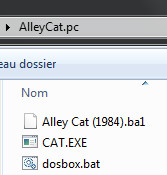
The content of your AlleyCat.pc folder should look like that:
(Don't mind the Alley Cat(1984).ba1 file)
DOSBox Emulation: Advanced rundown
Adding a custom dosbox.cfg in your game folder alongside dosbox.bat will allow you to specify custom DOSBOX configuration for the game.
Either copy the dosbox.conf file from \batocera\share\system\configs\dosbox\dosbox.conf (warning : extension in the game folder must be cfg not conf) or use the following one : https://pastebin.com/13xrJdkw
Inside this file, the line mapperfile=mapper.map will allow you to use a mapper.map file to map any control to your gamepad, including mouse !
It can be created from within your game by pressing ctrl+F1 at any time and will then be saved alongside your dosbox.cfg and dosbox.bat files.
Some parameters from dosbox.cfg can also be put instead at the beginning of your dosbox.bat if you don't want to use a custom dosbox.cfg but some of them won't work there, everything graphics seems to work, but mapperfile doesn't work for instance.
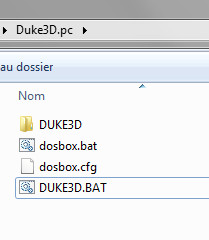
Here's an example of what this more advanced version should look like :
Converting a DOS game to be used on Batocera
You might want to convert a game already using DOSBox, like when bought on GOG or games from the excellent ExoDOS collection.
If you are using ExoDOS collection, I can only recommand once again ExoDOSConverter
Anyway, if you want to do it manually, here is the process:
The first step is to copy the content of the game folder.
Then we need to adapt the content of the dosbox.cfg and the bat file used to launch the game.
Let's take an example with WackyWheels
Do not directly copy the dosbox.cfg (or .conf) from the original folder as this can lead to crashing bugs not easily debugged, copy the standard one linked above and then if you encounter any trouble, just see if the original dosbox.cfg had any special configuration and try to use it to your dosbox.cfg
First move the content of the [autoexec] part from the doxbox.cfg part to the beginning of your dosbox.bat and adapt paths. Here we have originally :
[autoexec]
cd ..
cd ..
mount c .\games\WackyWhe
imgmount d .\games\WackyWhe\cd\wackywheels.iso -t cdrom
c:
cd wacky
cls
@ww
exit
and that will give us in our dosbox.bat on batocera side :
imgmount d .\cd\wackyw~1.iso -t cdrom
c:
cd WACKY
pause
WW.EXE
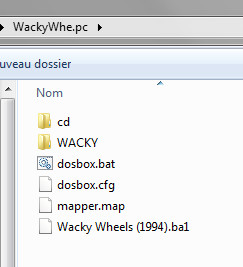
The content of your WackyWhe.pc folder should look like that:
(Don't mind the Wacky Wheels (1994).ba1 file and mapper.map is perfectly optional)
Explanations:
C:is already mounted by Batocera DOSBox, so no need for that- '.' is also set by Batocera DOSBox to the game folder, by using relative paths your game won't be linked to a folder (you can put in a subfolder or in a different distribution)
- exit is removed because Batocera DOSBox takes care of that too
- imgmount path is simplified but we have to convert the longer-than-8-chars name of the iso to a standard DOS name (that is eight characters total with the last two changed to ~1 - ~2 and ~3 etc. if you have several long filenames starting alike). Anyway maybe it's better to rename the filename in that case.
- Long names are not supported in
.cuefiles either so you may have to rename some.cue/.binfiles manually and edit the.cuefile to set the correct new name for the bin in it. And it is very strict : no special chars, not even upper case characters - pause command allow you to pause the screen and easily debug DOS instructions, you can remove it after everything works fine (don't put it after the main executable call or you'll see nothing, I know, I've been there ;) )
@wwis changed toWW.EXE(just the executable file of the game)
That's it !
Some games may use a bat file launcher which you can adapt too, put its instruction after those of dosbox.cfg's [autoexec] if the original game uses both files.
Windows 3.1 emulation
It's also possible to emulate Windows 3.1 games with dosbox, the safest way is to get them from the ExoWin3x collection.
You can also convert them with ExoDOSConverter
Emulators
dosbox
dosbox configuration
Standardized features available to all cores of this emulator: dos.videomode, dos.ratio, dos.padtokeyboard
dosbox_staging
dosbox_staging configuration
Standardized features available to all cores of this emulator: dos.videomode, dos.ratio, dos.padtokeyboard
There are no configuration options available yet.
RetroArch
RetroArch (formerly SSNES), is a ubiquitous frontend that can run multiple “cores”, which are essentially the emulators themselves. The most common cores use the libretro API, so that's why cores run in RetroArch in Batocera are referred to as “libretro: (core name)”. RetroArch aims to unify the feature set of all libretro cores and offer a universal, familiar interface independent of platform.
RetroArch configuration
RetroArch offers a Quick Menu accessed by pressing [HOTKEY] +  which can be used to alter various things like RetroArch and core options, and controller mapping. Most RetroArch related settings can be altered from Batocera's EmulationStation.
Standardized features available to all libretro cores: dos.videomode, dos.ratio, dos.smooth, dos.shaders, dos.pixel_perfect, dos.decoration, dos.game_translation
ES setting name batocera.conf_key | Description ⇒ ES option key_value |
|---|---|
| Settings that apply to all cores of this emulator | |
GRAPHICS BACKEND dos.gfxbackend | Choose your graphics rendering ⇒ OpenGL opengl, Vulkan vulkan. |
AUDIO LATENCY dos.audio_latency | Audio latency in milliseconds, turn it up if you hear crackles ⇒ 256 256, 192 192, 128 128, 64 64, 32 32, 16 16, 8 8. |
THREADED VIDEO dos.video_threaded | Improves performance at the cost of latency and more video stuttering. Use only if full speed cannot be obtained otherwise. ⇒ On true, Off false. |
libretro: dosbox_pure
libretro: dosbox_pure configuration
ES setting name batocera.conf_key | Description ⇒ ES option key_value |
|---|---|
| Settings that apply to all systems this core supports | |
CPU TYPE global.pure_cpu_type | Select the fine CPU type for your game ⇒ Autodetect (Compatible) automatic, 386 386, 386 (slow) 386_slow, 386 (prefetch) 386_prefetch, 486 (slow) 486_slow, Pentium (slow) pentium_slow. |
CPU CORE METHOD global.pure_cpu_core | Choose an accurate or fast method ⇒ Optimized (auto) automatic, Dynamic (fast) dynamic, Normal (interpreter) normal, Simple (interpreter for old real-mode games) simple. |
CPU EMULATED PERFORMANCE global.pure_cycles | Select CPU cycles by model (use with caution) ⇒ Autodetect (Compatible) automatic, MAX (as many as possible) max, 8086/8088, 4.77MHz (315 cps) 315, 286, 6MHz (1320 cps) 1320, 286, 12.5MHz (2750 cps) 2750, 386, 20MHz (4720 cps) 4720, 386DX, 33MHz (7800 cps) 7800, 486DX, 33MHz (13400 cps) 13400, 486DX2, 66MHz (26800 cps) 26800, Pentium, 100MHz (77000 cps) 77000, Pentium II, 300MHz (200000 cps) 200000, Pentium III, 600MHz (500000 cps) 500000, AMD Athlon, 1.2GHz (1000000 cps) 1000000. |
RAM SIZE global.pure_memory_size | The amount of RAM for the emulated machine ⇒ No EMS/XMS none, 4MB 4, 8MB 8, 16MB 16, 24MB 24, 32MB 32, 48MB 48, 64MB 64, 96MB 96, 128MB 128, 224MB 224. |
GRAPHICS CHIP TYPE global.pure_machine | Video card graphic chip type ⇒ SVGA svga, VGA vga, EGA ega, CGA cga, Tandy tandy, Hercules hercules, PCjr pcjr. |
KEYBOARD LAYOUT global.pure_keyboard_layout | Select physical keyboard layout (not the On-Screen one) ⇒ US us, UK uk, Brazil br, Croatia hr, Czech Republic cz243, Denmark dk, Finland su, France fr, Germany gm, Greece gr, Hungary hu, Iceland is161, Italy it, Netherlands nl, Norway no, Poland pl, Portugal po, Russia ru, Slovakia sk, Slovenia si, Spain sp, Sweden sv, Switzerland (German) sg, Switzerland (French) sf, Turkey tr. |
SAVESTATE / REWIND global.pure_savestate | Enable Savestate and optionally Rewind support ⇒ On True, On with rewind support rewind, Off disabled. |
GAMEPAD AUTOMATIC MAPPING global.pure_auto_mapping | Apply a gamepad mapping scheme for selected game ⇒ On true, On with game detection message notify, Off false. |
JOYSTICK ANALOG DEADZONE global.pure_joystick_analog_deadzone | Set the deadzone of the joystick analog sticks ⇒ 0% 0, 5% 5, 10% 10, 15% 15, 20% 20, 25% 25, 30% 30, 35% 35, 40% 40. |
JOYSTICK TIMED INTERVAL global.pure_joystick_timed | Enable timed intervals for joystick axes if drifts ⇒ On true, Off false. |
CONTROLLER 1 TYPE global.controller1_dosbox_pure | Select Keyboard, Joysticks or Gravis GamePad mode ⇒ Gravis GamePad (D-pad + 4 Btns) 1, Generic Keyboard Binds 257, Keyboard + Mouse (Left An.) 513, Keyboard + Mouse (Right An.) 769, 1st Joystick (2 Axes, 2 Btns) 1281, Flight Stick (3 Axes, 4 Btns, 1 Hat) 1793, Both Joysticks (4 Axes, 4 Btns) 2049, Custom Keyboard Binds (best for Pad2Key) 3. |
CONTROLLER 2 TYPE global.controller2_dosbox_pure | Select Keyboard, Joysticks or Gravis GamePad mode ⇒ Gravis GamePad (D-pad + 4 Btns) 1, Generic Keyboard Binds 257, Keyboard + Mouse (Left An.) 513, Keyboard + Mouse (Right An.) 769, 2nd Joystick (2 Axes, 2 Btns) 1537, Flight Stick (3 Axes, 4 Btns, 1 Hat) 1793, Both Joysticks (4 Axes, 4 Btns) 2049, Custom Keyboard Binds (best for Pad2Key) 3. |
Controller
Most if not all DOS games offered keyboard controls, as that was the one accessory universally available to all computers. It is perfectly fine to use pad2key to bind your physical controller to the virtual keyboard. However, there was one particular PC gamepad controller that could be plugged into the serial port of a MSDOS machine and was somewhat universal, the Gravis PC Gamepad: 
For this reason it might be why you see some “colored circle” controller prompts in some games. Blue =  , Red =
  , Yellow = and Green =
  .
.
Here are the default Dos (x86)'s controls shown on a Batocera Retropad:

Troubleshooting
Image isn't in the right ratio
For older games, you may have to adjust the aspect=false parameter to aspect=true to get the correct 4/3 ratio. Be aware that on newer games this may lead to performance problems
The Joystick is moving by itself
Try modifying timed=false to timed=true. Can be caused by deadzone too and sadly there is no way to configure deadzone on joystick in DOSBox at the moment
D-pad is not usable on Xbox 360 controller through the mapper
yeah, it is usable in the mapper, but it doesn't seem to work in-game, I know mate :(
Joystick deadzones/my stick is drifting
Sadly it doesn't seem to be possible to adjust deadzones in standard dosbox at the moment.
CD Not Found/CD Driver not present:
you likely forgot to rename cd files with non-dos names (see adv. rundown)
I can get mount a or mount d to work
Contrary to imgmount, mount is not able to use 'virtual' path from inside the dosbox machine, so for the mount command to work, you need to only use a real local path from the batocera file system. Given that '.' is set to the root/directory when DOSBox is launched you have to specify the full absolute path
The mapper is bugged, it erases my configuration or mix buttons
You're likely victim of the buttonwrap parameter in your dosbox.cfg conf file. When set to true, its wraps buttons with an upper id than the number of joystick buttons emulated, restarting to 0 (5 will be rewrapped to 0, 6 to 1, etc…) . Set it to false and everything should be fine
I need to exit the game without leaving Dosbox
[Ctrl] + [F9].
Further troubleshooting
For further troubleshooting, refer to the generic support pages.
- systems/dos.1638686388.txt.gz
- Last modified: 5 years ago
- by atari