This is an old revision of the document!
Dual boot Batocera
It is recommended to boot Batocera off of a USB drive and to use your BIOS boot selection menu to switch between Batocera and other operating systems that may already be on other drives. You can still use drives with other operating systems on them to host your userdata such as ROMs, BIOS files, saves, etc. However, some people prefer to have Batocera directly installed on the main hard drive alongside another pre-existing OS.
Ordinarily, Batocera utilizes Syslinux to boot, which is configured to only boot Batocera. Thus, for most dual boot setups we will be utilizing GRUB to show a boot selection menu after BIOS has loaded instead.
In case you install Batocera on your hard-drive, you may want to rename the BATOCERA partition to something unique like BATOPC. If you do, edit the grub.cfg file below to have label=BATOPC instead of label=BATOCERA. This allows you to still boot using Batocera installed on a USB without worry that the hard-drive will always take priority due to sharing the same label.
Dual boot Batocera and Windows
You will likely have to wipe your hard drive's contents to do this, so no data can be carried over from a pre-existing Windows installation. To dual boot Windows and Batocera on the same drive:
- Partition your intended drive to begin with a large physical NTFS partition for Windows. It is recommended to use a GPT partition table. The rest of the free space will be used for Batocera.
- Install Windows via your preferred method. It will re-partition the existing NTFS partition into smaller logical partitions, but should retain its total size.
- In the empty space, add a new physical FAT32 partition around 8GB in size (can be larger if you want, but not smaller) labelled “BATOCERA”. This will be used for Batocera's boot files.
- Immediately after the BATOCERA partition, create another partition to fill up the rest of the drive. This will be used as the “internal” userdata. Check out which filesystem to use. If you'd like to allow Windows to access the userdata partition, it is recommended to use exFAT or NTFS. BTRFS can also work, but requires kernel drivers for Windows to be installed to allow access to it.
- Rename the folders in Windows' EFI partition from
EFI/BoottoEFI/Boot_backup - Download this ZIP file and extract it.
- Copy the contents of
EFI_WINDOWSto Windows' EFI partition. TheBOOTfolder should be in the same spot as the oldBootfolder was. - Boot into Batocera from a USB drive, run
blkid /dev/sda#(wheresda#is the Windows EFI partition) and note down the ID of the partition. (confirmation needed) To do this on Windows itself, open an administrator command prompt and run
 diskpart,list disk,select disk=#(where # is the number of the disk with Windows EFI on it, usually 0),uniqueid diskto get your disk ID (add the hyphen in the middle).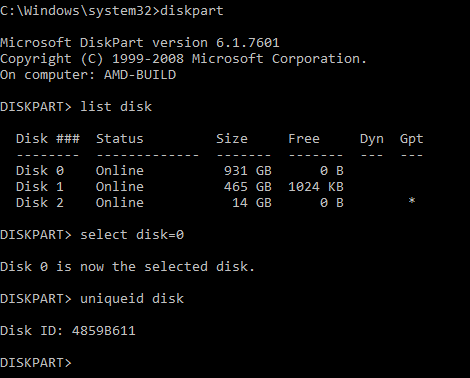
- Open
ubuntu/grub.cfgand change2AD8-4A0Cto the ID of the partition.
The final grub.cfg file should look like this:
- grub.cfg
set default=0
set timeout=5

menuentry 'Windows 10' {
  search --fs-uuid --no-floppy --set=root 2AD8-4A0C
  chainloader (${root})/EFI/Microsoft/Boot/bootmgfw.efi
}

menuentry "batocera.linux" {
  search --set=root --label BATOCERA
  linux /boot/linux label=BATOCERA console=tty3 quiet loglevel=0 vt.global_cursor_default=0
  initrd /boot/initrd.gz
}
Dual boot Batocera and other Linux distributions
Here are some examples on how to dual boot Batocera with popular Linux distributions like Ubuntu or Linux Mint.
Ubuntu Linux
Install Ubuntu
Follow your favorite method for the initial Ubuntu install, leaving extra unpartitioned space for Batocera and its userdata.
Batocera partitions
After the Ubuntu partition, create two consecutive partitions:
- Partition 1: Type =
fat32, name =BATOCERA - Partition 2: Type =
ext4, no special labels or flags required, it must be created and placed right after theBATOCERApartition
Then download boot.tar.xz and unzip it on the BATOCERA partition.
Configure the Ubuntu GRUB
Older versions of Ubuntu may need grub-customizer to do the following.
- While booted into Ubuntu, create
/etc/grub.d/50_batocerawith the following content:- 50_batocera
#!/bin/bash

cat << EOF
menuentry "batocera.linux" {
      search --set=root --label BATOCERA
      linux /boot/linux label=BATOCERA console=tty3 quiet loglevel=0 vt.global_cursor_default=0
      initrd /boot/initrd.gz
}
EOF
- Run
sudo update-grub - Reboot
You will now be presented with the GRUB menu upon booting, allowing you to select either Batocera or Ubuntu to boot into.
Linux Mint
For other distributions like Linux Mint 19.03, you can use the following method.
Install Linux Mint
Follow your favorite method for the initial Mint install, leaving extra unpartitioned space for Batocera and its userdata.
Batocera partitions
Create 2 consecutive partitions on your hard drive:
- Partition 1: type = fat32, name =
BATOCERA - Partition 2: type = ext4. It must be created and placed right after the
BATOCERApartition.
Then download boot.tar.xz and unzip it on the BATOCERA partition.
Configure the GRUB boot loader
- Download the following file and save it to
/etc/grub.d/15_batocera:- 15_batocera
#! /bin/sh

BATOCERA_UUID=$(lsblk --fs --noheadings --pairs -o TYPE,LABEL,UUID |
		       grep -E '^TYPE="part" LABEL="BATOCERA" UUID="[^"]*"$' |
		       sed -e s+'^TYPE="part" LABEL="BATOCERA" UUID="\([^"]*\)"$'+'\1'+ | head -1)

if test -n "${BATOCERA_UUID}"
then
    echo "Image batocera found on ${BATOCERA_UUID}" >&2

    cat <<EOF
menuentry "batocera.linux" {
	insmod fat
        search --no-floppy --fs-uuid --set=root ${BATOCERA_UUID}
	linux /boot/linux label=BATOCERA console=tty3 quiet loglevel=0 vt.global_cursor_default=0
	initrd /boot/initrd.gz
}
EOF
fi
- The file can also be automatically downloaded with the following command:
sudo wget https://batocera.org/upgrades/grub/15_batocera -O /etc/grub.d/15_batocera
- Then run the following commands:
sudo chmod a+x /etc/grub.d/15_batocera
sudo update-grub
Eventually, it will output the following:
[...] Image batocera found on 3377-44C4 [...]
- Reboot
You will now be presented with the GRUB menu upon booting, allowing you to select either Batocera or Linux Mint to boot into.
- dual_boot_ubuntu_batocera.linux.1640846796.txt.gz
- Last modified: 4 years ago
- by atari