This is an old revision of the document!
Map a Controller
This gives you the ability to map the buttons of a new controller or remap an existing controller to your preference.
From this menu, you can define one mapping per controller. As a result, choose a mapping that will fit most games naturally. The problem we have in the emulation world is that there is no such thing as one unique mapping for all emulated systems. Nintendo, Sony, Sega, Microsoft have all chosen different layouts… plus the multiple arcade systems that Batocera supports: you get the idea.
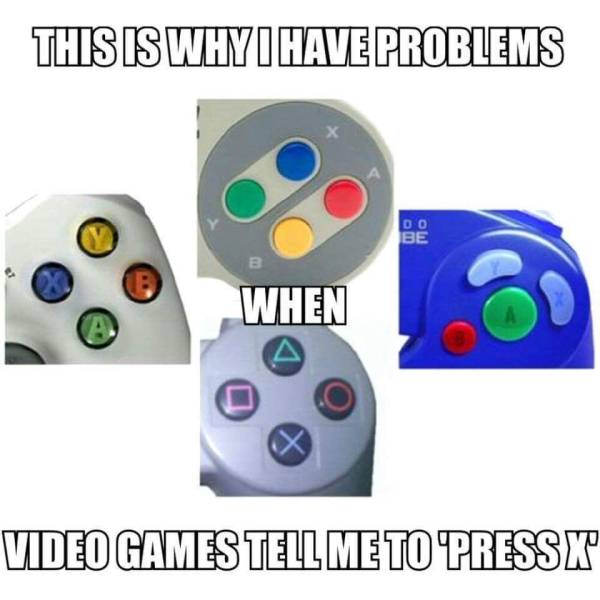
When plugging in your controller to your machine (or when booting up Batocera with the controller already plugged in) ensure that the sticks, buttons and triggers are in their neutral position. Batocera will read the current values of all the controller's inputs when it first “sees” the controller and use those as their neutral positions.
That's why, unfortunately there is no “One gamepad for all” which covers all different original console gamepads. And as you can see on the picture above, according to the pad you are using/refering, the X-button is at another location.
Therefore, if you want to map the four (usually diamond-shape-arranged) action-buttons of the pad you are using yourself, it is recommended to map those according to their cardinal direction: North  / East
  / South
  / West
  with an SNES pad as orientation.
That means on a Playstation style pad the Triangle-Button (North ) should be mapped as X, the Circle-Button (East ) should be mapped as A, the X-Button (South ) should be mapped as B, and the Square-Button (West ) should be mapped as Y.
Usually, for the most common original gamepads (Xbox, Playstation, Nintendo, 8bitdo) the buttons are already mapped suitably. But there are some systems/gamepads, which are tricky in that regard, like Nintendo Gamecube, Nintendo 64 or Sega Genesis/Mega Drive for example (because the original pads of those systems do not have the typical diamond-shaped arrangement of four action buttons).
If a system controller has digital shoulder buttons, they are mapped to the L1/R1 buttons. If a system controller has analog triggers for shoulder controls, they will be mapped to L2/R2 triggers instead. Systems with both sets will utilize all shoulder buttons/triggers.
Arcade layouts are an exception, and they usually substitute using the left and middle buttons for (Light Punch)/ (Light Kick)/ (Medium Punch)/ (Medium Kick) and the right buttons for [R1] (Heavy Punch) and [R2] (Heavy Kick). D-pad and analog stick(s) should of course be mapped appropriately.
For [HOTKEY] it is either a special key on the pad (like PS button in the middle of PS3/4 controller, or the Guide button on an Xbox 360/One controller) or if no special key is available it should be the [SELECT] button.
If you assign the hotkey to a button other than the [SELECT] button or a dedicated [HOME] button, you may instantly trigger hotkey shortcuts!
Here are pictures of a small selection of controllers for original consoles with their button layout as a guide/orientation:
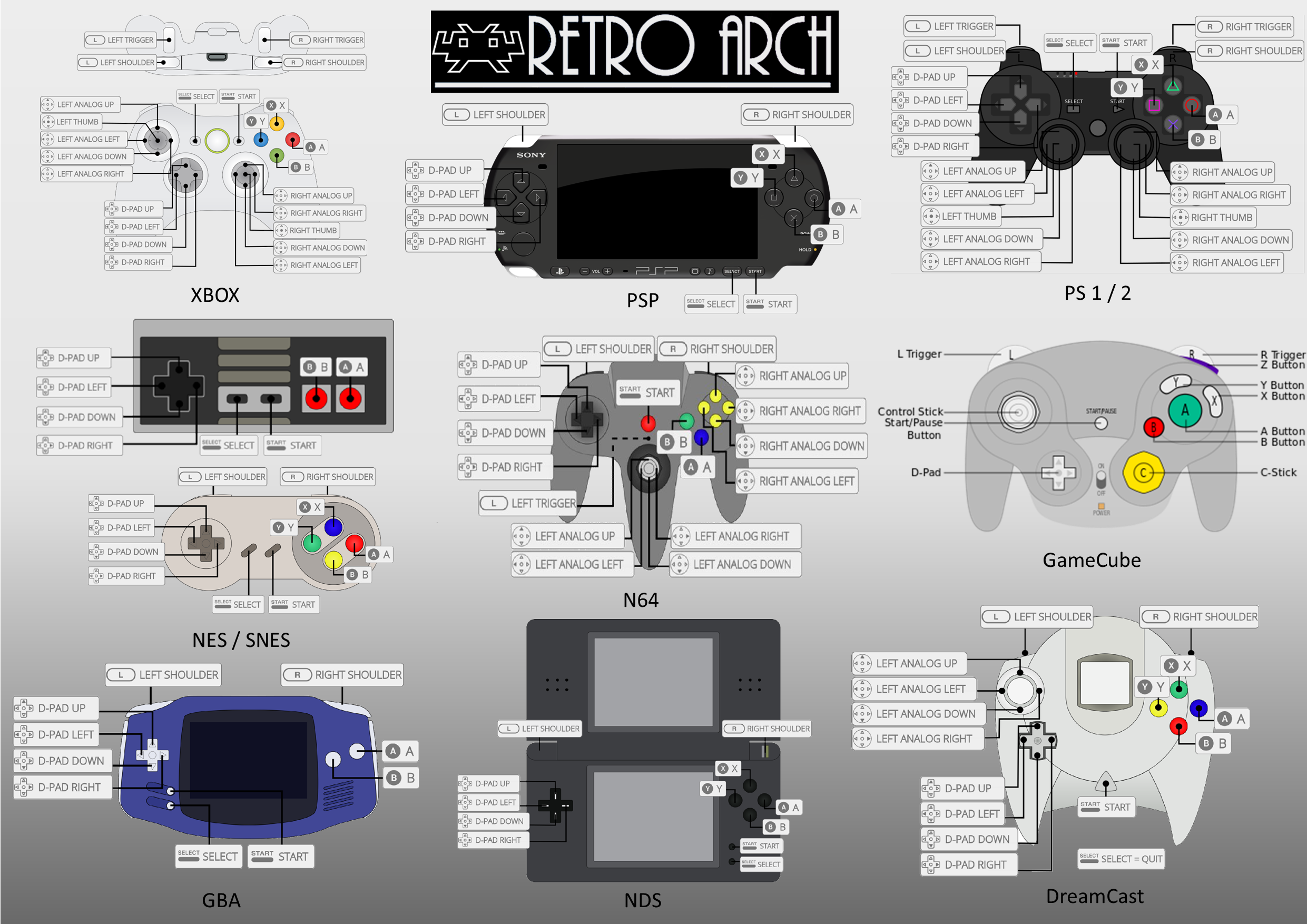
And here pictures of the most commonly used controllers for emulation, with the corresponding button mapping/layout:


But my controller doesn't have that many buttons!
This may come up if say you're using a classic SNES-styled controller without sticks or [L2]/[R2] triggers. Or maybe you're using an original NES pad with a USB adapter. Don't worry, you can skip any buttons which you don't have by holding down any button. The absolute minimum Batocera requires for most functions are:
- D-pad to navigate menus (in cases where no analog stick is available, it can usually be emulated with the D-pad)
- to confirm/launch games
- to cancel/back out of a system's game list
If you have the luxury, the next most important buttons are:
[START]to access the Main Menu in EmulationStation (some retro games require this to even start)[SELECT]to function as both the secondary menu button in EmulationStation and as the[HOTKEY](some retro games require this to start alternate game-modes or insert virtual coins)
If you have a dedicated home/guide button, you should use that instead (some games may have some important function tied to [SELECT], rendering the Quick Menu ([HOTKEY] + ) interruptive).
From there, the rest of the buttons are auxiliary. In order of importance:
- for quick functions in EmulationStation (and for systems with three-button layouts)
- for utility options in EmulationStation (and for systems with four-button layouts)
[L1]/[R1]for pageup/pagedown in EmulationStation (a lot of unorthodox systems use shoulder buttons, such as DOS pad2key)- The left analog stick for systems that support it (in cases where the D-pad is unavailable, the left analog stick can usually emulate the D-pad)
- The right analog stick for systems that support it (N64 in particular needs the right stick for its C-buttons)
- Dedicated
[HOTKEY]button for convenience
I'd like to add my controller configuration to the database
If your controller wasn't recognized by EmulationStation and you had to manually configure it, your configuration will be appended to /userdata/system/configs/emulationstation/es_input.cfg. The last controller used appears at /userdata/system/configs/emulationstation/es_last_input.cfg, which contains just that controller's configuration. You can send your controller configuration over to this pinned forum post in order to add it to Batocera's controller database. That way, future users who use that controller will have their controller auto-magically configured out of the box! It's all a community effort, thank you for helping Batocera!
I want to remap my controls for just a single system
First, map your controller as you normally would for menu navigation. Then, refer to the remapping controls per emulator page.
- configure_a_controller.1673263989.txt.gz
- Last modified: 4 years ago
- by joinski