This is an old revision of the document!
Advanced arcade emulation on Batocera
If new to arcade emulation, it is recommended to read the arcade guide first before reading this one.
This section could probably do with an overhaul of its headers.
All the arcade emulators on Batocera
Too many columns. Information is not accurate. For the actual information here, can it be merged with the table on the regular guide?
| Arcade emulator | Alternative name | Romset | Roms folder | Default on hardware | Purpose | Extras | Notes |
|---|---|---|---|---|---|---|---|
| MAME (standalone) | Mame | Latest | mame | PC | All arcade hardware | highscores, samples, overlays | The latest and greatest, usually the hardest to run |
| libretro/mame | Mame | Latest | mame | PC | All arcade hardware | highscores, samples, overlays | Batocera for PC is shipped with the latest stable MAME version available at the time of release, see table up there |
| libretro/imame4all | iMame4All | 0.37b5 | mame | RPi0 (<v30) | All arcade hardware | highscores, samples, overlays | Very old version, good for lower devices like pi0, but not many games supported |
| libretro/mame0139 | Mame2010 | 0.139 | mame | PC | All arcade hardware | highscores, samples, overlays | Good core for medium powerful boards like Pi3 |
| libretro/mame078plus | Mame2003Plus | 0.78+ | mame | PC | All arcade hardware | highscores, samples, overlays | Good port for less powerful boards with back porting of more recent developments Romset is a bit specific, it's not the same as standard 0.78 |
| libretro/fbneo | Final Burn Neo | Latest | fbneo | All | All 2D arcade hardware | highscores | 1.0.0.X romset is always evolving, it is mostly base on MAME 0.187 romset, but some ROMs are different |
| libretro/neogeo | Neo Geo | Latest | fbneo | All | All 2D arcade hardware | highscores | can also set to use mame emulators, but fbneo is the recommanded way to go |
| libretro/flycast | Flycast | Latest | atomiswave | All | Atomiswave arcade hardware | AtomisWave roms can be picked from the latest mame romset | |
| libretro/flycast | Flycast | Latest | naomi | All | Naomi arcade hardware | Naomi roms and CHD can be picked from the latest mame romset | |
| Hypseus | Daphne | Specific | daphne | All | Daphne arcade hardware | Emulator for laserdisc arcade games like Dragon's Lair, uses a very specific non-mame based romset | |
| libretro/fbalpha2012 | Final Burn Alpha | FB Alpha 0.2.97.29 | fbneo / neogeo | RPi0 (>v31) | All 2D arcade hardware | Emulator that performs well on low-power boards. Retropietest's excellent page on it (note we aren't using the same romset version). |
NeoGeo system
The NeoGeo system is not an emulator itself, but uses the FBNeo emulator. ( Why do we have this? This doesn't work like this for any other system. This section is also confusing, are we no longer defining systems by their folder? Are settings retained from the general mame and fbneo folder?)
You can use this system to visually separate the NeoGeo games from the other arcade games, they will appear as a dedicated system in EmulationStation.
It uses the same romset as the FBNeo emulator.
Setting a Rotary Joystick with libretro mame2003plus
If you have a special stick like the Happ Rotary Arcade you need to configure both joystick and keyboard at same time:
Dial :   AZERTY keyboard: "^" (between  "P" and "Enter") -- QWERTY keyboard: "[" (leftbracket)
Dial :   AZERTY keyboard: "$" (between "P" and "Enter")  -- QWERTY keyboard: "]" (rightbracket)
Dial 2 : AZERTY keyboard: "*" (between "m" and "Enter")  -- QWERTY keyboard: "/" (slash)
Dial 2 : AZERTY keyboard: "!" (between "m" and Right)    -- QWERTY keyboard: "\" (backslash)
You must launch your game, open the Retroarch menu with Hotkey + B, go to Input Interface and activate the option Simultaneous. Then you can use your joystick and keyboard keys at the same time.
Highscores
Highscores can be tracked and kept throughthe use of `highscore.dat` which mus be in the right version for each emulator / emulator version, they can be found or must be placed here :
- For FBNeo :
/userdata/bios/fbneo - For mame2003plus :
/userdata/saves/mame/mame2003-plus/hi - For mame2010:
/userdata/saves/mame/mame2010/hi - For mame: see temporary solution in following post
Configuration menus
This is the per-game menu for accessing the machine's advanced configuration such as its dip switches, service mode and diagnostic input.
For FB NEO, the default combo is [START] + [L1] + [R1] (old versions ( what older versions? Be specific): Hold [START])
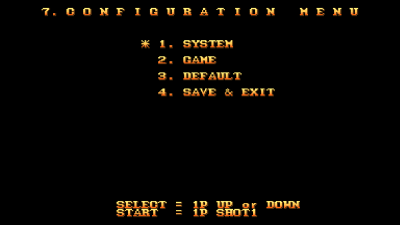
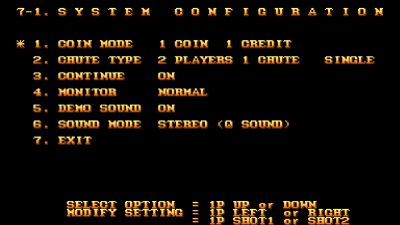
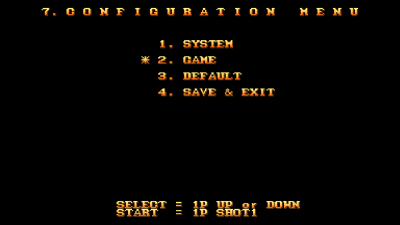
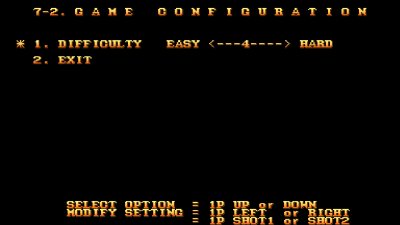
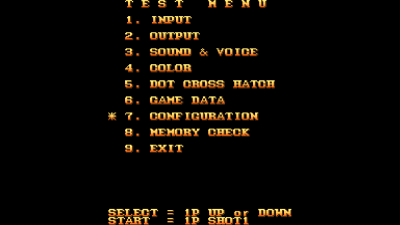
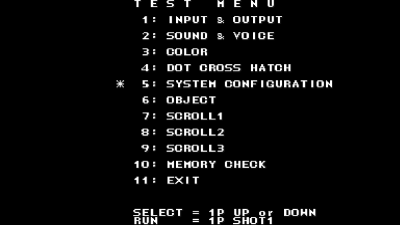
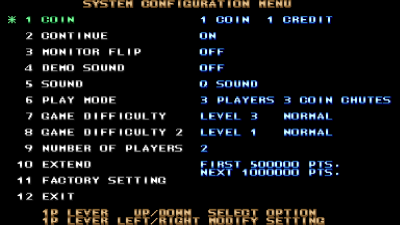
For MAME, the default combo is pushing in [L3] + [R3] (old versions ( what older versions? Be specific. I also don't think this was even removed, ie. you can still press Tab on the keyboard to access the dip switch menu): [Tab] on the keyboard)
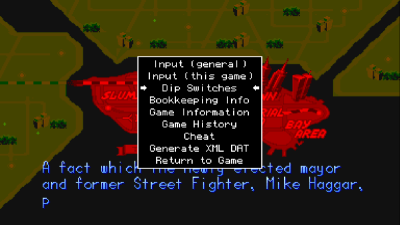
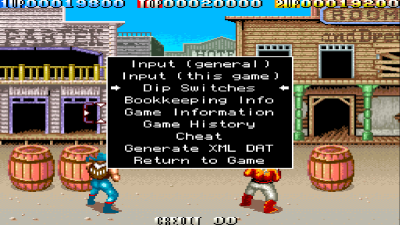
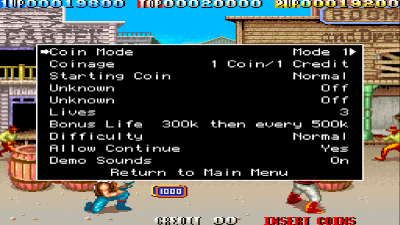
For NEOGEO:
- For the default ( factory?) NEOGEO BIOS, the default combo is
[START]+[L1]+[R1](old versions ( what older versions? Be specific): Hold [START]) - For the universal BIOS:
- At the boot screen, the default combo is holding down
 +
+  +
+ 
- During gameplay, the default combo is holding down
[START]+[SELECT]or holding down[START]+ + +


Setup a new shortcut via RetroArch:
[HOTKEY] + → Quick Access → Options → Diagnostic Input


Setup DIP Switches via RetroArch: [HOTKEY] + → Quick Access → Options → Dip Switches


Setup NEO-GEO BIOS via RetroArch:
[HOTKEY] + → Quick Access → Options → SPECIFIC NEO GEO BIOS → UNIBIOS or SPECIFIC BY DIP SWITCHES (UNIBIOS)
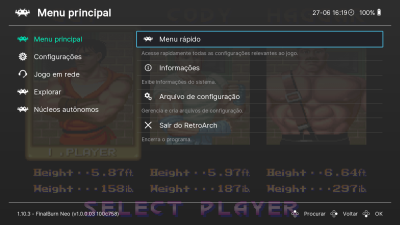
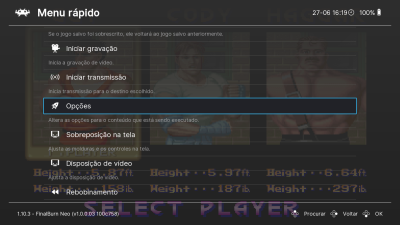
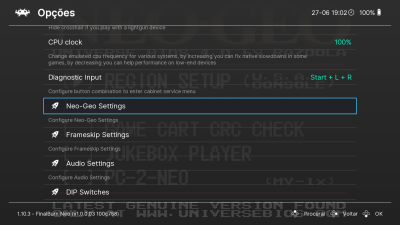
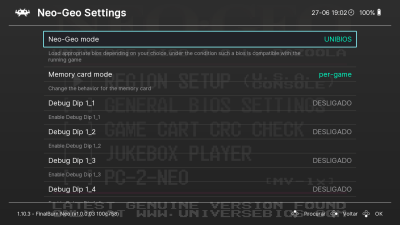
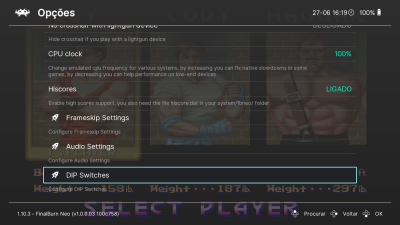
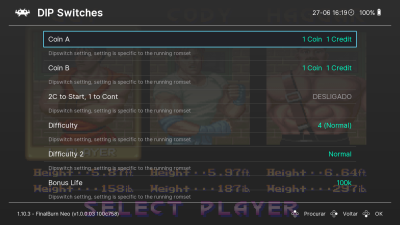
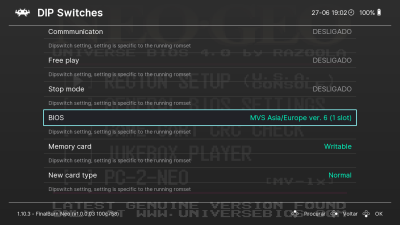
Not all games have a dip switch menu, and may crash when using these commands.
Here you can change number of players, get more lives, switch for arcade or console mode, setup subtitles, or even active the free mode!
- Options available (Defaults)
-
- Diagnostic Input (shortcut combination):
NoneHold StartStart + A + BHold Start + A + BStart + L + R(Default)Hold Start + L + RHold SelectSelect + A + BHold Select + A + BSelect + L + RHold Select + L + R
- DIP Switches (settings) - may differ from game to game:
- Autofire: Off* or On
- Coin Mode: Mode 1*, Mode 2
- Coin A / Coin B | Coinage | Coin setting : 4 Coins 3 Credit, 2 Coins 1 Credit, 1 Coin 1 Credit*, 1 Coin 2 Credits, 1 Coin 3 Credits, 1 Coin 4 Credits, 1 Coin 6 Credits, Free to Play
- 2C to Start, 1 to Continue: Yes or No* | Starting Coin: Normal, 2x
- Difficulty: 1 (Easiest), 2, 3, 4 (Normal)*, 5, 6, 7, 8 (Hardest)
- Difficulty 2: Easy, Normal*, Hard, Hardest
- Bonus Life: 100K*, 200K, 100K and every 200K, None
- Number of Players: 1, 2*, 3, 4
- Change Lives: 1, 2*, 3, 4, 5
- Free to play: Yes or No*
- Freeze: : Yes or No*
- Flip: Yes or No*
- Demo Sound | Attractive: Yes* or No
- Allow Continue: Yes* or No
- Game Mode: Game* or Test
- Sound Output: Mono or Stereo
- Unknown: Off* or On
- Region: Europe, USA or Japan
- Mode: ARCADE or CONSOLE-AES
- Subtitles: English, Japanese, Korean or Portuguese
- Jukebox
←-
MAME input remap files
Is this heading really required?
MAME machines can be remapped in-game by pressing [L3] + [R3] (old versions: [Tab]) to open the MAME configuration screen, then go to “Input for this game”. Press [Enter] or . Inputs can be cleared by double-tapping [Enter]/ instead.
Remap configuration files are stored at \userdata\saves\mame\mame(version)\cfg\
Automatic Controller Mapping
Standalone MAME and libretro/MAME have options to automatically map the controls for certain games and controller types. For more information, see Automatic Controller Layouts.
- advanced_arcade.1662372914.txt.gz
- Last modified: 4 years ago
- by atari