This is an old revision of the document!
Raspberry Pi: Add TFT Screen
Batocera works fine with screen that are connected through the Pi's HDMI port. But some extra work is required to make it work with screens connected to the SPI ribbon or GPIO pins. Batocera already supports a few (undocumented) but more likely than not your screen isn't supported yet. Some extra effort is required to get this working:
- Acquire a compiled build of your drivers for your intended Raspberry Pi without DMA transfers enabled. If only the source is available, you may need to compile it yourself on the Pi. This is most often only possible on Raspberry Pi OS. Compile with the option
DUSE_DMA_TRANSFERS=OFF - If necessary, copy the overlay file(s) (usually the
*.dtsand*.dtbfiles) for your drivers to/boot/ - Go to
/boot/config.txtand edit the line applicable to your display (usually mentioned in the driver's documentation, some displays require you to remove all dtoverlays). For example:dtoverlay=waveshare32b,rotate=90,speed=22000000,fps=60
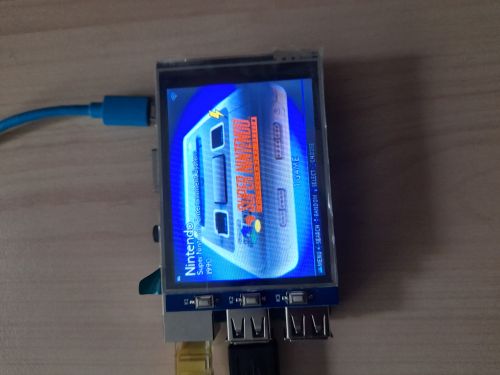
- Boot up Batocera on the Pi, access it via SSH and execute the driver binary. If the stars align and you are successful, you'll get an image on your screen:
- Add the command line you used to start the drivers to the early boot script. If this doesn't work, try using the later post-boot script instead (you'll lose out of seeing the splash screen if you use this method).

- add_tft_screen_rpi_only.1634014977.txt.gz
- Last modified: 5 years ago
- by atari