Table of Contents
Double-check for functionality. custom.sh has been depreciated. https://wiki.batocera.org/launch_a_script?rev=1724655769#customlast_during_startup_first_after_shutdown
OpenVPN client
You can easily connect your Batocera to a VPN, as we ship OpenVPN with the distribution. However, it requires some manual configuration, and the steps involved will most probably be depending on your VPN provider.
In this example here, I will be connecting a Batocera 5.27+ client to a NordVPN server, and adapt it to PIA when possible. The method here can be adapted to other VPN providers quite easily, please feel free to share your experience on the forum of Discord channel.
OpenVPN configuration
- Create a new folder for your OpenVPN configuration with
mkdir /userdata/system/openvpn - If your VPN provider offers you pre-configured openVPN configuration files download them in that directory.
With NordVPN, I can get access to those files with:
cd /userdata/system/openvpn
wget https://downloads.nordcdn.com/configs/archives/servers/ovpn.zip
unzip ovpn.zip
rm ovpn.zip
With PIA:
cd /userdata/system/openvpn
wget https://www.privateinternetaccess.com/openvpn/openvpn.zip
unzip openvpn.zip
rm openvpn.zip
- Then, you need to create a new authentication file
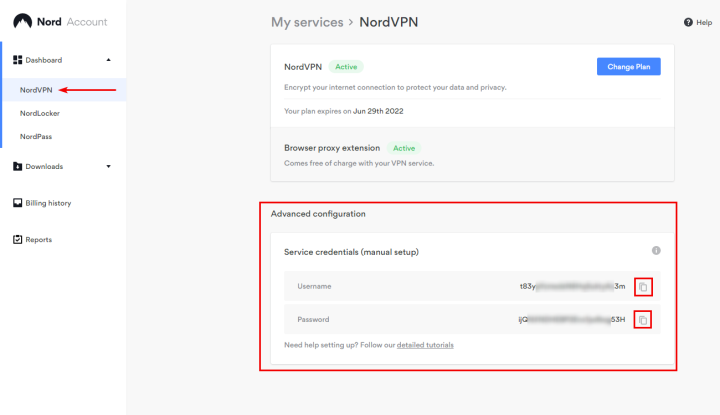
/userdata/system/openvpn/auth.txtthat contains only two lines: first line is your login, second line is your password. No space, no tab, no empty line, just those two lines with login and password provided by your VPN server vendor. If you use PIA, you need to have a username starting withp(likep1234567, not just the numbers). In the case of NordVPN, you can get them from the dashboard.
- Select the VPN server you want to connect to, and find the associated openVPN configuration file. For example here, I want to connect to a VPN hosted in France, and will select the configuration file
/userdata/openvpn/ovpn_udp/fr661.nordvpn.com.udp.ovpn. Edit this file, find the line that statesauth-user-passand append your authentication credentials file path to it:
auth-user-pass /userdata/system/openvpn/auth.txt
- Save the file… and now your VPN configuration is done! To connect to the VPN, just launch the command line:
openvpn /userdata/system/openvpn/ovpn_udp/fr661.nordvpn.com.udp.ovpn
Similarly with PIA:
openvpn /userdata/system/openvpn/us_silicon_valley.ovpn
Automatically launch the VPN when Batocera boots
It is possible to turn on the VPN with Batocera's boot sequence via the use of scripting.
Add the following file to /userdata/system:
- custom.sh
#!/bin/bash

if test "$1" == "start"
then
  openvpn /userdata/system/openvpn/<replace_me>.ovpn &
elif test "$1" == "stop"
then
  killall -9 openvpn
else
  curl ipinfo.io 2>/dev/null  | jq -a '.ip, .city, .country' | tr '\n' ' ' | sed s:\"::g
fi
where <replace_me> is your VPN.
This custom.sh script will be started on boot. It can be stopped when called with custom.sh stop or, when called with no argument and just custom.sh, it displays the current public IP address and city/country where you are connected, so that you can check if your VPN is active or not.
Troubleshooting
It's not working!
First thing is to just check that your script is running in the first place. This is easy, just put something like:
test line >> /userdata/system/testoutput.txt
in the script and then search for /userdata/system/testoutput.txt on next boot.
The script is running but the VPN is still not working!
It could be that it's a problem with the VPN itself launching from the script. Even if the command works in SSH, running it from a script could be an entirely different story. In order to see the error code outputs from what the command would be doing (for example from openvpn):
- custom.sh
#!/bin/bash

if test "$1" == "start"
then
  (openvpn /userdata/system/openvpn/<replace me>.ovpn &) 2>&1 | tee -a /var/log/vpn.log
elif test "$1" == "stop"
then
  killall -9 openvpn
else
  curl ipinfo.io 2>/dev/null  | jq -a '.ip, .city, .country' | tr '\n' ' ' | sed s:\"::g
fi
Adapt the <replace me> to your VPN of course.
My VPN works fine on my PC but not on my Raspberry Pi/other SBC!
The ARM build of Batocera does not include the necessary /dev/net directory and node structure that OpenVPN relies on by default. This can be added in with the script like so:
- custom.sh
#!/bin/bash

if test "$1" == "start"
then
  if [ ! -d /dev/net ]; then
    mkdir -p /dev/net
    mknod /dev/net/tun c 10 200
    chmod 600 /dev/net/tun
  fi
  openvpn /userdata/system/openvpn/<replace me>.ovpn &
elif test "$1" == "stop"
then
  killall -9 openvpn
else
  curl ipinfo.io 2>/dev/null  | jq -a '.ip, .city, .country' | tr '\n' ' ' | sed s:\"::g
fi
Adapt the <replace me> to your VPN of course.
Tailscale VPN configuration
While not packaged with Batocera by default, the Tailscale VPN service (which is essentially a fancy wrapper for Wireguard and has a free tier) can be added and functions on both the x86 and ARM-based versions of Batocera. This can provide you with benefits including Netplay with Retroarch cores and multiplayer on PPSSPP standalone without needing port forwarding, as well as the ability to SSH or SCP into your device from another network. There are some extra steps if you are on an ARM-based single-board computer, but it is confirmed working on Batocera versions as early as V31 and tested with both 32-bit and 64-bit boards (the Odroid XU4 and the Odroid N2L, respectively). You should have an account made with Tailscale ahead of trying this.
- Download a Tailscale build from the static binaries section (if using an SBC, grab the one that matches your CPU architecture. ARM for the tested XU4 and ARM64 for the N2L): https://pkgs.tailscale.com/stable/#static
- On your Batocera computer, create the directory /userdata/tailscale and move tailscale, tailscaled and the systemd folder inside your respective static build tarball to that folder. On a Windows computer, you can use 7-Zip to unpack the .tgz file twice, then sent it to Batocera with WinSCP.
- Create a file called “custom.sh” in /userdata/system (can also be done with WinSCP). Add the following to /userdata/system/custom.sh
- custom.sh
#!/bin/bash

if test "$1" != "start"
then
  exit 0
fi
/userdata/tailscale/tailscaled -state /userdata/tailscale/state > /userdata/tailscale/tailscaled.log 2>&1 &/userdata/tailscale/tailscale up
- IF YOU ARE ACCESSING RESOURCES BEHIND A TAILSCALE SUBNET ROUTER: By default, Tailscale clients specifically for Linux do not accept routes advertised by subnet routers. If you wish to access resources in the subnet router's network, the
tailscale upcommand needs an–accept-routesflag appended. Tailscale Docs - Using the above script block as a reference, the last line will look like this if you want to enable this feature:
/userdata/tailscale/tailscaled -state /userdata/tailscale/state > /userdata/tailscale/tailscaled.log 2>&1 &/userdata/tailscale/tailscale up --accept-routes
- IF YOU ARE USING AN ARM SBC: You need to use WinSCP or another program with this function to check that the tailscale and tailscaled files in /userdata/tailscale have the execute permission. Go to that directory and right click on both files, then click “Properties.” Make sure to check the checkboxes for “Owner” and “Group” marked “X,” then hit OK.
- SSH to your Batocera computer with PuTTY or another program, or access Batocera's local terminal. Run this command after logging in as root:
/userdata/tailscale/tailscaled -state /userdata/tailscale/state > /userdata/tailscale/tailscaled.log 2>&1 &/userdata/tailscale/tailscale up
- Tailscale will present you with a web link in the terminal, which you need to type into a separate PC's browser. From there, you'll log into Tailscale's web UI and connect the device.
- In the Tailscale web UI, click the “…” to the right of your newly-connected Batocera device and click “disable key expiry” so you never have to do this again!
- You should see the “Connected” status in the Tailscale web UI any time you turn on your Batocera computer now. Running the command “ip a” in terminal should show the word “tailscale” somewhere in the networking readout.
To add your friends to the same Tailscale network for multiplayer (who can be running non-Batocera versions of PPSSPP like Android for that use case), you can go through this process yourself and authenticate their devices by logging in as yourself, or you can invite them to join your Tailnet. Note that the free version of Tailscale only allows you to add two other people to your network, but if you sign in as yourself on all the devices, you can get as many as 100.