Table of Contents

Steam
You can only install Steam on x86_64 platforms (unfortunately we aren't magic).
If intending on running Windows-only games, it is recommended to use btrfs or ext4 for /userdata/ as WINE explains on their FAQ that some games won't run on a non-Linux native file system. Steam games are notoriously known to be unusable under WINE when using ntfs.
From Batocera v32 and above there is a bug where Flatpaks (including Steam) cannot be installed if you are using a NAS.
If you still want to use a NAS for the rest of your systems' saves, Flatpaks can still be installed to internal storage as a workaround.
Steam is installed via Flatpak, which has its own page.
Useful resources:
- The PCGamingWiki for general tips about PC gaming.
- ProtonDB for running Windows-only games in Linux-based operating systems (such as Batocera).
- The SteamWiki fandom page, particularly its list of DRM-free games.
This system scrapes metadata for the “steam” group (no scraper supports this group (yet)) and loads the steam set from the currently selected theme, if available.
Quick reference
- Emulator: steam
- Folder:
/userdata/roms/steam - Accepted ROM formats:
.steam
Since Steam is a Flatpak, it too saves program data to the saves folder instead as well. Only the shortcuts are stored in the ROMs folder.
Installation
A mouse and keyboard will be required for the first launch of Steam.
Installing the Steam flatpak
Using the GUI
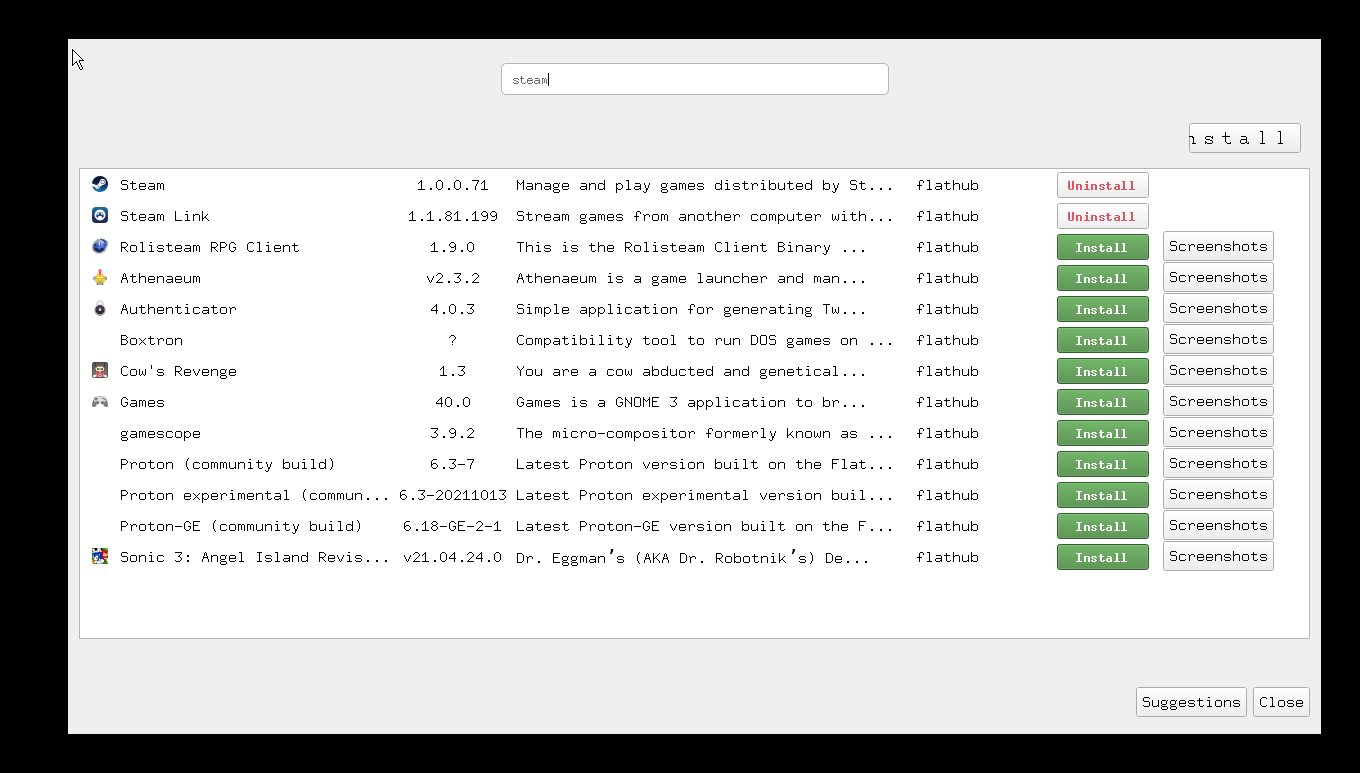
This video shows the install process using the flatpak-config UI, and the launch of the Steam application via the Steam system menu in EmulationStation. This applies from Batocera v40 and later.
Steam will be installed via Flatpak. The recommended way to do so is using the flatpak-config GUI. Add the Flathub remote, search for “Steam” and install the appropriate package. See the video above for more details.
Using SSH
If for some reason that doesn't work, you can install Steam via SSH:
# flatpak remote-add --if-not-exists flathub https://flathub.org/repo/flathub.flatpakrepo

# flatpak install com.valvesoftware.Steam
Looking for matches…
Required runtime for com.valvesoftware.Steam/x86_64/stable (runtime/org.freedesktop.Platform/x86_64/24.08) found in remote flathub
Do you want to install it? [Y/n]:
Some older Batocera releases may already have the `flathub` remote installed.
Update game list
To add Steam to EmulationStation from v40 or higher you need to update the Games List to get the Steam system on your main menu:


Note: Ensure you launch Steam from within the Steam systems menu to allow the initial configuration.
When launched, Steam will have to install its updates and then you'll be greeted by the Steam login dialog. If you have two-factor authentication, you'll need your phone handy as well. Sign in and wait patiently for Steam to do some house-cleaning.
If immediately returned to the menu when attempting to launch Steam, just try again. Steam seems to be a bit unstable with its first launch, but eventually it will sort itself out.
Initial Steam configuration
Unfortunately Steam has some not-so-desirable defaults that need to be changed. First, navigate to View → Settings → Steam Play and check “Enable Steam Play for supported titles”. This will automatically have Steam activate Steam Play/Proton to play white-listed non-Linux native games on your system.

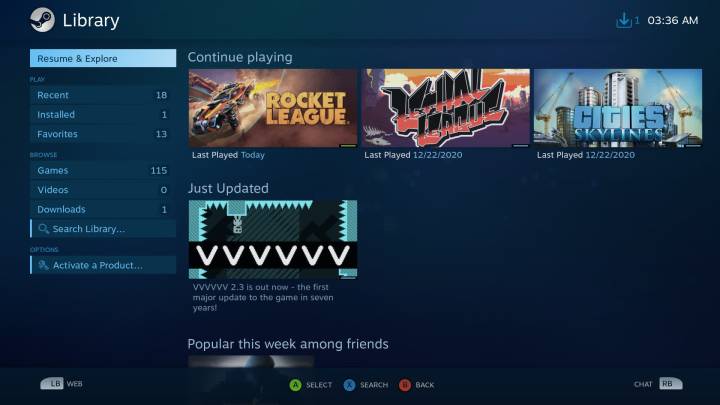
Optional: While in this menu, go to Interface and check “Start Steam in Big Picture Mode”. Big picture mode (BPM for short) is a 10-foot user interface, optimal for use with couches facing large-screen TVs. Otherwise, you can start standard steam and press HOTKEY to switches to Big Picture Mode.

If using a resolution equal to or lower than 640×480 using Big Picture mode may cause issues.
Exit and relaunch Steam. You no longer need a mouse and keyboard at this point.
Steam's Flatpak version currently does not support PS4/5 controllers correctly. This is a known issue to Steam and they are investigating.
The issue is unrelated to Batocera. You can employ the workaround as specified in the troubleshooting section below for PS4 controllers to work around it for now.
Installing native Linux games
Installing Linux-native games is straightforward. Navigate to the game in your library and install it.
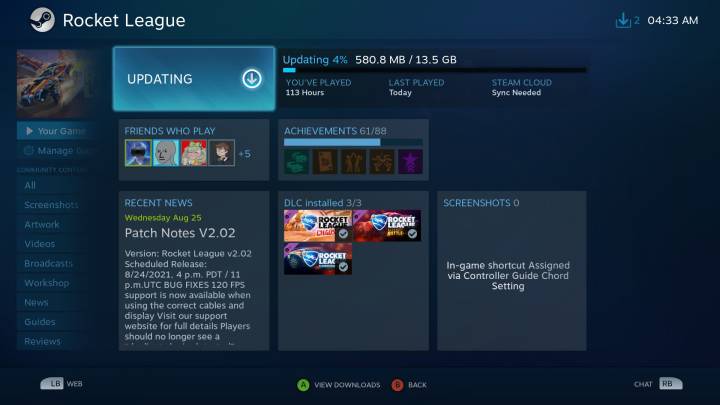
On the first launch of a game, it may take a moment to generate shaders. But after that, launching should be relatively quick!
Installing Windows-only games
When “Enable Steam Play for supported titles” is checked and the game is white-listed by Valve, the process is similar. Navigate to the game in your library and install it. Non-Linux compatible titles will utilize Steam Play/Proton to function in Batocera. If however your game is “Not on SteamOS”, you can manually force Steam to use Proton to attempt to launch it.
You can also search for your games on the tested Windows games running on Batocera spreadsheet, however do note this includes all Windows games, not just ones from Steam. In case that link ever goes down, a static copy is available on this wiki.
You can set the default Proton to try by checking the option Enable Steam play for all other titles and selecting the preferred version of Proton. Most games work best with the Proton (Community build).
Manually forcing a specific Proton version for a game
In Big Picture Mode
First, install all the versions of Proton you would like to try. Then once installed:
- Navigate to the game in Steam
- Go to Manage Game → Set Steam Play Options…
- Check “Force the use of a specific Steam Play compatibility tool” and select the latest stable Proton release
- Steam will now let you install the game, do so and wait for it to complete (you can still navigate to other pages in Steam if you want to)
- Test the game, it may take several minutes for each attempt as it needs to recompile shaders for each version of Proton used
- If the game fails to launch (indicated by the Steam page offering to “PLAY” again instead of opening the game), try forcing the next older Proton version [or select the version already tested according to to ProtonDB|
- Repeat steps 5 and 6 until you find a version of Proton that launches the game correctly
A community-maintained list of games compatible with Proton and what version of Proton was used is available at the ProtonDB website.
On the first launch of a game, it may take a moment to generate shaders. But after that, launching should be relatively quick!
For Windows games being launched via Proton, no progress bar will be shown to indicate this. The game will appear as “Running”, and it will launch after a period of time.
In desktop mode
- Right-click the game's entry in the list on the left side.
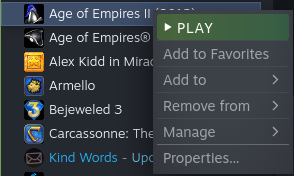
- Go to Properties → Compatibility.
- Check “Force use of a specific Steam Play compatibility tool”.
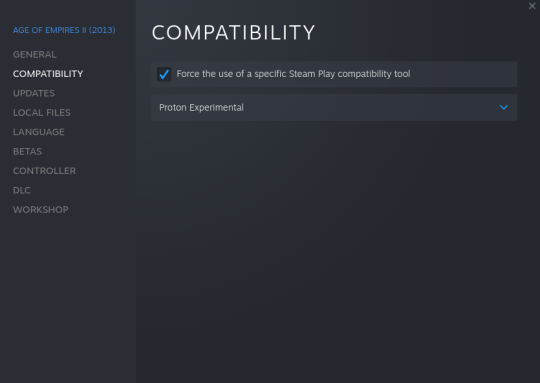
- Select the appropriate Proton version (a community-maintained list of games compatible with Proton and what version of Proton was used on the ProtonDB).

On the first launch of a game, it may take a moment to generate shaders. But after that, launching should be relatively quick!
For Windows games being launched via Proton, no progress bar will be shown to indicate this. The game will appear as “Running”, and it will launch after a period of time.
Adding games to the "Steam" system in ES
If you want to add your installed Steam games to the EmulationStation's “Steam” system section, note that it is mandatory to check the following two options on every Steam game installation, as the Batocera gamelist update script relies on those shortcuts/icons:
- Create desktop shortcut
- Create a system application icon
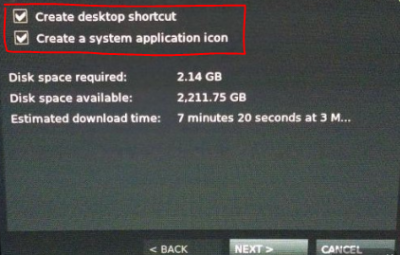

Note: If you have already installed the Steam game without creating the according desktop shortcut or if you added a non-Steam game to the Steam library, you can still do this manually. Just highlight and right-click the according game in Steam and click
Manage → Add desktop shortcut.
Then you can find the desktop icon on the following path:
/userdata/saves/flatpak/data/.var/app/com.valvesoftware.Steam/Desktop/<myGame>.desktop
Now you have to duplicate the desktop shortcut to the according path by executing:
cp /userdata/saves/flatpak/data/.var/app/com.valvesoftware.Steam/Desktop/<myGame>.desktop /userdata/saves/flatpak/data/.var/app/com.valvesoftware.Steam/data/applications/
Then, simply update the Batocera game list (MAIN MENU → GAMES SETTINGS → UPDATE GAMES LIST) to add the installed Steam games to the Steam system in EmulationStation.
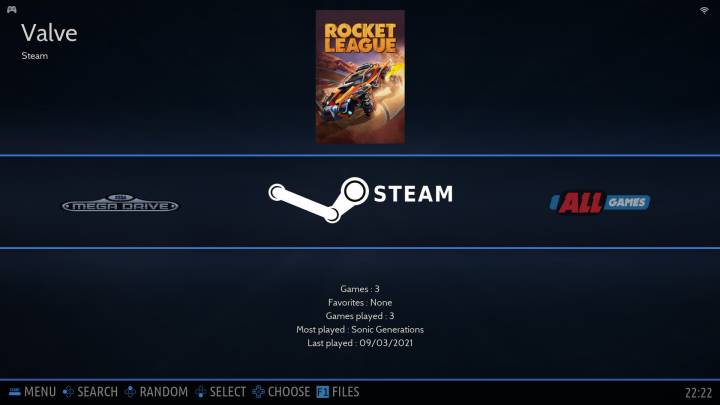
To do this via CLI/SSH (Batocera v32 and up):
batocera-steam-update
Sharing the Steam library with another OS
It is possible to share a single Steam library across multiple operating systems (provided that each operating system can run the game in the first place on the same platform).
This is not required and is actively not recommended. It is far simpler to just have multiple libraries, despite the redundancy. Steam's cloud storage arguably nullifies the need to do any of this in the first place.
Normally, the process should be as simple as using Steam's library managing tool available in Settings… → Library → Manage Steam libraries to point Steam to the library installed on Batocera (or vice versa). However due to a bug with Steam's menu, it cannot see anything beyond the data folder in Batocera. This can still be configured manually:
- Open the VDF library file for the Steam insallation. This will vary based on operating system:
- Pop! OS:
~/.steam/debian-installation/config/libraryfolders.vdf
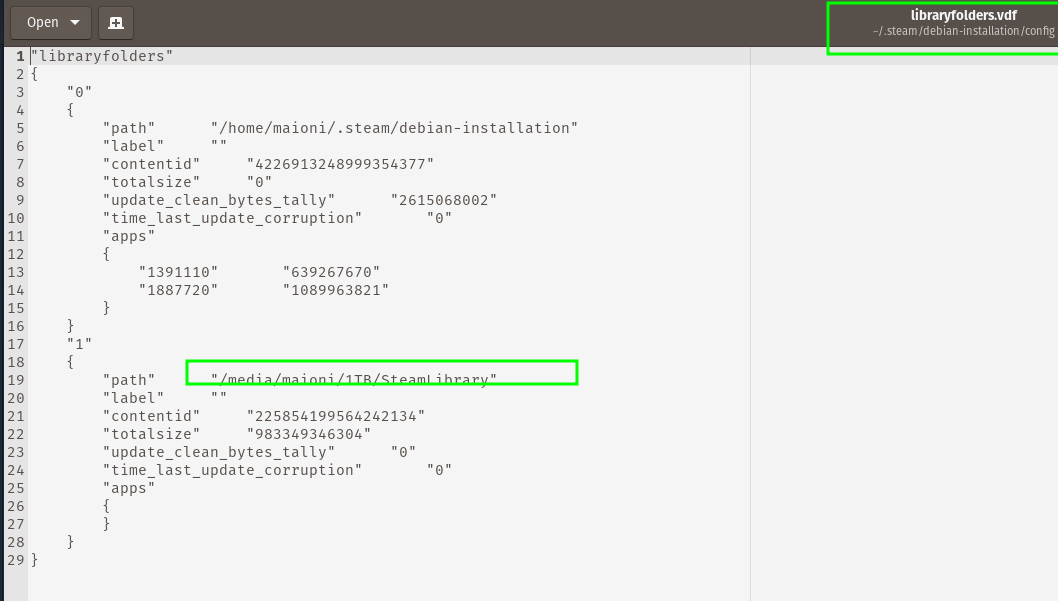
- (
 more OSes?)
- Add a new library entry. If you don't know how to type it out, use the Steam menu to do so (pointing to any folder on the intended drive, this will be changed later).
- Edit the path and the label of the library as appropriate. For example, when pointing an external installation of Steam to Batocera's Steam library:
"path" "/media/maioni/1TB/batocera/saves/flatpak/data/.var/app/com.valvesoftware.Steam/data/Steam/" "label" "BATOCERA" - Steam should now see the installed games.

Controls
Steam uses your controllers as it does on a regular computer, refer to Steam's official documentation to see whether your game supports it or not.
Troubleshooting
Steam itself is not launching
First thing to try is simply rebooting and attempting to launch it again. Technology can be great like that.
If that doesn't solve the issue, try the troubleshooting section for Flatpaks in general. You might also try disabling Big Picture Mode, as it is more prone to errors than the desktop interface.
Games are not launching/running slowly/have weird issues
Steam is usually pretty good when you're only using it to run Linux-native games. Here are some general troubleshooting steps that apply to all Steam games:
- If using a Nvidia GPU, make sure your official Nvidia graphics drivers are enabled and functional.
- Sometimes, flatpak will “forget” that you have drivers and will need to “redownload” them (you'll find Steam is suddenly lagging in its menus). Run
flatpak updatein the SSH and if it starts downloadingorg.freedesktop.Platform.GL.nvidia-###-##-##then that is what happened.
- Verify a game's file integrity by going to Manage Game → Validate Content. This may take a while.
- PC games in general (especially ones that were ported from home consoles to PC) can be buggy. Check out the PCGamingWiki for general tips, settings configurations, launch commands and patches you can apply to fix the game (just keep in mind it's focused on Windows, not Linux (and thus, not Batocera) so a lot of external programs/patches won't be compatible).
- Some games work better with their Windows version being run in WINE/Proton instead of their native Linux version. Not all cases.
- Free up some disk space. Most Steam games need to compile and save shaders before being launched for the first time; if there is not enough free space then this will silently fail.
I upgraded Batocera and now Steam isn't working
- Ensure the Steam flatpak is upgraded to the latest version. Sometimes, the
flatpak-configUI will fail, so it's recommended to just runflatpak upgradevia SSH.
Proton
Proton is still very experimental, there will be cases where a certain game won't function or will have severe game-breaking glitches. Generally, the newer and always-online multiplayer games tend to be completely unsupported. That being said, here are some things to try troubleshooting your issue:
- Search the game on the ProtonDB and see what other users have said they've had to do to make it work. You may need to utilize custom launch commands to get a game working.
- You can download additional versions of Proton via flatpak and then try them out in the Steam Play settings for that game. If none of your Windows-only games are running, redownloading the version of Proton you're using that's already installed may “fix” it.
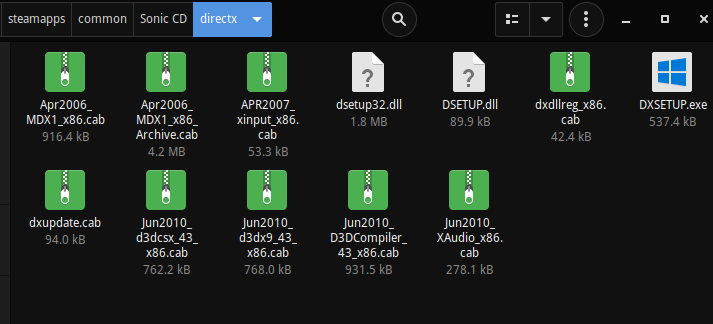
- If the game carries its own dynamic link libraries in cabinet files, try extracting them to the root folder of the game itself.
- For instance, with Sonic CD, here are the DLL files compressed in the archived CAB files:
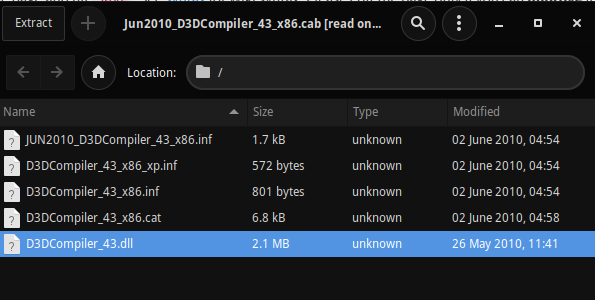
- Open them up in your preferred archive manager and look for the appropriate file. In this case, it is
D3DCompiler_43.dll(without any suffixes usually means the 64-bit one):
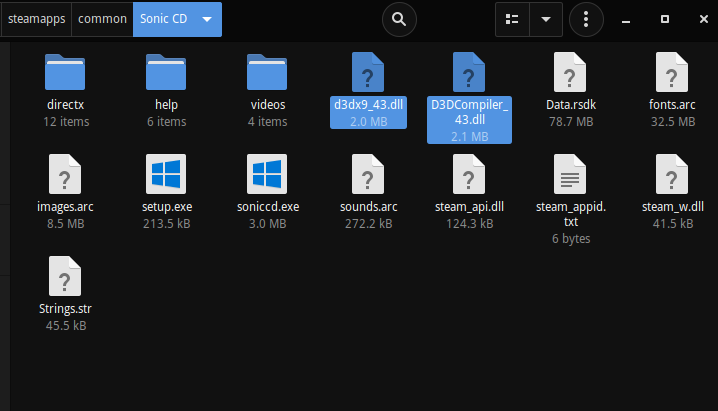
- Extract the appropriate DLL files to the root folder of the game. In this case, all that was needed were
d3dx9_43.dllandD3DCompiler_43.dll:
If you need the specifics of which DLL files the game might need, refer to the the ProtonDB as mentioned above.


Installing alternate versions of Proton
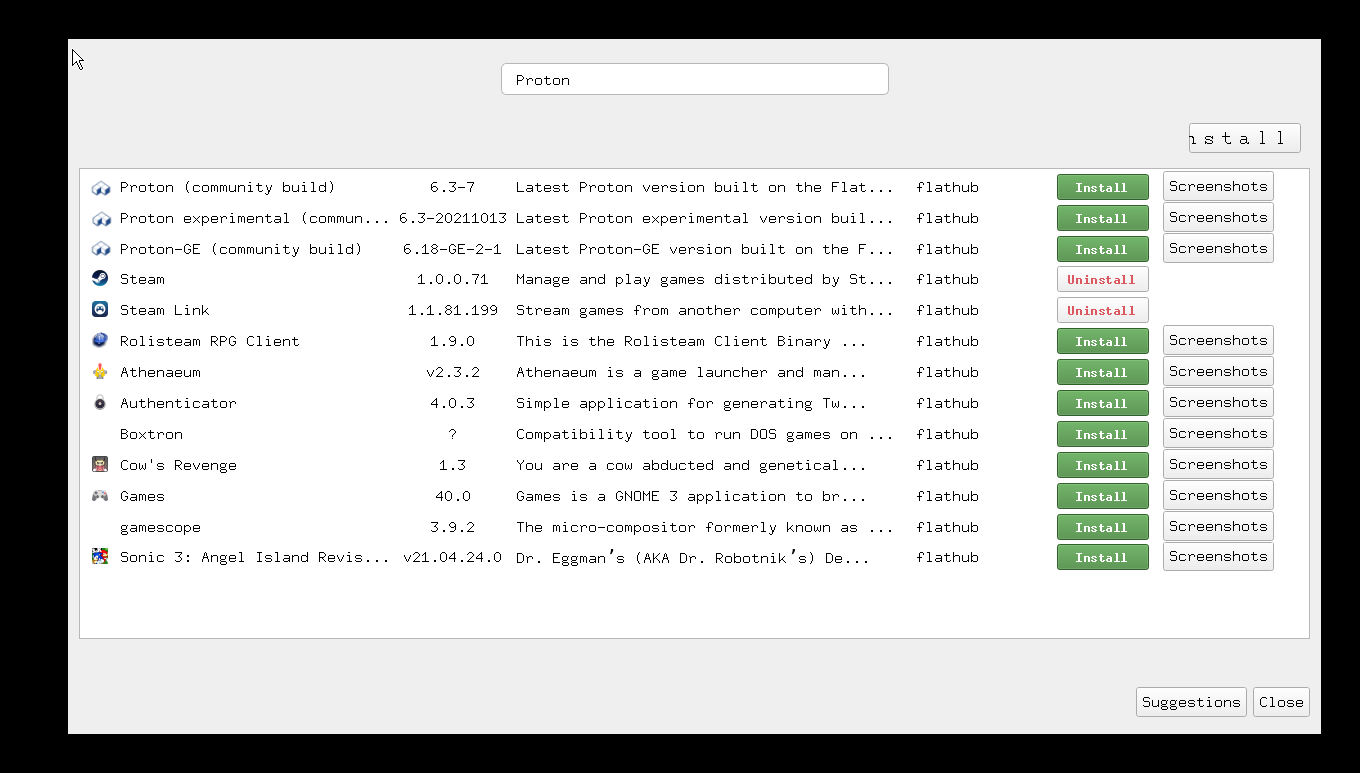
Press [F1] while on the system list, go to Applications and launch flatpak-config. Then search for “Proton” and install the following flatpaks:
- Proton (community build)
- Proton Experimental (community build)
- Proton-GE (community build)
Alternatively, sign into SSH and run:
flatpak install com.valvesoftware.Steam.CompatibilityTool.Proton com.valvesoftware.Steam.CompatibilityTool.Proton-Exp com.valvesoftware.Steam.CompatibilityTool.Proton-GE
Steam BETA Update client issues: Access Big Picture Mode with Gamepad in Beta Client | Unable to change settings in Beta Client
Those two issues are reproducible only in the Steam BETA update client version: - Unable to initialize Big Picture Mode with Gamepad Hotkey (Start Key in the Steam) in the Steam Beta Client version - Unable to change any settings from steam settings using the interface in the Steam Beta Client version
To fix it, you need to rollback to the regular version, but due to the settings issues, you can't rollback using the interface, so you need to manually delete the beta file to goes back to the standard steam client version
Normally the interface way to do it is:
Settings/Preferences > Account > Beta Participation - Steam > NONE
But if you can't to do it due to the interface window issue, do it manual: At batocera, open the file manager [F1}, and the delete the beta file found in steam/packages:
/userdata/saves/flatpak/data/.var/app/com.valvesoftware.Steam/.steam/steam/package/beta
Exit the file manager and relaunch steam again at ports, it will be updated to the regular version again. It will be possible to start big picture mode pressing the gamepad Hotkey button and also interact correctly with the steam windows.
Setting up launch commands
Sometimes a game may need certain launch parameters to work. This can be used to configure the settings of a game before it runs, allowing it to boot in the first place if it's by default using incompatible settings. You can refer to Valve's official documentation on it. These launch commands should also be respected when launching the game through EmulationStation.
In Big Picture Mode
- Navigate to the game.
- Go to Manage Game Options → Set Launch Options.
- Enter your launch commands and press OK.
In desktop mode
If not using Steam's Big Picture Mode the instructions would be as follows:
- Right-click the game's entry in the list on the left side.
- Go to Properties → General.
- Enter your launch commands into LAUNCH OPTIONS and press OK.
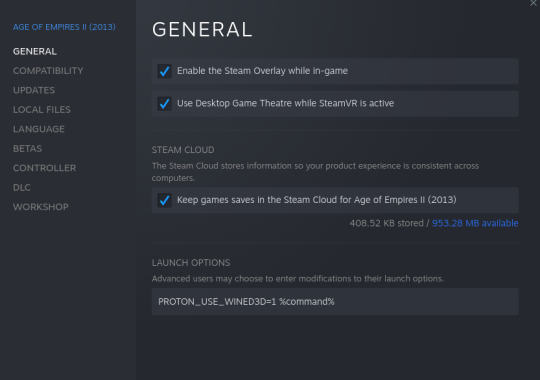

A common launch command to add which fixes many games is PROTON_USE_WINED3D=1 %command% (as shown in the above screenshot).
Editing game files
Should you need to edit a game's files directly, they are in
/userdata/saves/flatpak/data/.var/app/com.valvesoftware.Steam/.local/share/Steam/steamapps/common/
You will need to enable “view hidden folders” to see beyond the .var/ directory.
My game has successfully installed and runs from Steam, but is not showing up on my games list in EmulationStation
Some games instead opt to create desktop shortcuts that Batocera fails to detect in
/userdata/saves/flatpak/data/.var/app/com.valvesoftware.Steam/Desktop
You can remedy this by copying the shortcut to
/userdata/saves/flatpak/data/.var/app/com.valvesoftware.Steam/.local/share/applications
instead and then refreshing your game list.
If this is a frequent problem for you, you can permanently symlink the folders using the following command:
ln -s /userdata/saves/flatpak/data/.var/app/com.valvesoftware.Steam/Desktop /userdata/saves/flatpak/data/.var/app/com.valvesoftware.Steam/.local/share/applications
My game has no controls!
This is also a problem with regular Steam on Windows, especially with older titles that didn't adhere to controller API standards such as X-input. This can be worked around by forcing Steam Input on the game in question. Navigate to the game in Steam, then go to Manage Game → Controller Options → Steam Input Per-Game Setting and set it to “Forced On”.
Then you can configure your controller from the Controller Configuration in that same Manage Game menu. It is usually easiest to emulate a mouse and keyboard.
From Batocera v33 and higher, an alternative to this is to use Batocera's pad2key profile. Highlight over the game in EmulationStation and hold  to bring up the game options menu. Then navigate to CREATE PAD2KEY PROFILE, and configure the keys as necessary.
- Launch the game in question. Once in, press the home button on your controller to bring up the Steam overlay.
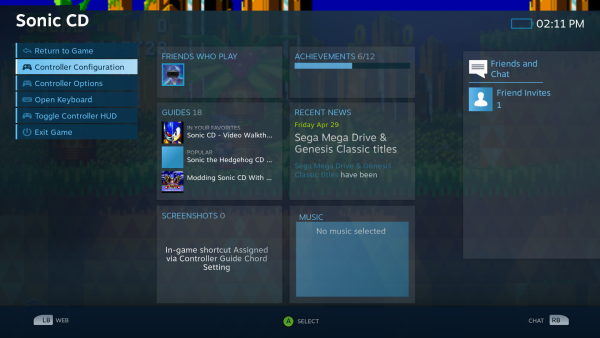
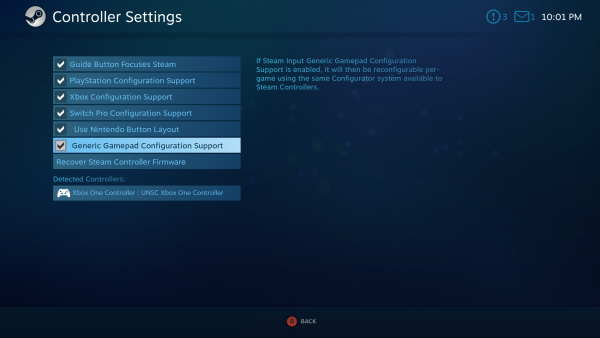
- Under Controller Options, ensure that your appropriate controller is enabled for Steam Input configuration (if unsure, just check all the boxes here).
- Return to the Steam Overlay, and then go to Controller Configuration. You will be brought to the following screen (it looks different depending on which controller has been detected):
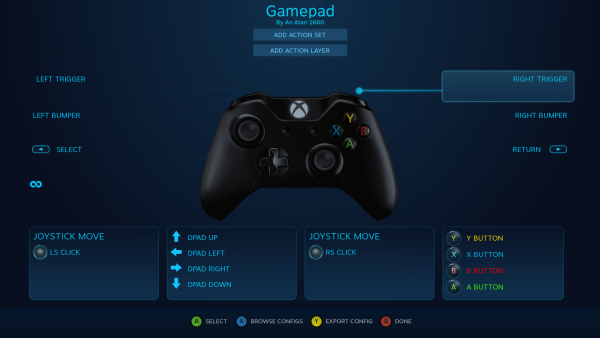
- Press the button (labelled at the bottom of the screen, usually
 ) to “Browse configs”.
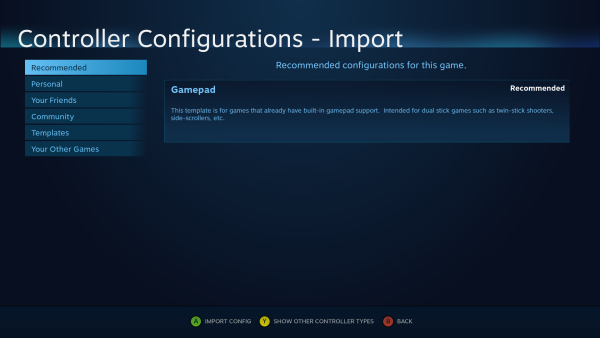
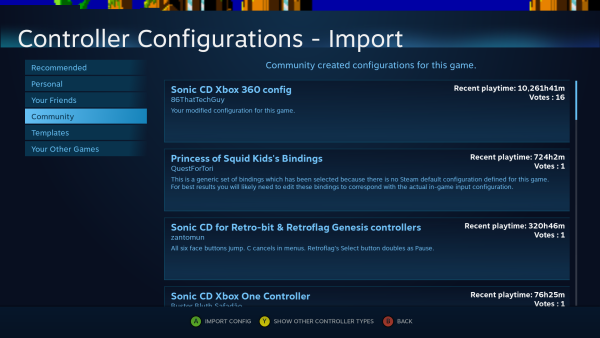
- Scroll down to Community, press right, and select whichever control layout you prefer. The top one is usually okay.
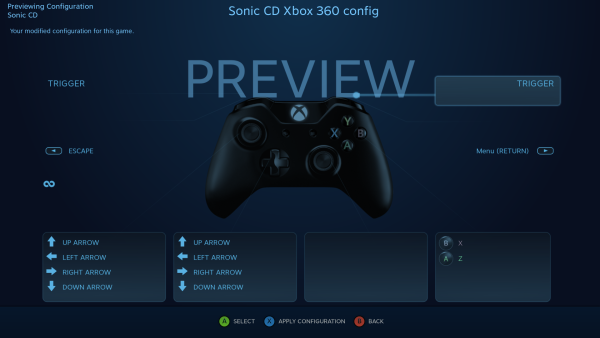
- After selecting the profile, you will be shown a preview of its layout. Press the button (labelled at the bottom, usually) to apply the layout.
- Your controls should now be applied in-game!


Controller layouts can be manually customized, refer to Steam Input's documentation.
My PS4 controller isn't working with Steam
This was a known issue with Steam in Flatpak. The exact cause and the exact solution aren't clear, but here's one thing users have been doing to moderate success with Steam on Batocera:
Download the following udev rule file and copy it to
/etc/udev/rules.d/99-steam-controller-perms.rules
(you can do this using Batocera's file manager ([F1] in the system list) or via WinSCP):
- 99-steam-controller-perms.rules
# This rule is needed for basic functionality of the controller in Steam and keyboard/mouse emulation

SUBSYSTEM=="usb", ATTRS{idVendor}=="28de", MODE="0666"

# This rule is necessary for gamepad emulation; make sure you replace 'pgriffais' with a group that the user that runs Steam belongs to

KERNEL=="uinput", MODE="0660", GROUP="batocera", OPTIONS+="static_node=uinput"

# Valve HID devices over USB hidraw

KERNEL=="hidraw*", ATTRS{idVendor}=="28de", MODE="0666"

# Valve HID devices over bluetooth hidraw

KERNEL=="hidraw*", KERNELS=="*28DE:*", MODE="0666"

# DualShock 4 over USB hidraw

KERNEL=="hidraw*", ATTRS{idVendor}=="054c", ATTRS{idProduct}=="05c4", MODE="0666"

# DualShock 4 wireless adapter over USB hidraw

KERNEL=="hidraw*", ATTRS{idVendor}=="054c", ATTRS{idProduct}=="0ba0", MODE="0666"

# DualShock 4 Slim over USB hidraw

KERNEL=="hidraw*", ATTRS{idVendor}=="054c", ATTRS{idProduct}=="09cc", MODE="0666"

# DualShock 4 over bluetooth hidraw

KERNEL=="hidraw*", KERNELS=="*054C:05C4*", MODE="0666"

# DualShock 4 Slim over bluetooth hidraw

KERNEL=="hidraw*", KERNELS=="*054C:09CC*", MODE="0666"
Then run batocera-save-overlay and reboot. Test if your PS4 controller is working with Steam now. 
No boxart for my Steam games and I can't scrape for them
Steam should provide the boxart and other relevant metadata for the games it installs. This is dependent on the publisher of the original game properly filling out all the metadata themselves to Steam's database when the game is submitted.
Guess how often that happens.
You can always manually add boxart to your games through GAME OPTIONS (hold while hovering over the game) → EDIT THIS GAME'S METADATA.
You might also have more luck using an external scraping tool such as ARRM.
Steam's menus are slow/laggy in the desktop version
For couch use Big Picture mode is recommended. However those that prefer to use Desktop mode may improve its performance by tweaking the following settings:
- In Library: check Low bandwidth mode and Low performance.
- In Download: set a range of time for auto-downloading at Only auto-update games between.
- In Shader pre-caching: check Allow background processing of Vulkan.
Steam's stuck on waiting for network
See github issue: Steam Flatpak stuck on "waiting for network": when looking at the network, it shows. Error: “e.StartScanningForNetworks is not a function”.
The workaround is to open /share/roms/flatpak/steam.flatpak with a text editor and write:
com.valvesoftware.Steam -vgui
then update gamelist in batocera
Steam crashes on windows games
The proton version coming with steam is not very compatible with the flatpak version. Install an alternate version of proton by following https://wiki.batocera.org/systems:steam#installing_alternate_versions_of_proton , then launch your windows games with one of the proton community builds.
My laptop has a hybrid gpu and performance is very poor
It's possible that Steam is using the iGpu instead of your discrete Gpu.
Possible workarounds for a nvidia discrete card are:
- Edit your launch options with:
VK_ICD_FILENAMES=/usr/share/vulkan/nvidia/nvidia_production_icd.x86_64.json %command%
- For some games, you need:
VK_ICD_FILENAMES=/usr/share/vulkan/nvidia/nvidia_production_icd.x86_64.json DXVK_FILTER_DEVICE_NAME="NVIDIA" %command%
- If you want to use FSR, the launch option will be:
VK_ICD_FILENAMES=/usr/share/vulkan/nvidia/nvidia_production_icd.x86_64.json WINE_FULLSCREEN_FSR=1 %command%
Remember to use “Fullscreen” in your game settings and to lower the resolution for FSR to take effect.
- if you don't want to modify the launch option for each game, you can also edit your
/userdata/system/custom.shto export this environment variable with
#!/bin/bash
case "$1" in
    start)
        # Code in here will only be executed on boot.
        export VK_ICD_FILENAMES=/usr/share/vulkan/nvidia/nvidia_production_icd.x86_64.json