Table of Contents

ScummVM
ScummVM is a program that runs classic graphical point-and-click adventure and RPG games from the 80s and 90s. It supports over two-hundred games with many classics from LucasArts, Sierra On-Line, Cyan or Westwood Studios.
Notable ResidualVM games (modern Lucas Arts games) include Escape from Monkey Island, Grim Fandango, Myst III: Exile and The Longest Journey. Notable Notable AGS titles include Heroine's Quest, Resonance, Gemini Rue, The Apprentice I and II.
ScummVM requires the game's data files to function.
This system scrapes metadata for the “pc” group(s) and loads the scummvm set from the currently selected theme, if available.

Quick reference
- Emulator: ScummVM; libretro: ScummVM
- Folder:
/userdata/roms/scummvm - Savegames:
/userdata/saves/scummvm - Accepted ROM formats:
.scummvm,.squashfs
BIOS
No ScummVM emulator in Batocera needs a BIOS file to run. For Roland MT-32 emulation indeed some files are needed. Please refer to Roland MT-32 section
Game files
A list of freeware games and where to buy commercial games can be found at ScummVM FAQ and specifically for Steam games search the store.
Since ScummVM games require their own folder, setting the folder display setting in USER INTERFACE SETTINGS to HAVING MULTIPLE GAMES or NONE will prevent redundant menu navigation.
Setup games
Since Batocera v42 it is easier than ever to setup the ScummVM. In the first example we explain the general setup that will generally work in older versions and is a solid setup. Later the autodetection and the specific setup by using the GameID or EngineID (for example language) is explained.
As the ultimate setup, there is a small script available. This will create the correct GameID within the auto created scummvm-file. The script will not work if there is a scummvm-file already in the game directory or if the GameID is already inside the scummvm.ini file - read more about installation and the usage here.
Be aware that a kind of priorizing takes place. Highest priority is file content, after that the filename, then the autodetection takes place. If you enter a false GameID as file content this has highest priority - please take care about this.
General Setup
Create a directory per game in /userdata/roms/scummvm/. For this example, we will use the game files for The Day of the Tentacle. The game files will need to be put in the directory /userdata/roms/scummvm/Day_of_the_Tentacle/. Then, in this game data directory, a blank file named <GameID>.scummvm needs of the game, like tentacle.scummvm. Now you can even pack this directory to squashfs-file and run it from there.
GameID or EngineID
Please refer to Detect GameID section to get instructions how to obtain the proper IDs from your ScummVM games.
Create a directory per game in /userdata/roms/scummvm/. For this example, we will use the game files for The Day of the Tentacle. The game files will need to be put in the directory /userdata/roms/scummvm/Day_of_the_Tentacle/. Now create a game file like Day of the Tentacle.scummvm and inside the file put the content tentacle for it's GameID. This methods needs at least Batocera v42.
Autodetection
Create a directory per game in /userdata/roms/scummvm/. For this example, we will use the game files for The Day of the Tentacle. The game files will need to be put in the directory /userdata/roms/scummvm/Day_of_the_Tentacle/. Now create a game file like Day of the Tentacle.scummvm. As there is no valid GameID detectable the autodetection is activated and ScummVM tries to autodetect the correct GameID. This is by far the most convinient way but at least needs Batocera v42. This feature also enables squashfs-files that there is no need in containing any additional scummvm-file inside the archive.
Attention: Autodection displays a list of games from the current or specified directory and starts the first game in the list. This is usally the english version of a game.
Use Setup Script
You can use a small script to setup everything for you. Be aware that the script will exit if there is a scummvm-file already present in the specific game folder. If you already started the setup and the scummvm.ini contains already the GameID for your game then the script will refuse to create the start file. So best practise is to start from a clean setup. Means, you remove old scummvm-files and delete the scummvm.ini
Usage:
./scummvm-addgames-v2.sh <gamefolder> {auto|standalone|libretro|random|ma-random}
auto/standaloneusescummvm.inilocation of the standalone core and write GameID therelibretrousescummvm.inilocation of the libretro core and write GameID thererandomuse/tmp/scummvm_<RND#>.inito write GameID within. It's basically a new file that can be copied over.ma-randomuse/tmp/scummvm_<RND#>.inito write GameID within. As long as the file/tmp/scummvm.identifieris found all data is written into the same file. This is ideal if you use a script to mass add games to a new created ini-file.
Download the script from here and put it inside /userdata/roms/scummvm. Make it executable with chmod +x scummvm-addgames-v2.sh or use interpreter bash scummvm-addgames-v2.sh.
You can wrap a small script around this to autocreate all files needed for your games. Thanks to knulli for the script, I made some small modifications around that.
Here is a small example how to use the script to mass add games and to proper create scummvm-files. Please improve the scripts to make it work for you and share with the community. Me (crcerror aka cyperghost) has a real life … so please see this as a scripting example.
    #!/bin/bash
    # Error Codes:
    # 0  - everything went okay
    # 1  - general error (missing parameters, wrong parameter
    # 11 - game folder does not exist
    # 12 - game folder is empty
    # 13 - scummvm file found in gamedir
    # 15 - scummvm.ini already contains GameID
    # So it's up to YOU to handle this, please delete /tmp/scummvm.identifier after you used ma-random parameter for mass adding

    readarray -t array < <(find . -mindepth 1 -maxdepth 1 -name "*" -type d)
    for i in "${array[@]}"; do
        bash scummvm-addgames-v2.sh "$i" ma-random
    done
    rm /tmp/scummvm.identifier
Detect GameIDs
GameIDs are needed to setup a game for a specific language or to use special features that are included inside the game. That means CD specials like talkie versions. The EngineID can be more descriped as the base game features without langue string. That means, englisch language is default for multi language games. For example EngineID is gob3 only, whereas GameID is gob3-fr
The GameIDs need to be setted inside the scummvm.ini file. It is a bit unfortun, that the location of the ini file is different between the both cores. Read more about the Differences in the cores in this wonderfull instruction. So if you want to setup both cores then copy the ready setted scummvm.ini from one core to to annother.
To find out the GameID of the game, open up scummvm from the Applications menu ([F1] on the system list) and load the game, the ID will be provided. For example, with the game The 11th Hour: The Sequel to The 7th Quest (DOS/English):


Here, the EngineID is 11h.
Use /usr/bin/scummvm --add --recursive --path=/userdata/roms/scummvm --config=~/configs/scummvm/scummvm.ini to mass add all the games at once to the ScummVM Launcher! This is important, otherwise ScummVM does not recognize how to start a game if you use a filename based setup like sword25-fr.scummvm for example.
After the game been added on ScummVM it's possible to edit the EngineID. It's a good way to setup the launcher for different languages for AGS games.


Commercial games might need additional files copied over, ScummVM will tell you what's missing if it fails to find them upon launching the game. If it doubt, copy over the entire contents of the commercial game's folder as-is into roms/scummvm/<game>/.
Note: All settings are stored into scummvm.ini config file, if you want to backup, migrate or sync it to another device, just backup or restore this file.
- Path location:
- Batocera: /userdata/bios/scummvm.ini
- Windows: %APPDATA%\ScummVM\scummvm.ini
- For Windows 95/98/ME, the file is at C:\WINDOWS\scummvm.ini
- MacOS: ~/Library/Preferences/ScummVM Preferences/scummvm.ini
- If an earlier version of ScummVM was installed on your system, the configuration file remains in the previous default location of ~/.scummvmrc
- Linux: ~/.config/scummvm/scummvm.ini
- If ScummVM was installed using Snap, the configuration file is found at ~/snap/scummvm/current/.config/scummvm/scummvm.ini
- If ScummVM was installed using Flatpak, the configuration file is found at … [update later]
- Other platforms normally at path to:ScummVM/scummvm.ini
- All paths here: ScummVM Documentation
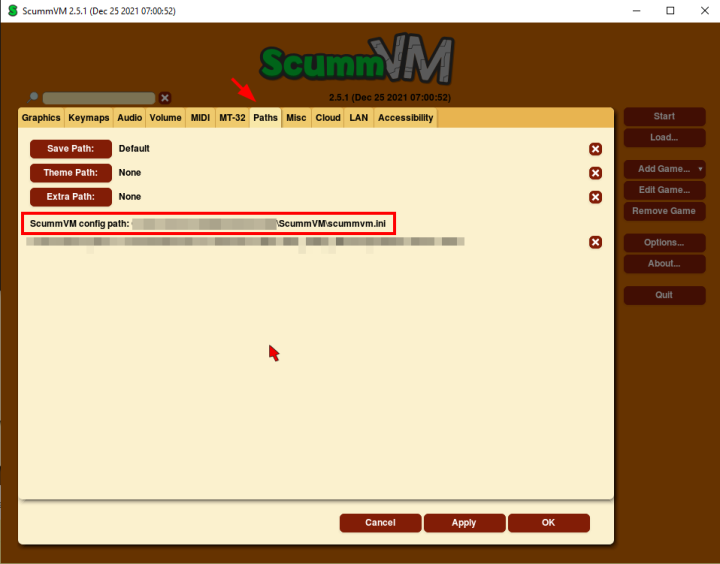
- Find or Edit the config location path at:
Core Differences
Since Batocera v42 both cores work quite similarly. They share the same savegame location, both cores use autodetection if no GameID is setted from filename or file content. Let us now talk about the differences:
- Location of
scummvm.ini- Standalone ScummVM:
/userdata/system/config/scummvm/scummvm.ini - Libretro ScummVM:
/userdata/bios/scummvm.ini
- Handling of GameID as filename
- Standalone ScummVM: Handles a GameID from file content and filename
- Libretro ScummVM: Handles a GameID only from file content, EngineID from filename
- Different versions:
- Refer to core and its version info. Usually the version number differs not so much, so libretro and standalone cores are almost compatible
- Language Setup
- Standalone ScummVM: Use the GameID, setted from file content and filename or use EmulationStation Frontend to define the specific language
- Libretro ScummVM: Language can only be setted by proper GameID - there is no option in ES available
I made best experience to setup one core completly and then copy the setupd scummvm.ini to the second core location. Also using symblink works.
None of that works for me!
First be aware that priorizing takes place. Highest priority is file content, after that the filename, then the autodetection takes place. So if you made a mistake here, ScummVM will fail to launch - check first the logs in \userdata\system\logs for errors.
Alternatively, SSH into Batocera and run /usr/bin/scummvm --list-games >> /userdata/system/engineid.txt to list all the game titles and search for your game in the resulting /userdata/system/engineid.txt file.
Game titles and their EngineIDs are also provided on the compatibility page from the main ScummVM website (AGS games specifically are on their wiki, as well as fangames). If you still can't find the game ID for your game, then look up the detection_tables.h file for the specific group of games directly from the repository: https://github.com/scummvm/scummvm/tree/master/engines (for instance, AGS games are in the ags/detection_tables.h file).
MIDI ROMs / Roland MT-32 music
Some of the engines provided by ScummVM support Roland MT-32 midi music. However, unlike other soundcard emulators like AdLib or CMS, Roland MT-32 music requires some additional files that need to be provided separately.
If you want to use Roland MT-32 music in your ScummVM games, you will have to provide the required files yourself. Once you've sourced the files, put them in the bios folder of your userdata folder like this:
/bios
  └─ scummvm/
    └─ extra/
        └─ MT32_CONTROL.ROM
        └─ MT32_PCM.ROM
Once you have added the files:
- Launch any ScummVM game.
- Press
StartthenReturn to Launcherto get to the ScummVM launcher. - From there go to
Global Options. - Go to the
Audiotab. - Set
Preferred DevicetoMT-32 emulator. - Quit ScummVM and re-launch the game.
- Enjoy the music.
Emulators
ScummVM
The standalone engine. Good for playing the more modern and complex titles.
ScummVM configuration
A mouse and keyboard is required.
Standardized features available to all cores of this emulator: scummvm.videomode, scummvm.ratio, scummvm.padtokeyboard
To configure ScummVM, open up scummvm from the Applications menu ([F1] on the system list).
Enable Subtitles and Speech
Go to Audio and select Both in the Text and speech option:

Change Language
Open up scummvm from the Applications menu ([F1] on the system list) and load the game.
Select the game's language in GAME → LANGUAGE or ENGINE → GAME LANGUAGE:


RetroArch
RetroArch has its own page.
libretro: ScummVM
A libretro port of the engine. Good for playing the classic titles.
libretro: ScummVM configuration
ES setting name batocera.conf_key | Description ⇒ ES option key_value |
|---|---|
ANALOG DEADZONE global.scummvm_analog_deadzone | Used to eliminate cursor drift/unwanted input ⇒ 15% 15, 20% 20, 25% 25, 30% 30, 0% 0, 5% 5, 10% 10. |
GAMEPAD CURSOR SPEED global.scummvm_gamepad_cursor_speed | For high definition (640×480) games set this to 2.0 ⇒ 1.0 1.0, 1.5 1.5, 2.0 2.0, 2.5 2.5, 3.0 3.0, 0.25 0.25, 0.5 0.5, 0.75 0.75. |
SPEED HACK (SAFE) global.scummvm_speed_hack | Reduces the CPU requirements for low power hardware ⇒ Off disabled, On enabled. |
Controls
Most of the games are point-and-click games designed to be played with a mouse. If you don't have a mouse, the left analog stick can be used too.
Most games should have their controls automatically configure, but some do not. Manual controls can be configured by adding a pad2key profile for the game. Access the GAME MENU by holding down  while selecting your game → CREATE PAD TO KEYBOARD CONFIGURATION.
While in-game, you can press [R1] to open the ScummVM menu, which enables you to quit.
Here are the default ScummVM's controls shown on a Batocera Retropad:

Troubleshooting
First be sure you added your game to the ScummVM-Player list. Most commands introduced later down, like language setting per filename, will not work without this.
My game isn't launching (standalone)
On certain hardware configurations, ScummVM has difficulties with the HEADS UP DISPLAY option in GAME SETTINGS, try setting it to “NONE”.
Make sure you have at least one physical gamepad connected and configured, even if you aren't intending on using it for that game.
The game isn't in my language/is in English
The same game could provide it to be launched in a specific language, just create a new launcher or edit it according to the languages supported by the game:
- sword25.scummvm or sword25-us.scummvm for English
- sword25-hr.scummvm for Croatian
- sword25-fr.scummvm for French
- sword25-de.scummvm for German
- sword25-it.scummvm for Italy
- sword25-pl.scummvm for Polish
- sword25-br.scummvm for Brazilian Portuguese
- sword25-ru.scummvm for Russian
- sword25-es.scummvm for Spanish
I've put the EngineID in for my game but it's failing to launch
It's the launch file that needs to be tentacle.scummvm, not the directory that contains the game files.
If that's not it, some games could have different versions, you can specify it with (or a combination of):
- <EngineID>.scummvm for Floppy or DOS
- <EngineID>-cd.scummvm or gameidcd.scummvm for CD
- <EngineID>-win.scummvm or <EngineID>win.scummvm for Windows
- <EngineID>-amiga.scummvm for Amiga
- <EngineID>-fm.scummvm for FM-Towns
- <EngineID>-v2.scummvm for Version 2
- <EngineID>-vga.scummvm or <EngineID>vga.scummvm for VGA
- <EngineID>-ega.scummvm for EGA
- <EngineID>-sci.scummvm for SCI
- <EngineID>-agdi.scummvm for AGDI
- <EngineID>-demo.scummvm for DEMO
- <EngineID>-deluxe.scummvm for DELUXE
- <EngineID>-steam.scummvm for STEAM
- <EngineID>-win-cd-us.scummvm for Windows, CD and US
Further troubleshooting
ScummVM's wiki contains a wealth more information. ScummVM's documentation is available on their docs website, and further info on their Github dev website.
For further troubleshooting, refer to the generic support pages.