Table of Contents

Tomb Raider (OpenLara)
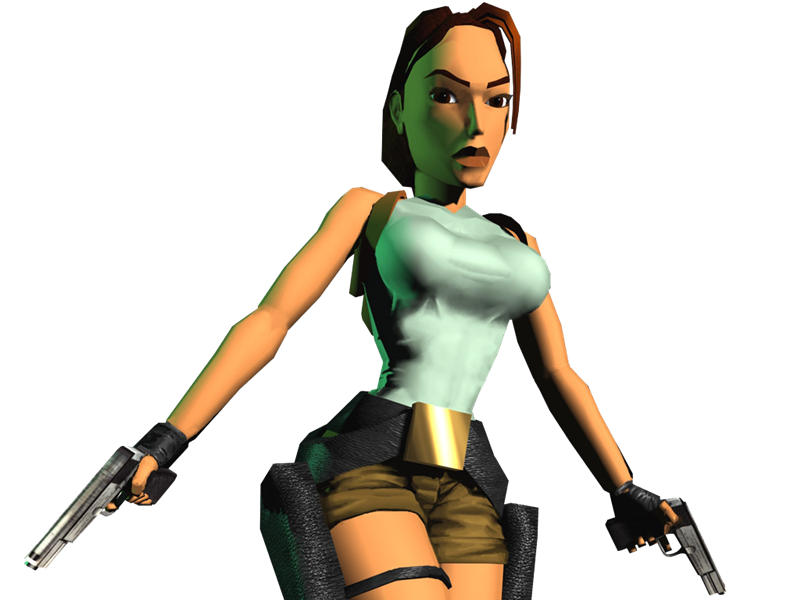
Added in Batocera v38, this game engine recreation seeks to allow you to play the original Tomb Raider engine games, from 1 all the way up to 5. It is currently x86_64 only.
Tomb Raider 1 is officially supported and fully playable. Episodes 2 and 3 require workarounds to launch, more info on Libretro's documentation.
Add that info to this page.
This system scrapes metadata for the “pc” group and loads the openlara set from the currently selected theme, if available.
Grouped with the “ports” group of systems.
Quick reference
- Emulator: RetroArch
- Core: libretro: OpenLara
- Folder:
/userdata/roms/openlara - Accepted ROM formats:
.croft
Installation
Getting the original Tomb Raider files
OpenLara requires the original files from either the PC version (GOG or Steam), PlayStation or Sega Saturn releases of the game. These include the DATA (levels and loading screen), FMV (videos) and AUDIO files.
The PSX version is clearly recommended because it has better video quality and more audio tracks.
PlayStation
The files from the PS version can be dumped using jpsxdec.
( are the files required identical to the PC version? If not, it should be mentioned here)
PC version (GOG or Steam)
Tomb Raider 1
When you get Tomb Raider from GOG or STEAM, you will see the following files inside the folder: GAME.GOG, GAME.DAT, dosbox.exe and the dosbox configuration file. The file game.dat is actually the iso of the game that contains the necessary files, for that we will use a command under DOSBOX to mount the image and copy the necessary files.
Open the dosbox.conf file with a text editor. Scroll down to the [autoexec] block, then add the following lines that will be executed at the start of the game under Steam/GOG.
mount C .
        imgmount d ".\game.dat" -t iso -fs iso
        xcopy D:\DATA\ C:\DATA\
        xcopy D:\FMV\ C:\FMV\
This will mount the image and copy the FMV and DATA folders to the root of the game.

You just need to retrieve the necessary files from these folders and paste them into the OpenLara structure.
Provide a method that doesn't require dosbox.
Converting MP3 files to .ogg files
The audio files as-is will not work with OpenLara, they must be converted to the OGG format. You can do this with ffmpeg script.
for f in ./*.mp3; do ffmpeg -i "$f" -c:a libvorbis -q:a 4 "${f/%mp3/ogg}"; done
Examples for other platforms, instructions to do this from within Batocera.
Installing the files
Navigate to /userdata/roms/openlara.
Start by creating a folder of your choice to hold the file structure (example TombRaider).
In each sub-folder we will create folders 1 for TombRaider 1 files and 2 for TombRaider 2 files, etc…
Folder content
- The level folder must contain .PHD and .PNG files from the DATA folder of the PC version (or only .PSX or .SAT files if it's a console dump).
- The video folder must contain the .RPL files (if PC version) or .FMV files (if console version).
- The audio folder must contain the .ogg files (note that to have Lara's tutorial explanations in English, you need the track_xx_EN.ogg tracks).
- To have the background of the game title screen, it is necessary to retrieve the RAW files from the console version and paste them into a DELDATA folder at the same level as the level/video/audio folders.

Prepare the game for EmulationStation
EmulationStation supports the .croft extension, which serves as a launcher for the level. Start by creating a text file TombRaider1.croft and edit it to add the path of the level to launch:
TombRaider/level/1/GYM.PSX
In this example, the “GYM” level will be launched first. You can then press the Select button to display the menu and return to the TombRaider title screen.
Emulators
RetroArch
RetroArch has its own page.
libretro: openlara
libretro: openlara configuration
Standardized features for this core: openlara.autosave
ES setting name batocera.conf_key | Description ⇒ ES option key_value |
|---|---|
| Settings that apply to all systems this core supports | |
RENDERING RESOLUTION global.lara-resolution | Enhancement. Increase the rendering resolution. Makes 3D objects clearer. ⇒ 320×240 320×240, 360×480 360×480, 480×272 480×272, 512×384 512×384, 512×512 512×512, 640×224 640×224, 640×448 640×448, 720×576 720×576, 800×600 800×600, 960×720 960×720, 1024×768 1024×768, 1280×720 1280×720, 1280×960 1280×960, 1600×1200 1600×1200, 1920×1080 1920×1080, 1920×1440 1920×1440, 1920×1600 1920×1600, 2048×2048 2048×2048, 2560×1440 2560×1440, 3840×2160 3840×2160, 7680×4320 7680×4320, 15360×8640 15360×8640, 16000×9000 16000×9000. |
FRAMERATE global.lara-framerate | Set desired framerate. ⇒ 30fps 30fps, 60fps (Default) 60fps, 70fps 70fps, 72fps 72fps, 75fps 75fps, 90fps 90fps, 100fps 100fps, 119fps 119fps, 120fps 120fps, 144fps 144fps, 240fps 240fps, 244fps 244fps. |
Controls
With OpenLara, you can experience Tomb Raider like you've never played before. You can try it through the eyes of Lara Croft with the primary person camera, for this you can switch to this mode by pressing L1 + A and exit this mode with the same combination.
You can include your friend with whom you want to pass TR levels together. Press Start from Second Controller in order to go 2-Payer Mode.
Troubleshooting
Further troubleshooting
For further troubleshooting, refer to the generic support pages.