Table of Contents
Heroic Games Launcher (Epic Games store)
The Heroic flatpak is not officially integrated. This wiki page's instructions may not work for all situations and Batocera cannot provide support help for it, use at your own discretion.
Heroic Games Launcher is an open-source launcher available on Flathub which supports launching games from the Epic Games Store using Legendary and GOG Games. Unfortunately this launcher is not as fully integrated into Batocera as other flatpaks are so some manual work is required.
Install
If you already have the Heroic Launcher Flatpak package installed, it will conflict. Uninstall it first.
Search for “Heroic Games Launcher” in the “flatpak config” tool available in the application tools from “F1” file manager, and install it from there.
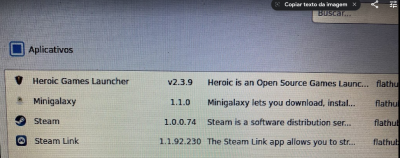
Or you can install it from the command line in XTerm or a SSH session:
flatpak install com.heroicgameslauncher.hgl
batocera-flatpak-update
Then, once installed edit a file /userdata/roms/flatpak/Heroic.sh (as explained on this page with the following content:
#!/bin/sh
flatpak run com.heroicgameslauncher.hgl --no-sandbox
Once you reload the game lists from EmulationStation (Game Settings –> Update Gamelists) you will find a newly created Heroic launcer in the Ports section of EmulationStation. This is the one you need to launch, not the “Heroic Games Launcher” one with the sword icon, unfortunately, this one cannot be launched on Batocera, at the time of writing.
Launch Heroic Games Launcher
Login
Heroic Games Launcher will offer two services to login to. Log in to the appropriate one (or select Manage Accounts):

As alternative for Epic Store login, the External Login is available, this way you have to inform your Epic Store Account SID to log in properly.
If the log in fails, press the reload symbol at the top of the launcher window to try again.

Your games will appear in the Library split between Epic Games and GOG. It could take a while to download all games' information and boxart.

Download Game
- Go to Library
- Select the game
- Select Install


Install Wine (for Windows games)
- Select Wine Manager
- Select the desired version of Wine to be downloaded. In order of recommendation: “Wine-GE”, “Wine-Lutris” and “Proton-GE”, the rest are older versions (some games do not work with the latest versions)

Global Wine setting
- Go to Settings → Wine → Wine Version and select the desired version of Wine.

Per game Wine setting
- Go to Library
- Select the downloaded Windows game
- Go to Settings
- Select the desired version of Wine to use for that game.

Launch game
- Go to Library
- Select a downloaded game
- Select PLAY NOW (Windows games require Wine to be set up first)
- Heroic Games Launcher will say “Opening the Game…” and then eventually “Playing (STOP)”
Games may take a while to initially launch as they need to compile shaders for your hardware.
- If playing a Windows game, confirm the Wine installation dialogue box.
- Game start!

Right now, Batocera isn't integrated to Heroic Games Launcher; its games will not be automatically added and launchable with EmulationStation like Steam does. This may change in the future.
Uninstall a game
- Go to Library
- Select an installed game
- Select Tools at the top of the window
- Select Uninstall
Other option
Other options can be found in Settings → Other.
