Table of Contents
rsync backup to a Synology NAS
This tutorial covers how to backup the userdata partition of your Batocera machine to a Synology NAS. This allows you to recover your data easily to a previous state in case of data loss.
Backup via Synology Active Backup For Business (ABB)
Since the release of Synology Active Backup For Business, backing up a Batocera system via rsync became much more convenient than ever before. Please check if your NAS model supports Synology ABB on this link.
Tutorial
Backup
- Install Synology ABB via Synology Package Manager
- Start Synology ABB (if you are installing Synology ABB from scratch, you have register the application via the Synology online account portal, don't worry, it's completely free!)
- Navigate to: File Server → Add Server
- Choose rsync server:
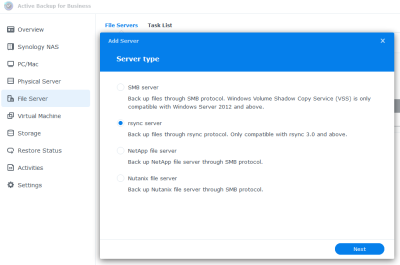 Add a server
Click on Next
- For the following input fields add the following values:
Server Address:<my_Batocera_IPAddress_or_hostname>
Connection Mode: Selectrsync shell mode via SSH
Port: Insert your Batocera instance's SSH port (Default:22)
Account:root
Auth Policy: ChooseBy password(or alternativelyBy SSH keyif you have set up password-less_authentication from your NAS to your Batocera instance before)
Password:<myBatoceraRootPassword>
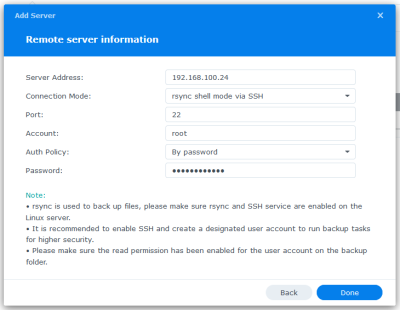 Insert server data
Click on Done
- Now highlight the rsync instance you have just created and click on Create Task, then select your preferred backup mode:
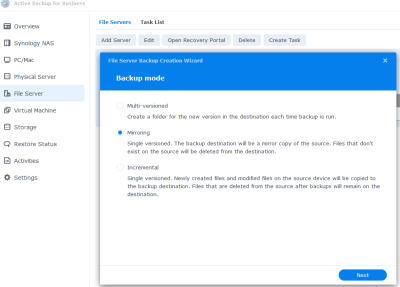 Select preferred backup mode
Click on Next
- Select all folders from the Batocera filesystem you want to backup (If you are unsure: Select the whole
userdatafolder but no other folders):
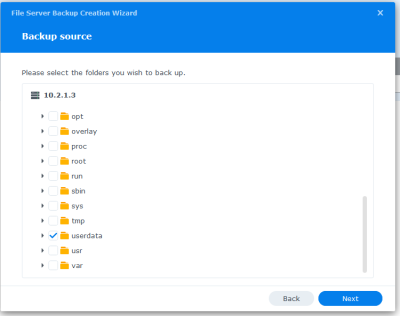 Select preferred folders to backup
Click on Next
- For the following input fields add the following values:
Task name:<myCustomTaskName>
Local path: Click on Browse and select the preferred path where the backup should be stored on your NAS:
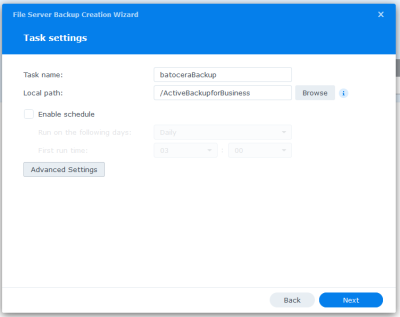 Additional task settings
Click on Next and then click on Done
- When asked, confirm if you want to start the backup immediately. If you want to start the backup later manually, highlight the according rsync server, click on Task List and then click on Back up.


Restore
In case you are restoring your data based on a fresh Batocera installation, before restoring, make sure bluetooth service is stopped by executing the following command on your Batocera system: /etc/init.d/S32bluetooth stop. This makes sure your bluetooth controllers are being recognized and working as before. If you don't do this, then you have to set up your bluetooth controllers from scratch again.
If you want to restore a single file or a full backup, do so by using the Active Backup For Business (Recovery) Portal which was installed automatically additionally on your Synology NAS when installing Synology ABB. It's pretty straightforward: Highlight the according folder(s)/file(s), right-click and choose Restore (don't forget to have your Batocera system turned on!):


After successful restore process, reboot your Batocera system.
That's it, you're done!