Table of Contents
Kodi Media Center
If you haven’t heard already, Kodi is available with Batocera. It’s been preinstalled and configured for controller support.
Kodi is not available on oga/rk3326, orangepi-zero2, rpi1 and rpizero2-based images due to not being able to play videos well and a lack of rotation (most oga/rk3326 devices' screens are actually in portrait aspect ratio rotated 90 degrees). This may change in the future as developments are made.
What is Kodi?
Kodi is a free and open-source media player software application developed by the XBMC Foundation, a non-profit technology consortium. Kodi is available for multiple operating systems and hardware platforms, with a software 10-foot user interface for use with televisions and remote controls or gamepads. It allows users to play and view most streaming media, such as videos, music, podcasts, and videos from the Internet. It supports all common digital media files from local and network storage media.
Enable and use Kodi
To launch Kodi, please follow the steps below.
- Make sure Kodi is enabled in the SYSTEM SETTINGS → KODI SETTINGS menu
- From this menu, you can enable Kodi at Batocera start if you wish.
- Then, when enabled and depending on the configuration options, you can launch Kodi from the first entry in the MAIN MENU.
- Once you are in the Kodi interface, to exit and get back to Batocera's game menu, you can press
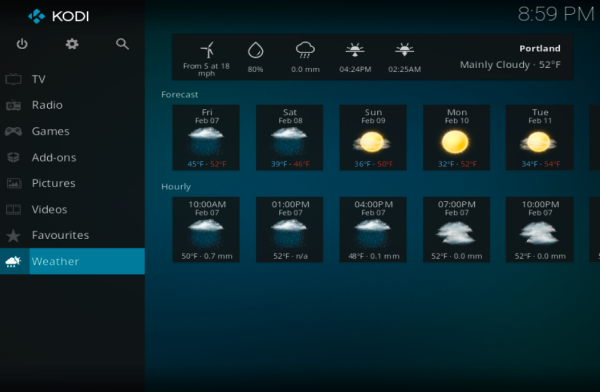
[SELECT]and click on the on/off icon in the top left corner of the screenshot below, and select exit from this menu.
Configure 5.1 surround sound
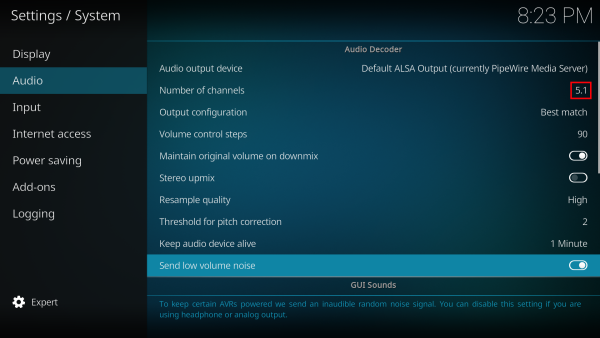
By default, Kodi will only output stereo sound via two channels, even if Batocera is otherwise configured to use surround sound. This can be fixed by launching Kodi and going to the settings cog → System → Audio → Number of channels and setting it to whatever the current amount of speakers are in your configuration (#.1 commonly refers to there being a subwoofer).
Now all will rocks. 
Enabling Binary Add-ons
When you first run Kodi, many of the binary add-ons that ship with Kodi are not enabled. To view your add-ons, navigate to Add-ons then My add-ons, which will list all of your add-ons by category. Here is a list of some of the add-ons you might want to enable:
| Plugin Category | Plugin Name | Purpose |
|---|---|---|
| Image decoder | HEIF image decoder | This plugin will enable Kodi to read images from (probably) your iPhone. |
| Image decoder | libraw image decoder | This plugin will enable Kodi to read images from your RAW-shooting camera |
| Look and feel | Screensaver | There are a lot of these. Choose some fun ones. |
| Look and feel | Visualisation | These are a lot of these too. Definitely check out ProjectM |
| PVR clients | – | If you have a PVR, you can enable the add-on here. |
This is not an exhaustive list of binary add-ons, but should get you off to a good start. Also note that there are many, many other add-ons available for download from the Kodi repository.
Netflix
If you have a Netflix account, you can use Kodi to watch Netflix shows. However, by default, you'll need to enter your Netflix credentials on each reboot. The reason is, by default, Batocera Linux creates a unique machine-id on every boot, and if the Kodi Netflix plugin sees a new machine-id, it requires you to log in again.
Workaround to force always the same machine-id:
- Log through SSH on your Batocera machine.
- Save permanently your current
machine-idwith the following commands:cat /var/lib/dbus/machine-id > /userdata/system/machine-id ln -sf /userdata/system/machine-id /var/lib/dbus/machine-id batocera-save-overlay
- Now, your UUID is saved in
/userdata/system/machine-idand will not change on each reboot, and Netflix shouldn't ask for your credentials every time.
Caveat: you have to recreate the symbolic link and save the overlay after each Batocera upgrade/downgrade.
Fix local network access for Kodi
To fix local network access (such as NAS, networked TV devices, media servers, etc.) for Kodi on Batocera there is a very simple thing to do!
In Kodi, navigate to Settings → Services → SMB client.
And change its two parameters:
Minimum protocol version:
Maximum protocol version:
To:
Minimum protocol version: SMBv2
Maximum protocol version: SMBv3
- Minimum protocol version - Set the minimum SMB protocol version to negotiate when making connections. Forcing SMBv2 may be required to prevent SMBv1 use on some OS. SMBv1 is not recommended for security reasons.
- Maximum protocol version - Set the maximum SMB protocol version to negotiate when making connections. Forcing SMBv2 or SMBv1 compatibility may be required with older NAS's and Windows' shares. Sometimes, access to specific SMB versions can be adjusted from the server (NAS, Windows computer hosting the share, etc.) itself. Always use as high a version of SMB as possible.
With this in mind, consider that Batocera is not a secure operating system and take care when adjusting network settings on your other devices.
Specific cases
Some NAS vendors support only older versions of SMB. Known examples are:
- Freebox Revolution - Set the mininum protocol version to SMBv1.
- Orange Livebox 2019 - Set the mininum protocol version to SMBv1.
Source: https://kodi.wiki/view/Settings/Services/SMB_Client#Minimum_protocol_version
Add the Youtube Kodi add-on
Adding the Youtube add-on for Kodi requires a bit of manual work, and some knowledge on how Google services use API keys and application access rights. It's NOT easy to configure for anyone, unfortunately.
There's a Youtube plugin available for Kodi, but it requires a few install steps, from very easy to a bit complicated.
- Install the Youtube plugin from the Kodi Add-on repository. Go to the Settings (gear icon) → Add-ons → Install from repository → Kodi Add-on repository → Video add-ons → Youtube (at the end of the list). It might also download dependencies, depending on the other add-ons you already installed.
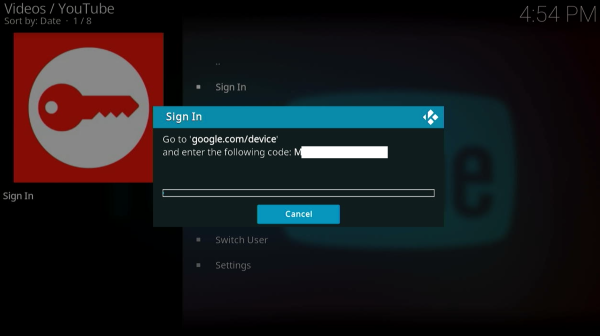
- Launch the Youtube Add-on, from the “Add-ons” menu.Click on “sign-in”. The first time, you'll get a message box, telling you to log twice. Do as requested, and on a computer or smartphone with your, sign in with a web browser to the URL that is given to you from the plugin
google.com/deviceand enter the code provided. Google will ask you to authenticate, with potentially MFA, depending on your Google setup. Then, Google will tell you that you can access Youtube on your TV. That seems easy enough…. but it's wrong, there's an additional step. - From your browser, go to
https://console.developers.google.com/. Create a project, let's call it Youtube K-Addon You will need to create for this project anAPI key(with no restriction when created) and anOAuth client ID, and make sure you use TV and limited input type. This OAuth client ID, once generated, will give you access to aclient IDandclient secret. - Go back to the Youtube plugin, Settings (last option in the list), select API on the left-hand side menu and put:
API Key: <your api key>API Id: <your client ID>API Secret: <your client secret>Allow developer keys: turn it “ON”These keys are very long, but there is an option to help you with copy/paste: toggle the
Enable API configuration pageand then you can enter the three fields above if you point your browser to http://<batocera_ip>:50152/api.
- Redo step 2 you'll be prompted with a new code, but then you'll be able to use the Youtube Add-on.
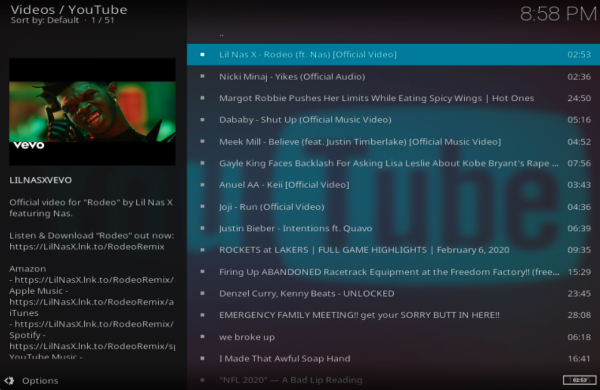
And that's it, you'll now have Youtube running in Kodi in Batocera. Enjoy it until Google once again changes how this API works!
Wait for NAS connection before start
Batocera can check for if a network server (e.g. NAS, SQL server, etc.) is available or not before starting Kodi. This can avoid situations such as where Kodi might be set to start on boot and starts before the network connection is available, causing a variety of issues (videos not playing, shares not loading correctly, crashing issues, etc.)
Open batocera.conf and scroll down to the following commented out line:
#kodi.network.waithost=192.168.0.50
There will be a short summary explaining it and its related key settings. Fill out the values appropriately and uncomment the lines, then save the document. An example might end up looking like this:
kodi.network.waithost=192.168.0.10
kodi.network.waittime=10
kodi.network.waitmode=wish
The first two settings are self-explanatory. The third setting, waitmode, has three options:
noping→ Do not ping. Start Kodi immediately. This is the default.required→ Wait up to the specified time for the host to respond. Start Kodi only if the host responds.wish→ Wait up to the specified time for the host to respond. Start Kodi if the host responds or the waittime is reached.