Table of Contents
Audio issues
Most audio issues on Batocera v31 and below have been fixed with the release of v32. This is because Batocera v32 introduced a brand new sound management layer (Pipewire) to handle most of the audio stack. This article is more here for users on older versions or those really persistent audio issues.
I have no sound!
If trying to use HDMI sound on a Radeon GPU, first check that you have enabled the setting in the boot line. If on a Nvidia card, make sure your official drivers are activated.
When that's all clear, first experiment with different settings in MAIN MENU → SYSTEM SETTINGS → AUDIO PROFILE. You should get sound immediately when exiting back to the MAIN MENU (there is background music playing by default). If you're still not able to get any sound, try also manually setting an AUDIO OUTPUT device (they change with each different profile, you need to exit back to MAIN MENU to update the list). To rigidly test all your hardware's possible audio output modes (this may take a lot of trial and error, but only needs to be done once):
- Go to MAIN MENU → SYSTEM SETTINGS → AUDIO PROFILE and select the first profile, then back out to the MAIN MENU.
- Go back into SYSTEM SETTINGS → AUDIO OUTPUT and test all available outputs, exiting to the MAIN MENU between each change.
- If none of the AUDIO OUTPUT options worked, repeat steps 1-2 for a different AUDIO PROFILE. Your AUDIO OUTPUT options might change depending on the AUDIO PROFILE selected.
If the appropriate options are not being listed in the menu, you could try using the generic name for the audio device by manually editing the configuration file. Open system/batocera.conf and modify (or add if not already present) the audio.device key to be:
audio.device=hdmi
where “hdmi” is the generic name for your audio device.
In v32 and higher, going into Kodi to test various audio outputs live is no longer required. This can all be done from within the EmulationStation MAIN MENU → SYSTEM SETTINGS audio settings, then backing out, no reboot required.
In Batocera v31 and lower, only AUDIO OUTPUT is selectable and a reboot is needed for changes to take effect. You can instead quickly test each audio device by using Kodi:
- Launch Kodi from the Main Menu, then navigate to Settings (the small gear symbol near the top left corner), System, Audio, Audio output device and test all available Audio output devices listed there. If you navigate with a controller or keyboard through Kodi, you will hear a “click” sound while navigating menus when you have chosen the correct/working Audio output device.
- Remember the name/number of this working Audio output device (for example HDMI#0), exit Kodi and go to the Batocera Main Menu > System Settings > Audio and select the Audio output device, which has the same (or at least a similar) name to the one that works in Kodi. Then reboot and you should have working audio.
- You can also diagnose some sound issues with the
alsamixersound mixer that is available when pressing[Ctrl]+[Alt]+[F4](text-mode sound mixer). Make sure that all the outputs are enabled, and they have their volume up. You can return to Batocera with[Ctrl]+[Alt]+[F2].
I still don't have any sound!
In Batocera v36 and higher, try activating the newer SOF DSP handling:
- Open up an SCP session (or use Batocera's built-in file manager by pressing
[F1]on the system list). - Go to
/etc/modprobe.dand openintel-dsp.confin a Unix-compliant text editor (no, Windows' Notepad will not do)./etcis in the root directory, you may need to go up one level from theuserdatafolder. - Edit the line which says
options snd-intel-dspcfg dsp_driver=1to instead sayoptions snd-intel-dspcfg dsp_driver=3and save the file. - Open a terminal and run
batocera-save-overlay. - Reboot
More information can be found in SOF's documentation.
I have sound in Kodi, but not in the main menu or emulators even after selecting the audio device from the above steps and rebooting
No longer applicable for v32 and up. EmulationStation can see all audio devices and profiles.
It could be that, for one reason or another, Kodi sees the audio device order differently to EmulationStation. Do the following:
- In Kodi, go to back to the Audio output device list.
- Now on the device listing, count from the top to the bottom (first device listed is #0, the second is #1, etc.).
- Remember which # your working device is (let's use #4 in this example).
Then, edit your system/batocera.conf file from the network share/built-in file manager (F1 on the main menu) like so:
Don't use Windows' Notepad as that will corrupt your batocera.conf file! Use a Unix-respecting editor like Notepad++ or just use Batocera's built-in file manager if you're not sure.
[Ctrl]+[F]and find “audio.device=”, it should be set to your (currently not working) audio device.- Replace the second digit with your audio number. For instance, if it is
audio.device=0,3, then according to our example it would beaudio.device=0,4. The following text doesn't particularly matter, that's just the label it shows in EmulationStation. - Reboot, and if your audio still isn't working then try
audio.device=1,3, thenaudio.device=2,3and so on.
Not all of my speakers are being used
Ensure you have selected the right audio profile in MAIN MENU → SYSTEM SETTINGS → AUDIO PROFILE.
For instance, a 5.1 surround sound setup would want to use the “SURROUND 5.1” profile:
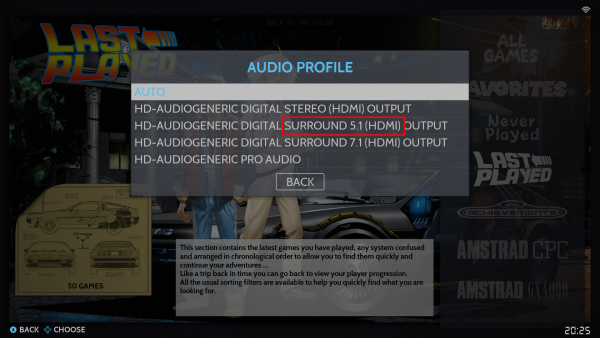
I have sound in emulators and the main menu, but not during video previews
No longer applicable for v32 and up. .asoundrc isn't read by Pipewire (there shouldn't be this specific problem in the first place anymore). v32 and up will automatically remove /userdata/system/.asoundrc.
If you have sound on EmulationStation, and in the emulators, but you can't hear the sound of the video snapshots, here are several steps that may help you:
- First, make sure you have enabled video snaps sounds in the menu Sound Settings → Enable Video Audio
- Then, you can try to connect to Batocera through SSH and enter the following command:
wget -O /userdata/system/.asoundrc https://www.batocera.org/users/lbrpdx/asoundrc
This command will create an alsa config file as /userdata/system/.asoundrc. It should fix your video snap sounds for most SBC like Odroid Go Advance, but maybe not on a PC.
On a PC, depending on your hardware configuration, your GPU and audio chipset, it might be trickier to get it working.
First, through SSH, get the list of audio outputs with the command aplay -l. In my setup, I get:
  # aplay -l
  **** List of PLAYBACK Hardware Devices ****
  card 0: PCH [HDA Intel PCH], device 0: ALC255 Analog [ALC255 Analog]
    Subdevices: 1/1
    Subdevice #0: subdevice #0
  card 0: PCH [HDA Intel PCH], device 3: HDMI 0 [HDMI 0]
    Subdevices: 0/1
    Subdevice #0: subdevice #0
  card 0: PCH [HDA Intel PCH], device 7: HDMI 1 [HDMI 1]
    Subdevices: 1/1
    Subdevice #0: subdevice #0
  card 0: PCH [HDA Intel PCH], device 8: HDMI 2 [HDMI 2]
    Subdevices: 1/1
    Subdevice #0: subdevice #0
  card 0: PCH [HDA Intel PCH], device 9: HDMI 3 [HDMI 3]
    Subdevices: 1/1
    Subdevice #0: subdevice #0
  card 0: PCH [HDA Intel PCH], device 10: HDMI 4 [HDMI 4]
    Subdevices: 1/1
    Subdevice #0: subdevice #0
If I want to use the audio output from HDMI0, I can see that it is card 0 and device 3. So, to make audio work on my setup, I need to edit the /userdata/system/.asoundrc file and replace pcm “hw:0,0” with pcm “hw:0,3”, and then save and on reboot, it worked. This method might not work in 100% cases, but it's worth a try.
Worst case, if it doesn't work and you want to go back to the original state, just remove the file /userdata/system/.asoundrc (or \system\.asoundrc from the network share).
No sound during the splash video
First of all, check that the splash.screen.sound value in the batocera.conf file is set to 1.
The following is no longer applicable for v32 and up. Pipewire is used, not Alsa, which has a completely different configuration (there shouldn't be this specific problem in the first place anymore).
If this isn't the cause of the problem, you may need to edit the file containing the splash screen command to add the correct sound device:
- Run the command
mpv --audio-device=helpon your batocera using SSH - Locate the sound device you need to use, for exemple
alsa/hdmi:CARD=HDMI,DEV=2 - Edit the file
/etc/init.d/S03splash- find the line
/usr/bin/mpv --really-quiet -fs --no-config --vo=drm $mpv_audio $mpv_video "$video" &and add--audio-device=DEVICEwhere DEVICE is the name you found previously (in our exemple, the line will become/usr/bin/mpv --audio-device=alsa/hdmi:CARD=HDMI,DEV=2 --really-quiet -fs --no-config --vo=drm $mpv_audio $mpv_video "$video" &)
- Run the command
batocera-save-overlayto keep the changes. - Reboot
- When updating batocera, those changes will be lost.
My audio is randomly cutting out, depending on what's happening on screen
It could be that your audio buffer isn't high enough.
You can change your default audio buffer for libretro cores by navigating to MAIN MENU → GAMES SETTINGS → PER SYSTEM ADVANCED CONFIGURATION → <system affected by audio cutting out> → AUDIO LATENCY.
To change the setting for all libretro cores, you can add global.audio_latency=128 to your batocera.conf file, with your intended buffer in milliseconds. Try a higher number if it's still cutting out, it should gradually get better. If it isn't gradually getting better, refer to the section below.
Note that this mostly only affects libretro cores. If you have audio skipping on other emulators which this setting has no effect on, you'll need to discover how to adjust the audio buffer settings for that emulator in particular (usually can be found on its system page's troubleshooting section).
My audio is randomly cutting out, and/or is distorted, on my RPi but only when using the headphone jack, and not the HDMI audio output
This is a very specific situation. The RPi seems like it overflows the audio buffer seemingly at random with the default audio drivers and latency. This can solved by either:
- Increasing the audio latency as above (some Pis can do this with just 96ms, others require significantly higher settings like 256ms which is obviously not desirable)
- Switching the audio driver to
tinyalsa(this will end up breaking HDMI audio output)
Via batocera.conf
Add global.retroarch.audio_driver=tinyalsa as a new line to your system/batocera.conf file.
Via RetroArch's Quick Menu
To switch the default audio driver for Libretro cores:
- Run a game that uses a Libretro core.
- Press
[HOTKEY]+ to open the RetroArch Quick Menu.
 - Press
 twice to exit to the main menu.
 - Navigate to Settings → Audio → Output → Audio (Audio driver to use.) and switch it to
tinyalsa. - That's it. Simply changing this setting saves it. You can exit out of the emulator now.
If the setting keeps going back to alsathreaded/alsa:
- Use the
batocera.confmethod - Disable any configuration overrides you might be using
- Disable any core overrides you might be using
- Disable any folder overrides you might be using
- Delete any overlays you might be using
This only works for Libretro cores, which is most of the systems that can be emulated on the Pi anyway. Other emulators either require advanced knowledge on changing their audio configuration, don't support the tinyalsa driver, aren't affected by audio cutting issues or would experience audio cutting issues anyway.
My audio is consistently cutting out, irrelevant of what my system is doing
This is more likely to be a hardware fault. Replug the cable, try a different cable, using a different interface (like 3.5mm analog audio instead of HDMI), etc.
How do I diagnose my audio cutting out?
While running a game, SSH into Batocera and run pw-top. One line will be for alsa_output (depending on the emulator) and another line will be for the emulator (in most cases, retroarch). Look at the ERR column, if both are increasing this indicates an issue with underrun audio frames. This can be solved via increasing the audio latency, choosing a more optimized audio backend or reducing the overall CPU usage.
My audio device is not appearing in the list of available audio outputs on Raspberry Pi
Try using the fake kernel mode setting instead of the full one as a workaround.
In /boot/config.txt, comment out the dtoverlay=vc4-kms-v3d and uncomment the dtoverlay=vc4-fkms-v3d lines. It should look like this:
# Enable DRM VC4 V3D driver on top of the dispmanx display stack
# Preferred 'Full' Kernel Mode Setting (KMS)
#dtoverlay=vc4-kms-v3d

# Optional 'Fake' KMS for displays that won't work with 'Full' KMS
dtoverlay=vc4-fkms-v3d
Using the fake kernel mode setting may introduce performance issues. It is preferable to instead figure out the root cause of the issue instead.
My audio device is not appearing in the list of available audio outputs on HP EliteDesk 800 G4 mini
Roll back to BIOS v2.14.01, as later versions have bugs preventing HDMI audio from working properly in Linux.
I need to automate something involving my audio settings
You can use Batocera's scripting capabilities to do so. Scroll down to find an example related to audio settings.