Table of Contents
Raspberry Pi: Add TFT Screen
Batocera works fine with displays that are connected through the Pi's HDMI port. But some extra work is required to make it work with screens connected to the DPI or SPI ribbon/GPIO pins. Batocera already supports a few (undocumented) screens but more likely than not your screen isn't supported yet. Some extra effort is required to get this working.
Some drivers only work on 32-bit systems (most typically because Raspberry Pi OS was 32-bit for the majority of its life, but has recently moved to 64-bit) so you will have to use Batocera v31 or earlier on the RPi3B+ or the last available 32-bit build, v29, for RPi4.
SPI/GPIO displays
- Acquire a compiled build of your drivers for your intended Raspberry Pi. If only the source is available, you may need to compile it yourself on the Pi. This is most often only possible on Raspberry Pi OS, a spare SD card would come in handy here.
- Some displays may require you to compile with the
DUSE_DMA_TRANSFERS=OFFflag before they'll start working. First try without it, though.
- Copy the compiled driver binaries to
/boot/. If necessary, copy the overlay file(s) (usually the*.dtsand*.dtbfiles) for your drivers to/boot/as well.- Alternatively, you can copy the driver binaries to
/userdata/system/, however this is ill-advisable as you'll miss out on the display working until after the splash screen and if you ever use that card on another Raspberry Pi without an identical screen you effectively won't get a display output. Drivers that require overlay files will only work if copied to the/boot/partition.
- Go to
/boot/config.txtand edit the line applicable to your display (usually mentioned in the driver's documentation, some displays require you to add new lines in while others require you to remove all dtoverlays). For example:dtoverlay=waveshare32b,rotate=90,speed=22000000,fps=60
- Most TFT LCDs will need the fake KMS driver activated instead of the real one,
dtoverlay=vc4-fkms-v3d-pi4
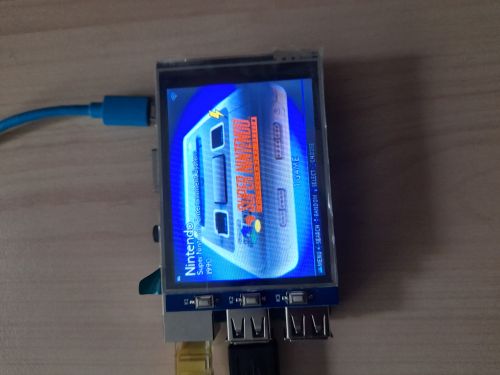
- Boot up Batocera on the Pi, access it via SSH and execute the main driver binary. If the stars align and you are successful, you'll get an image on your screen:
- Add the command line you used to start the drivers to a custom early boot script. If this doesn't work, try using the later post-boot custom script instead (you'll lose out of seeing the splash screen if you use this method).

Examples
MHS35 on Raspberry Pi 4

This is an advanced tutorial, you are assumed to be familiar with basic Linux principles, have already made your small LCD screen working on Raspberry Pi OS and can copy files in and out between Raspberry Pi OS and Batocera.
- Kernel level
- Compile and install the driver onto your regular Raspberry Pi OS install.
- Copy the overlay driver module files (e.g., for MHS35 LCD screen,
mhs35.dtbo,mhs35-overlay.dtb) into/boot/overlays/folder from Raspberry Pi OS’s/boot/overlays/folder. - Create a new folder at
/boot/overlays.bak/and copy/boot/overlays/vc4-kms-v3d-pi4.dtbointo it for backup; then copy/boot/overlays/vc4-fkms-v3d.dtbointo/boot/overlays/vc4-kms-v3d-pi4.dtbo. This is to force Batocera to load the LCD’s 3D driver instead of HDMI’s 3D driver. - Adjust settings in
/boot/config.txt(remember, use a text editor that can save line terminators properly!):- Add the LCD driver line
dtoverlay=mhs35:rotate=90; add the GPU 3D acceleration linedtoverlay=vc4-fkms-v3d-pi4,noaudio. - (Optional) In
/boot/config.txt, either:- Add the display resolution lines, you can use either a fixed resolution (e.g., 800×480):
hdmi_group=2
hdmi_mode=87
hdmi_cvt 800 480 60 6 0 0 0
hdmi_drive=2
- Or add a flexible resolution (with initial resolution, e.g., 85 for 1280×720, refer to the official Raspberry Pi documentation):
hdmi_group=2
hdmi_mode=85
hdmi_drive=2
- In
/boot/cmdline.txt:- Append
console=serial0,115200 fbcon=map:10 fbcon=font:ProFont6x11to the line (don’t create a new line), these optional settings are for console display.
- User level
- Create a new folder (e.g.,
mybin/) inside the system folder, transfer the frame-buffer copier program (/usr/local/bin/fbcp) into that folder. - Copy the dependent libraries (such as
libvchiq_arm.so.0,libvcos.so.0, etc.) into the folder; you can get the dependency libraries of a Linux executable by runningldd -v fbcpin Raspberry Pi OS. - Create the auto-start script
/system/custom.sh(if absent), add the line to runfbcp, LD_LIBRARY_PATH=/userdata/mybin /userdata/mybin/fbcp &into the script.
Credit to xuancong on the forums. Original post.
PiStation Deluxe LCD display

The PiStation was confirmed to work with the latest 64-bit builds of Batocera (v33 was tested).
- Adjust settings in
/boot/config.txt- Comment out the line:
#dtoverlay=vc4-kms-v3d-pi4 - Add the line:
dtoverlay=vc4-fkms-v3d-pi4