Table of Contents
SSH/Xterm and Common Commands
The recommended way to access Batocera's terminal is through SSH from another computer on the same local network (so that you get nice features like command history and ASCII coloration). First, make sure that SSH is enabled on your Batocera machine (it is enabled by default): check /userdata/system/batocera.conf and make sure system.ssh.enabled=1 (with no leading #) is present. Then use your preferred SSH tool to connect; enter ssh root@batocera or equivalent in your terminal (or the Command Prompt on Windows 10+).
The username is root. This is the only user on a Batocera machine. So, the typical address to attempt an SSH connection to the Batocera machine would be root@batocera.local or just root@batocera. If none of those work, you can connect to root@192.168.###.###, where 192.168.###.### would be the IP address that you get from MAIN MENU → NETWORK SETTINGS in the Batocera interface.
For example, this is how PuTTY should look when SSH'ing in:

Click “Save” after everything is set up to create a double-clickable profile for convenience.
Once in the SSH session, enter the password. The default password is linux. While typing the password, no asterisks will appear. That is how Linux does things.
If you do not want guest access, turn on “Enforce Security” from MAIN MENU > SYSTEM SETTINGS > SECURITY and specify a password.
Turning on ENFORCE SECURITY will also require your username and password to access the network share as well. Despite this, keep in mind that Batocera is not a secure operating system and exposing it to a public network is at your own risk.
A successful login via SSH looks similar to this:
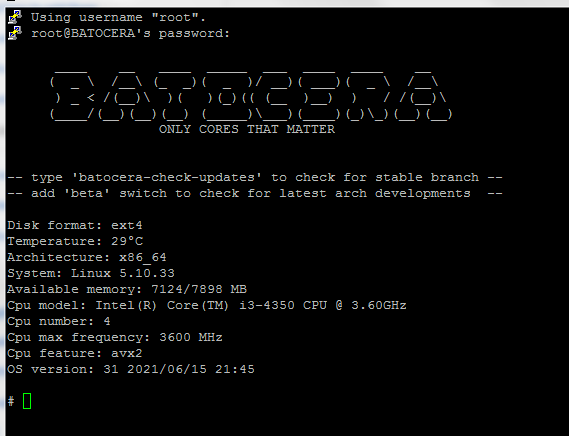
A local terminal can also be accessed on the Batocera machine itself by opening xterm from the Applications menu in the file manager ([F1] on the system list), however this can only be done on platforms which support the Xorg backend (such as x86_64).
It is also possible to open a new TTY session from anywhere in Batocera by pressing [Ctrl]+[Alt]+[F5] (you will be asked to login, refer to above). To return to Batocera after doing this, press [Ctrl]+[Alt]+[F2]. In Batocera v31 and lower, this shortcut is [Ctrl]+[Alt]+[F3]. In Batocera v31 and lower, it is not recommended to use this terminal due to garbled text input; only use it in emergency situations.
Whenever using the command line, try to understand what the commands are doing exactly. Even if it doesn't seem like it, certain commands can be used in harmful ways. For example, putting simply > empty.txt without any command will create an empty file called empty.txt in the current working directory. That's fine, right? If you already had a useful file with this name, it'll be empty after this command.
Even more dangerously, a short command like rm -rf / or :(){:|:&};: could destroy your entire hard drive without prompt!
Copy and paste work differently in PuTTY than in many other Windows programs. For a general introduction to PuTTY features including copy and paste, refer to the PuTTY documentation.
Password-less authentication
From a remote machine to Batocera
Batocera can remember the SSH client's key such that it no longer requires a password to type in.
This section assumes that your Batocera user data partition is formatted Linux-native (ext4 by default, or btrfs). The chmod commands below won’t be applied correctly on FAT32 or NTFS partitions, and as a result passwordless SSH will fail.
- On Batocera, run the following in terminal:
chown root:root / /userdata/ /userdata/system/
chmod 755 / /userdata/ /userdata/system/
mkdir -p ~/.ssh
touch ~/.ssh/authorized_keys
chmod 700 ~/.ssh
chmod 600 ~/.ssh/authorized_keys
- On the client computer (the one which logs into Batocera via SSH), generate its SSH keypairs (if not already done so) and add the public Batocera SSH key to the Batocera SSH configuration as follows:
- For most Linux-based distributions, run the following:
ssh-keygenand mash
[Enter]through all of the questions. Don't worry about setting a master password for the public keys. Then run:cat ~/.ssh/id_rsa.pub | ssh root@batocera.local 'cat >> /userdata/system/.ssh/authorized_keys'
replacing
batocera.localwith the IP address of Batocera if using a static IP. - For Windows, paste the
id_rsa.pubkey fromC:\<yourUsername>\.ssh\id_rsa.pubinto Batocera at~/.ssh/authorized_keys.
That's it. You should be able now to SSH into your Batocera system from your SSH client without entering any password.
Advanced users may be tempted to use ssh-copy-id to set up the authorized_keys file. This will not work, due to limitations in the Dropbear setup as implemented in Batocera.
From Batocera to a remote machine
It is also possible to set up passwordless authentication the other way around: From Batocera to am remote machine. Since Batocera does use the Dropbear SSH service, the ssh-keygen command will not work to create a local SSH keypair. Instead, the following command will generate the according SSH keypairs:
dropbearkey -t rsa -f ~/.ssh/id_dropbear
Once done, the public SSH key will be shown on the command line window. In case you want to show the public SSH key later, do so by executing:
dropbearkey -y -f /userdata/system/.ssh/id_dropbear | grep '^ssh-rsa' > /userdata/system/.ssh/id_dropbear.pub
You can now copy the according public SSH key to your remote machine as already shown above, but the other way around of course.
Basic SSH commands
Once you are connected to Batocera, you can use most standard Unix commands.
When we say most, we mean mostly the GNU coreutils. Batocera is a lean build-root Linux based system, which does not have a lot of the commands or packages that other distributions typically do. A lot of commands aimed at Ubuntu or Mint for example won't work here.
Some command-line tools have an --help option describing how to use the program, for example, typing cp --help will print how the command is used in the command-line interface.
BusyBox v1.31.1 (2020-11-28 14:11:54 CET) multi-call binary.

Usage: cp [OPTIONS] SOURCE... DEST

Copy SOURCE(s) to DEST

	-a	Same as -dpR
	-R,-r	Recurse
	-d,-P	Preserve symlinks (default if -R)
	-L	Follow all symlinks
	-H	Follow symlinks on command line
	-p	Preserve file attributes if possible
	-f	Overwrite
	-i	Prompt before overwrite
	-l,-s	Create (sym)links
	-T	Treat DEST as a normal file
	-u	Copy only newer files
Most command-line tools have a syntax similar to <program> -<option flags> <parameters of program> <path/to/input/file> <path/to/output/file>, but not all of them. It's worth reading their manual before using them.
The default working directory is the HOME folder of Batocera at /userdata/system. This will appear as ~ in your terminal. You can check what directory you are currently in with pwd.
Using the command line with paths of files can be confusing at first, there are two types of paths:
- Absolute paths : they will always be the same ones regardless of the current directory you are in, and they start with a
/character;/userdata/savesfor example. - Relative paths : they are relative to you current position. For example, if you are in the
/userdatadirectory, and you usenano system/batocera.conf, you will execute the command nano on the filebatocera.conflocated in the/userdata/systemfolder.
If a path, or a filename, contains special characters or spaces, you will need to put either single quotes ' or double quotes " around it.
Most commands can be immediately halted with [Ctrl]+[C]. Note that doing this may corrupt data if that program is in the middle of editing a file.
But if [Ctrl]+[C] is used, then how do you copy text from a SSH session? Simple: highlight the text and it will automatically be copied to your host system's clipboard. To paste, right click.
Basic file usage
Batocera includes a powerful orthodox file manager called Midnight commander:
mc: starts the command-line file explorer Midnight Commander. This tool can be used to move, copy, delete, rename, and edit files, as well as create folders, make symbolic links, and change individual file permissions. This utility also supports mouse input.
Files can also be manipulated using standard Unix commands. Here is a cheat-sheet:
pwd: displays the current working directory (folder) [Print Working Directory], e.g. runningcd /userdatathenpwdwill output/userdatacd: changes the current working directory [Change Directory], e.g.cd /userdata/romsputs you in the/userdata/romsfoldercp: copies a given file or folder to another path [CoPy], e.g.cp /userdata/system/batocera.conf /userdata/batocera.confwill create a copy ofbatocera.confin the/userdatafolder.du -sh: displays the size of the specified element [Disk Usage, Specified, Human-readable], e.g.du -sh /userdata/roms/snesdisplays the size on disk of the snes roms folder (If accessed from a Windows computer with the file manager, the “size” and “size on disk” may not be the same, especially for .wine games. This command displays the actual size on disk.)ls: lists the files and folders present in the current directory [LiSt]. e.g.lswhile in/userdata/will outputbios cheats decorations extractions …etc.mkdir: creates a directory [MaKe DIRectory], e.g.mkdir contentwill create a directory calledcontentin the current working directory.mv: moves a given file to another path [MoVe], e.g.mv /userdata/roms/gb/game.zip /userdata/roms/gbcwill move the filegame.zipfrom gb to gbc; themvcommand can also be used to rename files, e.g.mv /userdata/roms/gb/game.zip /userdata/roms/gbc/gb_game.zipwould rename the file in the same directory.nano: opens a command-line text editor for the specified file, e.g.nano /userdata/system/batocera.confopens the filebatocera.confto edit it; for more info see this link.rmdir: deletes a directory if it is empty [ReMove DIRectory], e.g.rmdir contentwill delete the directory content if it is empty.rm: deletes a specified file [ReMove], e.g.rm invaders-201226-124223.pngwill erase the fileinvaders-201226-124223.pngin the current working directory.rm -r: deletes a directory and all the files it contains [ReMove, Recursive], use with caution as it has no prompt!unzip: decompresses a given .zip file in the working directory, e.g.unzip file.zipwill extract all the data in file.zip in the current working directory. An alternate location for the extraction may be specified with the-doption [Directory], for example,unzip file.zip -d uncompressedwill extract all the data in file.zip into a subdirectory called uncompressed.
Batocera store
The content downloader, essentially. This was introduced in Batocera v29 ( or close enough to it).
batocera-store list: list all available packages (pre-configured games from the store)batocera-store install <package>: install a packagebatocera-store list-repositories: list all currently configured repositories to fetch data from.batocera-store refresh: refresh the store listbatocera-store update: update all installed packages to their latest available versionsbatocera-store clean: clear the store cachebatocera-store clean-all: clear the store cache and package files
Debugging
Most of these commands require export DISPLAY=:0.0 to be run first before they can work.
The following commands can be used to debug your Linux-based operating system:
aplay -l: returns the list of playback hardware devices [Audio PLAYer, List] (can be used to debug audio issues on PC).xrandr: returns the list of available displays [X Window Resize AND Rotate] and their reported resolutions (can be used to debug video issues on PC). More info on this page.vulkaninfo: Vulkan API debugging info.blkid: returns the list of mountable drives connected to the machine. More info on the external storage page.btop: advanced task manager.htop: basic task manager.pidof: gives a list of processes identifyiers (PID) for a running process name [Process IDentification OF], for examplepidof retroarchreturns a number when a retroarch-based emulator is running.kill [PID]: kills a process with a given PID, for example ifpidof retroarchreturned 640, then runningkill 640would terminate theretroarchprocess. This command can also to be used to check if a process is alive with the-0flag. eg.kill -0 640( what does this output?)pgrep: Works like the Unixgrepcommand but instead of text and strings it works with processes. For example,pgrep emul*will obtain all PIDs of processes containing the string emul, such asemulationstationand its wrapper script.which: it is used to find the location of the executable file associated with the command. eg.which pythonshows the path of python binary.
- How to install btop on Batocera v33 and earlier
-
BPYTOP is a more sophisticated system resource monitor powered by Python.
Starting with Batocera v34, an equivalent of bpytop is available for everyone, by simply entering
btopfrom the command line (orbtop --utf-forceif your current locale doesn't support UTF-8). For versions prior to Batocera v34, follow the install guide below.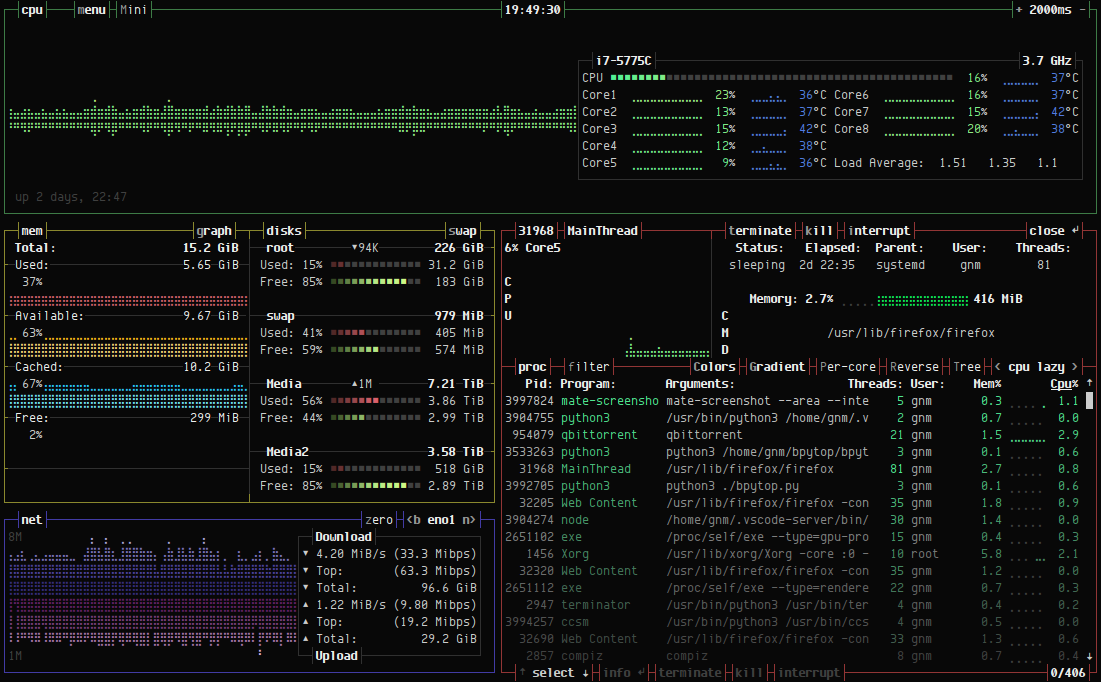
To install it:
python -m ensurepip --upgrade
pip3 install bpytop --upgrade
batocera-save-overlay
This needs to be done every update.
Unique to Batocera:
/etc/init.d/S31emulationstation stop: kills EmulationStation.batocera-es-swissknife --restart: starts/restarts EmulationStation (can[Ctrl]+[C]without closing ES to get back to terminal)./etc/init.d/S31emulationstation start: starts/restarts EmulationStation ([Ctrl]+[C]will bring back control of the terminal without closing ES).unclutter-remote -s: show the mouse cursor on-screen.unclutter-remote -h: hide the mouse cursor on-screen.batocera-info: prints out the info seen when logging in.batocera-settings: autonomously make edits to configuration files, see its own page for usage.batocera-resolution listModes: Shows a list of the available display modes as they appear in EmulationStation's Video mode option.batocera-padinfo: prints info about the current connected pads ( v32 has this functionality broken, pads use a different input driver now?)batocera-support: create a Batocera support tarball
Batocera resolution
Most of these commands require export DISPLAY=:0.0 to be run first before they can work.
batocera-resolution: shows a list of commands related to resolution/display.batocera-resolution listModes: Shows a list of the available display modes as they appear in EmulationStation's Video mode option.batocera-resolution setMode <mode>: set a mode shown in the list, eg.batocera-resolution listModes max-1920×1080batocera-resolution currentMode: show the name of the current modeline being used (modeline includes setting the resolution, refresh rate and timings).batocera-resolution currentResolution: show the current resolution being sent to the output.batocera-resolution listOutputs: list all the available and connected outputs.batocera-resolution setOutput <output>: switch to the specified <output>, eg.batocera-resolution setOutput HDMI-1batocera-resolution minTomaxResolution <width>x<height>: (outdated from v32 and higher, usemax-1920×1080as asetModeinstead) force a maximum resolution; if the configuration or video mode attempts to exceed this, bring it back down to this specified resolution, eg.batocera-resolution minTomaxResolution 1280×720batocera-resolution forceMode <horizontal>x<vertical>:<refresh>: create a custom modeline and force it on the current display (can result in no display if incompatible settings are used), eg.batocera-resolution forceMode 1920×1080:60
Batocera ES swissknife (dev tools)
Batocera features some tools to aid developers. Run batocera-es-swissknife [FLAG] to use them. You can run batocera-es-swissknife --help to see the current list of flags, but here is a copy of that (last updated Batocera v32):
  --restart  will RESTART EmulationStation only
  --kodi     will startup KODI Media Center stopping ES
  --reboot   will REBOOT whole system
  --shutdown will SHUTDOWN whole system
  --emukill  will exit any running EMULATORS
  --espid    checks if EmulationStation is currently active
      This number is the real PID of the binary!
      If the ouput is 0, then ES isn't active
  --emupid   to check if an Emulator is running
      This number is just the PID of emulatorlauncher.py
      If output is 0 then there is no emulator active!

  --arch     Shows current architecture running
  --version  Shows current version of BATOCERA running
  --update   Shows possible update for your install
      default: stable, you can type --update butterfly

  --overlay  will try to backup your overlay file
  --remount  toggle write access to <dir>, default /boot
      This switch can have serious effects for your setup
  --reset-ra will set all RA settings to default
Formatting tools
batocera-format --help: summons an angry, sentient tubabatocera-format listDisks: list all the partitions and disks currently available to format.batocera-format listFstypes: list the available formats Batocera can format a disk to.batocera-format format <disk> <fstype>: destroy a whole disk and format it to <fstype>batocera-format format INTERNAL <fstype>: special exception format, only format the userdata partition of the internal drive to a particular <fstype>.
SMART drive health check
This can check the S.M.A.R.T. health as reported by the drive. If looking for a basic guide on how to use these: https://linuxconfig.org/how-to-check-an-hard-drive-health-from-the-command-line-using-smartctl and https://www.techrepublic.com/article/how-to-check-ssd-health-in-linux/ (skip over the installation part, it's already included in Batocera since v34). More rigorous documentation can be found on the Arch Wiki's page about the tool.
lsblk: list all the diskssmartctl -i /dev/sdx: show info about disksdxsmartctl -H /dev/sdx: show current health of disksdxin a single wordsmartctl –all /dev/sdx: show all SMART info of disksdxsmartctl -t conveyance /dev/sdx: run a short five-minute conveyance test on disksdxsmartctl -t select,100-150 /dev/sda: run a select test on disksdx
Exercise restraint when testing your disks.
Internet functionalities
batocera-upgrade: lets you update batocera using the command-line with the correct URL, see Manual upgrades/downgrades for more details.batocera-install listDisks: lists the current disks available to install Batocera onto (also visible with the Install Batocera on a new disk option in ES).batocera-install listArchs: downloads the list of current stable architectures that Batocera has available.batocera-install install <disk> <arch|file>: downloads and installs the latest stable version of Batocera or a specified file onto the target disk. Be careful, as this completely destroys all existing data on that disk! If using a local file, that file must be in/userdata/system/installs.batocera-install listFiles: lists all the files found in/userdata/system/installs.pacman -Ss: let's you search through the pacman packages using the command-line [PACkage MANager, Sync, Search], see Batocera Package Manager (pacman) for more infos.pacman -S: let's you install a package using it's name [PACkage MANager, Sync], see Batocera Package Manager (pacman) for more info.pacman -Rsd: let's you remove a package using it's name [PACkage MANager, Remove, recurSive, skip Dependancies checks], see Batocera Package Manager (pacman) for more infos.pacman -Scc: clears the entire cache of the pacman manager [PACkage MANager, Sync, clear Cache (extra c forces a complete clear)], see Batocera Package Manager (pacman) for more infos.pacman -Sy: Updates the pacman database [PACkage MANager, Sync (extra y refreshes the database)], see Batocera Package Manager (pacman) for more infos.
Logging to a file
Sometimes, you might prefer having the output of a command inside a separated text file instead of reading through the command line interface. to do that you can use the > and >> symbols followed by the path of a filename.
for exemple, the command ls gives you the list of all files and folders in your current working directory, if you want to gather this inside a text file named list-files.txt at /userdata/system, you simply need to use:
ls > /userdata/system/list-files.txt, the command will return nothing, and instead the files will be listed inside a new file called list-files.txt located in /userdata/system. Running the command again will replace the content of list-files.txt.ls >> /userdata/system/list-files.txthowever will add the output of the command to the existing file, without removing the previous infos.
You can also pipe the output to another program by using the vertical line character (|). For example, dmesg | less will let you see a scrollable list of the output with the [Up]/[Down] arrow keys; dmesg | more will let you see a full page of the output at a time, moving forward with [Spacebar]. Both of these examples can be quit by pressing [Q].
Miscellaneous scripts
batocera-screenshot: Saves a screenshot of the current screen in the/userdata/screenshotsfolder.batocera-record: Starts recording the screen;[Ctrl]+[C]to stop.batocera-overclock list: shows current available oveclocking options (RPi and s922 only)batocera-overclock set <value>: set and save the selected overclockOverclocking your hardware could cause irreversible damage and/or erratic behavior, this is at your own risk. If any issues occur after setting this, this should be the first thing to be returned to default.
batocera-sync list: list storage devices that are capable of being synced tobatocera-sync <storage UID>: uses rsync to sync the current userdata to thebatocera/folder on the selected storage device (NTFS not supported, FAT systems don't support syncing Bluetooth settings)batocera-timezone get: show the current configured timezonebatocera-timezone detect: attempt to automatically guess your timezonebatocera-timezone set <timezone>: manually set a timezone, timezones follow the<country/continent>/<city/region>format, eg.batocera-timezone set Europe/Maltaoretc/GMT+9
Custom aliases
While not mandatory, it is good to know you can create aliases of commands, they let you launch a command with a simple keyword. One way to do this can be done by creating a text file in /userdata/system, that file must be named .profile : it will contain aliases commands and will execute them when Batocera is launched, so be careful of what you do.
The alias command syntax is as follow:
alias customname='du -sh /userdata/system/batocera.conf'
In this example, once batocera has been restarted, entering customname in the command line will do the same as entering du -sh /userdata/system/batocera.conf (in this example, it basically returns the size of the batocera.conf file in the command-line interface)
A more useful, yet complicated example, would be to try and use ffmpeg to save a screenshot of Batocera in the screenshots folder for x86_64 devices, as devices other than Raspberry Pi's don't have an equivalent of raspi2png. In this example I call the custom alias “pc2jpeg”.
alias pc2jpeg='ffmpeg -hide_banner -loglevel error -f x11grab -i :0.0 -frames:v 1 /userdata/screenshots/$(date +%y-%m-%d_%H-%M-%S).jpg'
This commands does the following :
ffmpeg: an command-line encoder included inside batocera.-hide_banner: prevents ffmpeg from printing the copyright notice when running this command.-loglevel error: will only alert in the command-line if there is an actual error preventing the command from working.-f x11grab -i :0.0: usesx11grabto capture the screen 0 (this lets you use the screen as the source).-frames:v 1: the number of video frames to capture./userdata/screenshots/$(date +%y-%m-%d_%H-%M-%S).jpg: the full path to the file we want to save.$(date +%y-%m-%d_%H-%M-%S): executes thedate +%y-%m-%d_%H-%M-%Scommand and reurns its result in the command line (for exemple, it will return20-12-31_21-52-19the 31st december of 2020 at 21h52m19s), so the path before would be read as/userdata/screenshots/20-12-31_21-52-19.jpg.
So by using the pc2jpeg custom command, a JPEG file will be created with a filename based off the date of the screenshot.
This functionality has since been integrated into the command batocera-screenshot. This example remains here to show you the syntax of alias.
Troubleshooting
Visit the relevant section in the troubleshooting page for further help.